To launch the table selection wizard in the Aqua Data Studio AI Assist window, first type a natural language query in the Query Analyzer, highlight it, and then click the "Share Database Metadata"  icon in the AI Assist toolbar. This will trigger the metadata generator, which provides table suggestions based on your active database connection.
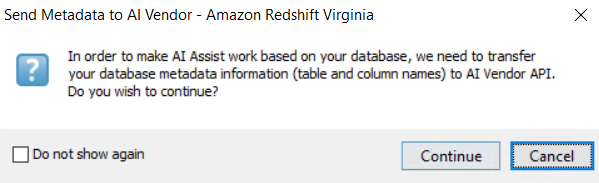
For security reasons, ensure that you consent to transferring your metadata to AI and click Continue.
The DB Metadata Generator for AI popup will open, where you can select the Tables you want to use in your query.
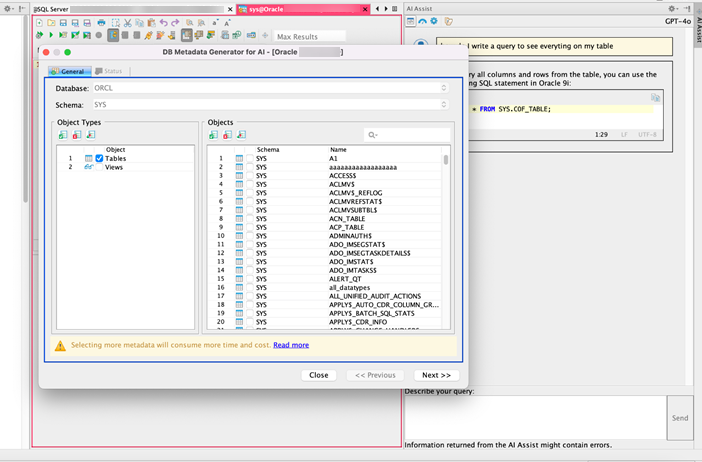
The warning message about “More time and cost” indicates that working with large datasets can result in higher resource consumption due to two factors:
- Increased Metadata: More metadata is transmitted over the network, which can impact performance.
- AI Service Charges: Many AI services charge based on the number of words processed, which may lead to higher costs when handling large datasets.
To optimize performance, you can adjust the AI service settings. Navigate to the Set Message Limits settings to configure word usage limits or manage other options as needed.