In this step you will:
- Add a Vertical Splitter weblet to the page and move the employees list onto its left hand side.
- Add a Nav Panel to the right hand side of the vertical splitter and give this a name
- Add an Anchor weblet to the employee number column in the employees list and set the weblet up to invoke a Details WebRoutine and output to the nav panel.
- You will create the Details WebRoutine in the next step.
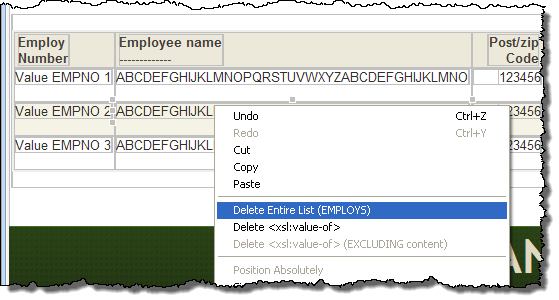
- In this step you will temporarily remove the employees list from the page. With the ShowPage WebRoutine open in the Design view, select anywhere inside the employees list and use the context menu, to select the Delete Entire List (EMPLOYS) option:
- Drag and drop a Vertical Splitter onto the page.
Set up its properties as:Property
Value
Width
100%Height
500pxLeft_proportion_percent
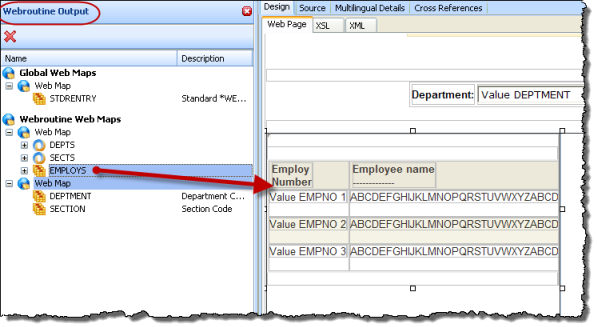
40 - Select the WebRoutine Output tab, and drag and drop the list EMPLOYS onto the left side of the Vertical Splitter:
- Save your changes.
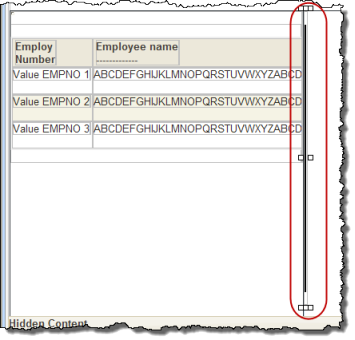
- Drag and drop a Navigation Panel onto the right side of the vertical splitter.
With the Navigation Panel selected set up its properties:Property
Value
name
EmpDtlborder
noneborder_width
0pxheight
450px - Drag and drop an Anchor weblet into the Employ Number column in the employees list. With the Anchor weblet selected, set up its properties as:
Property
Value
Currentrowhfield
EMPNOCurrentrownumvalue
$EMPNORentryvalue
DOn_click_wrname
Detailstarget_window_name
EmpDtl
Type in the Details WebRoutine name, because you haven't yet defined it. - Save your changes.