Page History
[  |../../index.htm#lansa/reptut01_0515.htm]
You are here:
...
In this step, you will check in your Department Table (iiiDepartments) and the fields which define it's columns. When you check in a table you should always consider whether there are any fields or system variables which it depends on, which need to be checked in at the same time.
1. Display your dynamic list iiiList on the Favorites tab. It contains all fields, tables, and forms beginning with your initials iii.
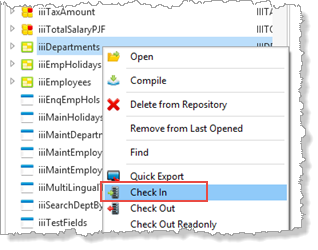
2. Select the table iiiDepartments and right click to display the context menu.
3. Choose the Check In option
4. In the Check in Options dialog, expand the Tables node and select the table iiiDepartments.
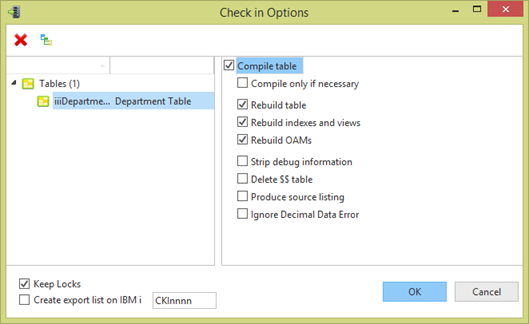
5. Click on the Cross References button on  on the toolbar which will enable you to select the fields used by this table.
The Local Cross References dialog is displayed. This shows all objects referenced by table iiiDepartments and its dependents.
Note Note: The table must be compiled locally to generate the Local Cross Reference information.
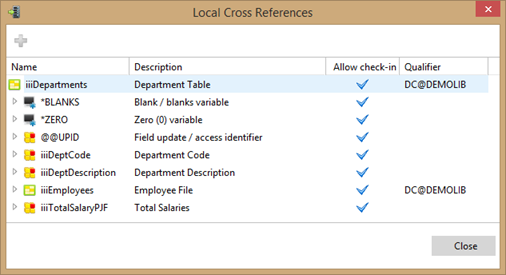
You You do not need to check in system variables and standard fields which will already be defined in the master repository.
Notice that the Allow Check-in column highlights the objects which could be checked in.
6. Select the fields iiiDeptDescription, iiiDeptCode and iiiTotalSalaryPJC using the Control key plus left mouse button.
7. Click on the Add for check in toolbar button to  to add these fields to the check in list.
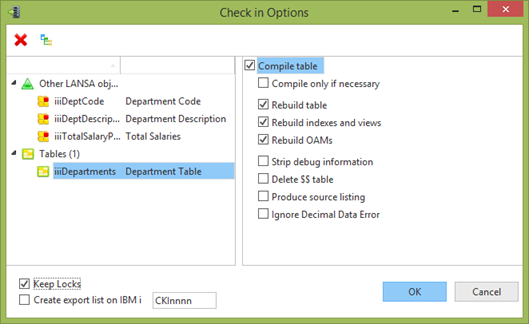
The Check in Options dialog now shows all the selected objects.
Note
Note: The check in options available depend on the type of object selected in the check in list of objects.
This
This image show the options for the table to be checked in to the master repository. The Compile Table option shown, will build table, indexes and OAM for the new table.
When checking in a changed table you should select the appropriate rebuild options.
Delete $$ table is required when rebuilding a table, so that LANSA can rename the existing table beginning $$ and map data from the old table to the new.
Depending on the user id and task tracking settings in your system, a Keep Locks option may appear on the bottom left of this dialog. Selecting this option ensures that any new or modified objects checked into the master will remain locked to the Task ID you are using. For further information, refer to Unlock Objects in Task Tracking in the Administrator's Guide.
8. Press OK to start the check-in.
The Check In tab shows the progress of the check in.
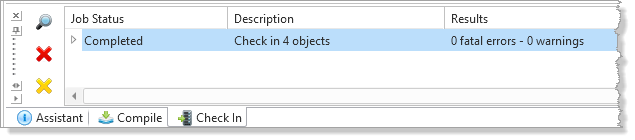
9. Wait for the check in to complete and verify no errors occurred.
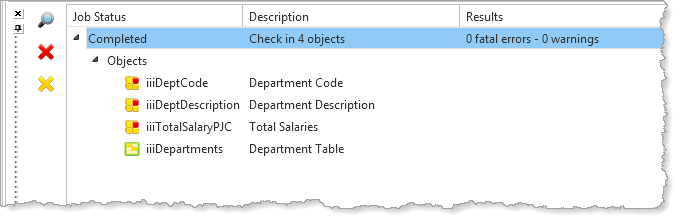
10. Notice that with your check in selected in the Check In tab, you can click the View Detailed Messages for this job icon to  to see a more detailed log.
Initially Initially a compressed views shows Definitions, RDML Compiles and RDMLX Compiles.
Expand RDMLX Compiles to see the detailed messages.
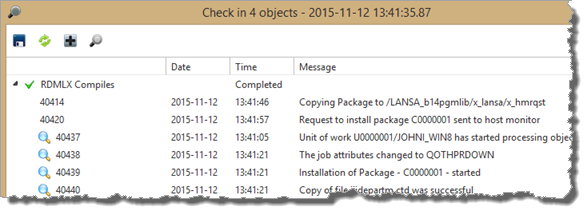
Visual Visual LANSA generated a C program for this RDMLX enabled table's OAM and checked this in to the IBM i.
11. Notice that with any of the log detail lines beginning  you can click the Show IBM i joblog icon to
  to show the server's joblog.
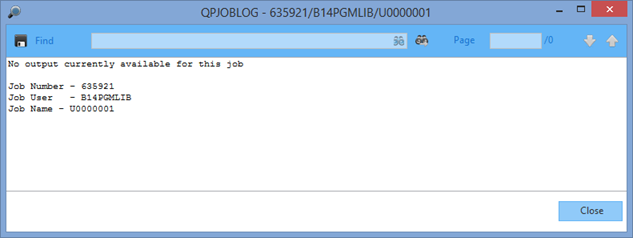
The information available, will depend on your IBM i job management settings. Logs will usually be available for a failed job.
[ |../../index.htm#lansa/reptut01_0515.htm]