Page History
[  |../../index.htm#lansa/frmeng01_0160.htm]
You are here:
...
1. On the File menu, use the New button and select Desktop / Form / Basic Form to create form:
Name | iiiAddEmployee |
|---|---|
Description | Add Employee |
|
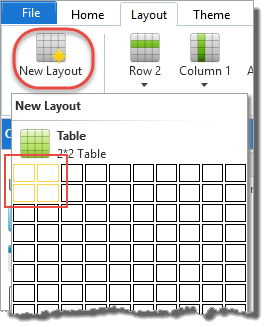
2. From the Layout ribbon, add a Layout Manager with 2 rows and 2 columns:
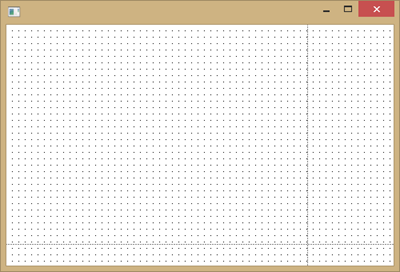
3. Adjust the row and column dividers so that your form look like the following:
Working Working with the form, the Layout ribbon will show these options:
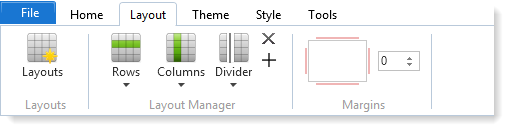
Working Working with a control, the Layout ribbon will show these options:
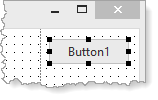

4. In the Design view, select the Controls tab. The Visual LANSA controls will already be selected.
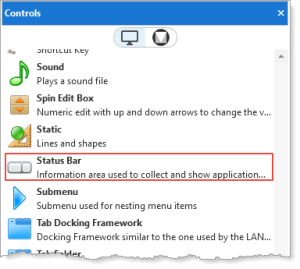
5. Drag and drop a Status Bar component onto the bottom row.

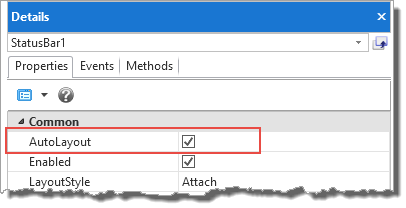
6. The Status Bar will attach to the bottom of the form and expand to the width of the form. This is controlled by the Status Bar's AutoLayout property when equal to True:
[ |../../index.htm#lansa/frmeng01_0160.htm]