Page History
| Note |
|---|
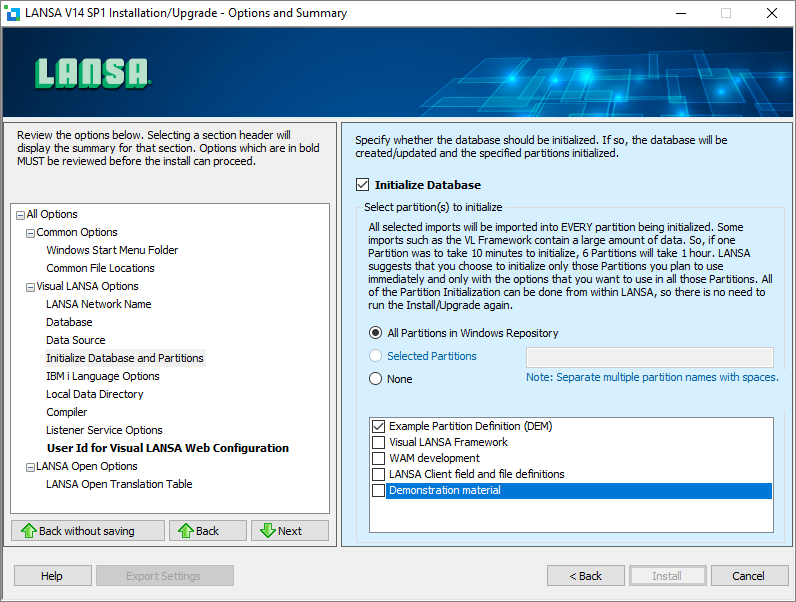
Note: the most efficient way of installing a Visual LANSA Independent System to a VCS Master is to perform a Custom Install, and in the Initialize Database and Partitions options only choose Example Partition Definition. This is because the whole partition will be replaced. Other partition initializations such as Visual LANSA Framework need to be done after the partition has been replaced with the Slave data: |
1. Start the Visual LANSA Independent System which is to be connected to your VCS Master. If it's a completely new install the logon will display something like this:
...
- This path is where LANSA is installed: <code>CC:\Program Files(x86)\SlaveSystem\</code>
- <code>X
</code>X_WIN95\X_LANSA\x_apps\is the location of all packages.
- <code>export
export\</code> is the name of the application - <code>6
</code>6.0.0\is the version number you chose for the Package.
| Note |
|---|
Note: Choosing the Go To Folder option from the Deployment Tool will take you straight to C:\Program Files(x86)\SlaveSystem\X_WIN95\X_LANSA\x_apps\export |
8. Copy the path ready for the import.
...
10. Start the LANSA Import. Paste the path into the Filename field and click open, then double click the <code>lxxdir.del</code> file file. A dialog like the following will be displayed:
...
Note: Once the Job Status is completed, you do not need to wait for the Refreshing Repository to complete nor do you need to press F5. So at this point you can close the Development EnvironmentDevelopment Environment:
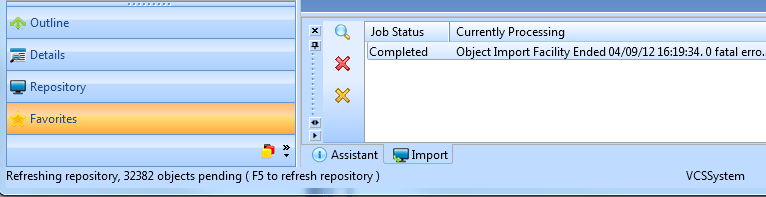
When you restart the Development Environment you will be prompted to initialize the partition if the import came from an older version of LANSA. Choose the options you need to use.
...
In particular it sets all files to read-only.
LANSA and the VCS are now linked together. All objects will be unavailable to edit as they are not checked out from the VCS. (This presumes you use the Check Out/Edit/Check In concurrent development style of version control). If you open an object it will display this message:
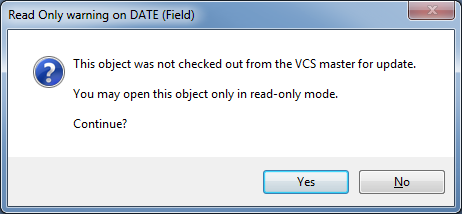
If you check it out from the VCS you will be allowed to edit it.
...