Page History
These instructions describe how to set up a 2nd and subsequent developer to use a VCS Master. It presumes that the VCS already contains the LANSA Repository.
| Note |
|---|
Note: The most efficient way of installing the Visual LANSA Independent System to a VCS Master is to perform a Custom Install and on the options for Initialize Database and Partitions only chose Example Partition Definition. This is because the whole partition will be replaced. Other partition initializations, such as Visual LANSA Framework, need to be done after the partition has been replaced with the VCS Master data: |
...
|
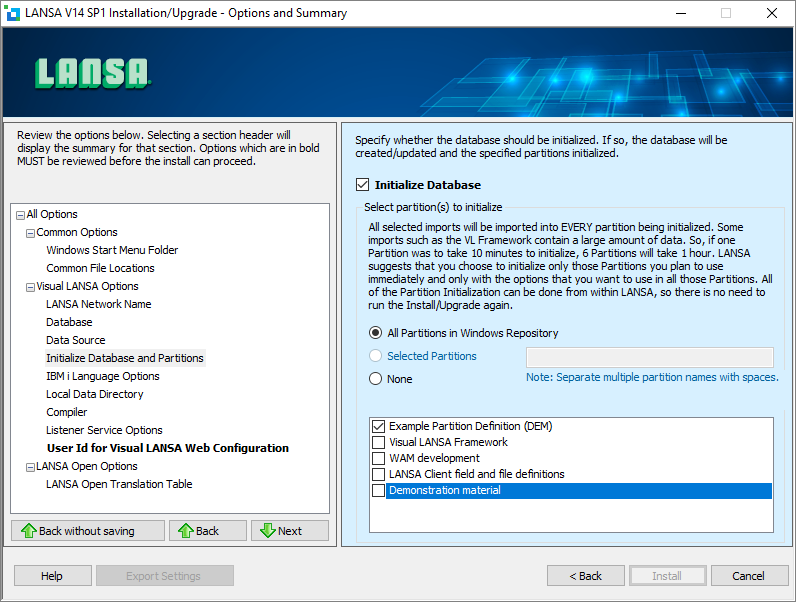
1. Either finish the install or start an already installed Visual LANSA Independent System which is to be connected to your VCS Master. If it's a completely new install the logon will display something like this:
...
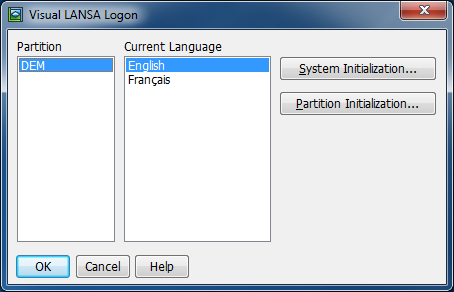
2. Click OK
...
Populate VCS Working Folder
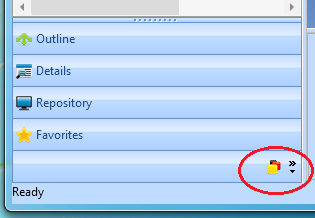
1. When the Development Environment is displayed, display the Version Control tab by clicking on this icon:
...
2. Right click on the Version Control folder and click Show in Windows Explorer:
...
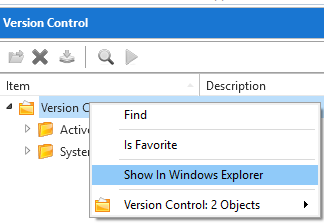
3. Copy the whole of the path. Paste this into the working folder in the VCS:
...
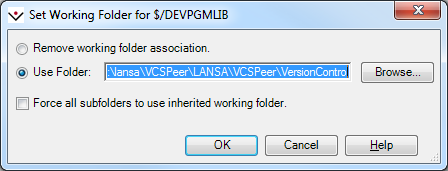
4. Right click on DEVPGMLIB and choose Get Latest Version. As the objects are written to the working folder they will be automatically synchronized into VL.
LANSA and the VCS are now linked together.
All objects will be unavailable to edit now as they are not checked out from the VCS. (This presumes you use the Check Out/Edit/Check In concurrent development style of version control.) If you open an object it will display this message:
...
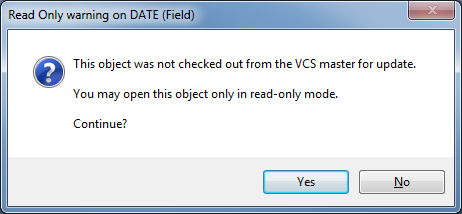
If you check it out from the VCS you will be allowed to edit it.
If you use the concurrent development style Edit/Merge/Commit, then of course the objects are always editable and you must resolve the status of the objects using the VCS.