Page History
[  |../../index.htm#lansa/wamengm1_0070.htm]
You are here:
...
The area of the LANSA Editor where a Web Design is maintained is a visual editor: you use it to 'paint' your web designs. Any WAM that you have open in the Source tab of the LANSA Editor can have its Webroutines' web pages designed in the Design tab.
To open a Web Design for a WAM's Webroutine, select the green arrow, also known as the Webroutine Design Glyph, immediately to the right of the Webroutine command. If the Webroutine does not have a Web Design for the active Technology Service
Provider, one will be automatically generated. Otherwise the Design tab will load with the selected Webroutine's Web Design for the current Technology Service Provider.
The following composite graphic shows what it might look like:
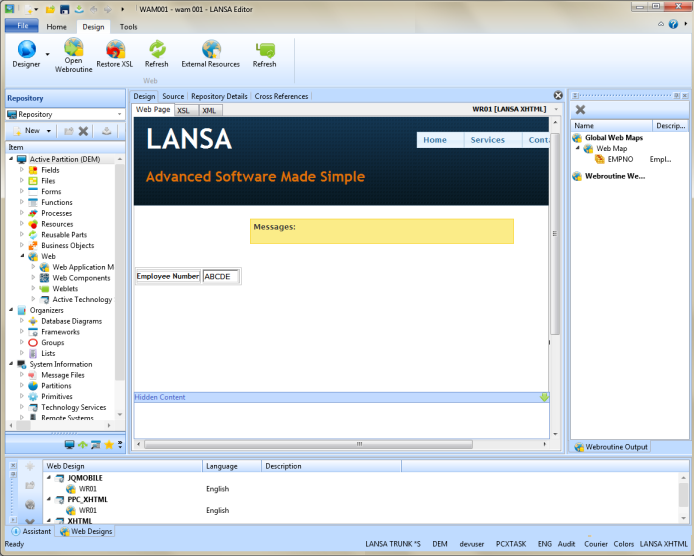
The Design tab's Web Page is the visual display of the XSL source that is used to generate the web page that the user sees. You can look at the actual, underlying XSL, by selecting the XSL tab. Similarly, the XML can be viewed by clicking that tab.
A few additional tabs that act as aids and detailers in the page-painting process are also available. These tabs can be arranged to the left, right or bottom of the Editor's window, or they may be free floating. For details about the LANSA Editor's main features, refer to Setting up Your Workspace in the User Guide.
In the main Editor's pane, as shown above are:
- The Outline tab shows fields and lists, as well as other elements contained in the Web Page currently being edited. Clicking on an entry in this list selects the corresponding control in the Web Page tab. If a drag and drop operation is hovering over an HTML or XSL element in the design, that element will be highlighted in the Outline tab to give a visual feedback and assist with drag and drop operations.
- The Web Design tab showing all Web Designs for all languages and all Technology Service Providers for the current Webroutine. This tab is useful for deleting Web Designs, rolling back changes, creating language copies and so on.
In the left-hand pane in the graphic, you will see:
...
To move objects between the Repository and the WebRoutine Output tab, you would organize your screen layout to show both tabs at the same time.
[ |../../index.htm#lansa/wamengm1_0070.htm]