Page History
You can uninstall LANSA on Windows using the Microsoft Windows Control Panel's Add/Remove Apps feature. Choose Apps & Features and, from the list, select LANSA (Selective removal).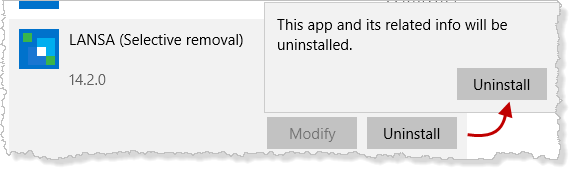
1. Click on the Uninstall button, then the Uninstall button on the next dialog, as shown above, to open the LANSA Selective Removal dialog.
The LANSA Selective Removal dialog lists all the versions of LANSA that you have on your PC: 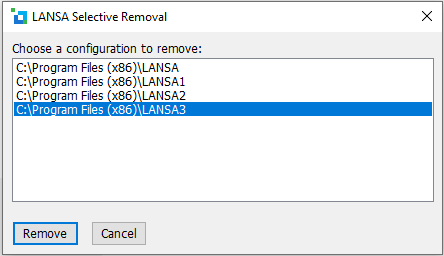
2. From the list of LANSA versions, select the version that you wish to remove and click on the Remove button. You can only select one LANSA version at a time.
3. When you select the configuration to be removed, the Remove Configuration dialog is displayed. 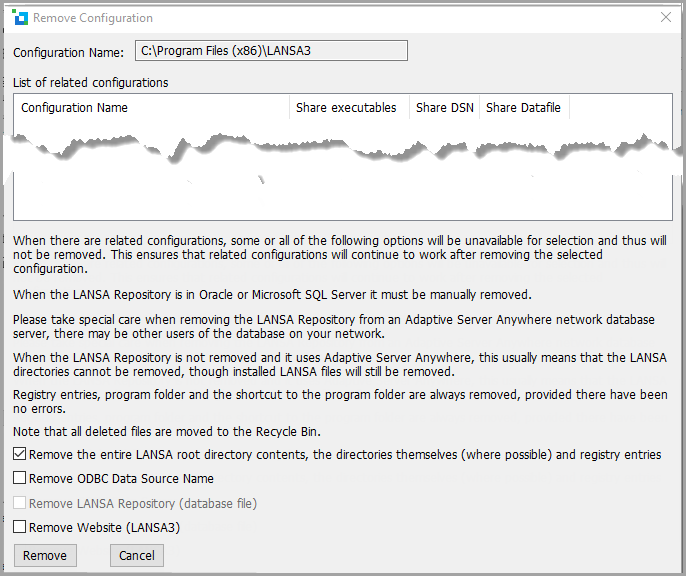
The Remove Configuration dialog contains pertinent information. Please read this before continuing. If there are any related configurations, they are listed so that you can see what is dependent on some parts of the configuration being uninstalled. These related configurations are not altered and will continue to operate correctly after the selected configuration is removed.
...