Page History
This section describes how to create the application.
Step 1. Create Two Separate Forms First
You started off by creating two separate forms. One was named WRKEMP and the other one FRMDETAIL. When the forms were created they were stored in the group Demonstration Material.
Name | WRKEMP |
Description | Work with Employees |
Group | Demonstration Material |
|
It is easier to manage your application if you put all its forms in the same group or framework. Often you might want to create a group for the application.
You then design the user interfaces and the basic functionality for the forms in the editor:
1. Make the caption of WRKEMP 'Work with Employees' and create a list view with employee details. Add a menu with menu options.
2. Write the logic to fill the list in the Initialize event of the form.
3. Make the caption of FRMDETAIL 'Employee Details' and include several fields showing employee address information.
4. Add two command buttons. The Click event of the OK command button updates the employee details and closes the form; the Click event of the Cancel button just closes the form.
Now create the individual forms. This is always the first step of creating a multi-form application.
Step 2. Include the Employee Details Form in the Work with Employee Form
Make WRKEMP the main form of the application. When you create a multi-form application, you must have a main form. When the application is run, the main form can control the other forms in the application by setting their properties, invoking their methods and responding to their events.
Open WRKEMP in the editor. Then open the DEMONSTRATION group in the Groups tab of the Repository tab. This group shows all the forms that have been stored in this group.
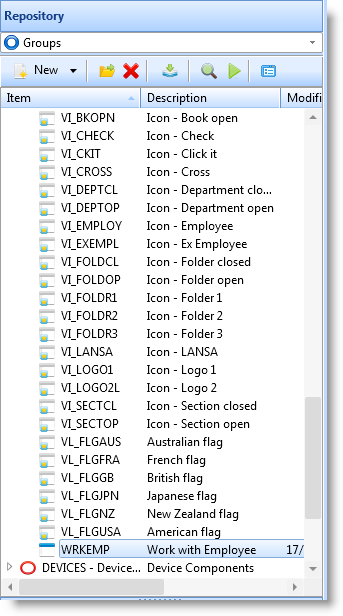
Include the FRMDETAIL form in WRKEMP by dragging FRMDETAIL to the open form. A component definition statement is automatically added for it:
DEFINE_COM CLASS(#FRMDETAIL) NAME(#FRMDETAIL) HEIGHT(296) LEFT(326) TOP(172) WIDTH(494)
You have now established the basic structure of the application: WRKEMP is the main form which owns FRMDETAIL.
WRKEMP is also called the owner form of FRMDETAIL. Similarly, FRMDETAIL can be referred to as a member form of WRKEMP.
FRMDETAIL is now shown as a member component of #WRKEMP in the Outline tab.
Owner Form and Member Forms
When you include a form in an owner form, you are actually including an instance of the form. (For information about instances, refer to Component Basics.). This means that:
...