Page History
In this step you will give the same name to two variations of a screen (with different signatures), one with an empty subfile and one with a subfile with entries.
By defining the two variations as the same screen, there will only be one script to control the navigation to and from the screen.
The function used in this step is the Telephone Search function in the Personnel System, which contains a single REQUEST statement display the screen:
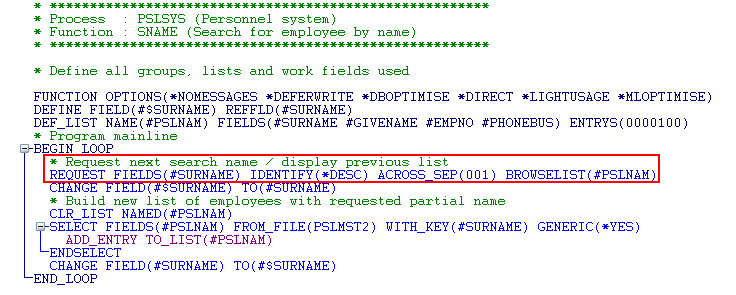
When the screen is initially displayed, it has a different signature to when the it is displayed with a list of employees and phone numbers because the record formats are different.
1. In RAMP Tools, start the RAMP-TS 5250 emulator session.
2. Navigate to the Personnel System main menu:
LANSA run pslsys partition(dem)
3. Select option 7 Telephone Number Search.
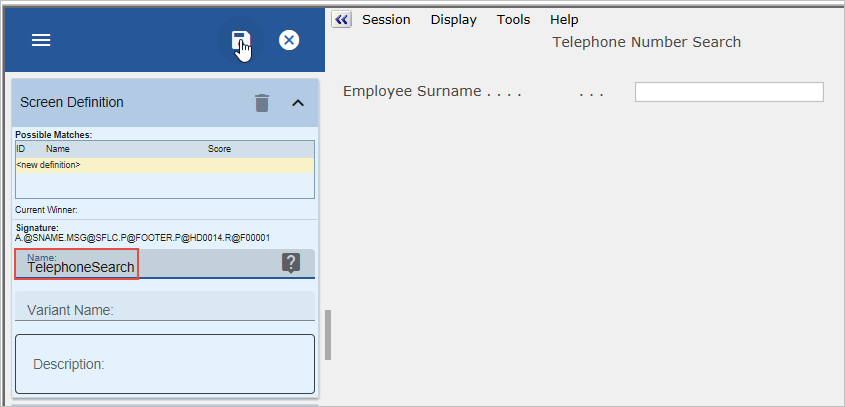
4. Name the screen TelephoneSearch and click the Save button on the Screens tab:
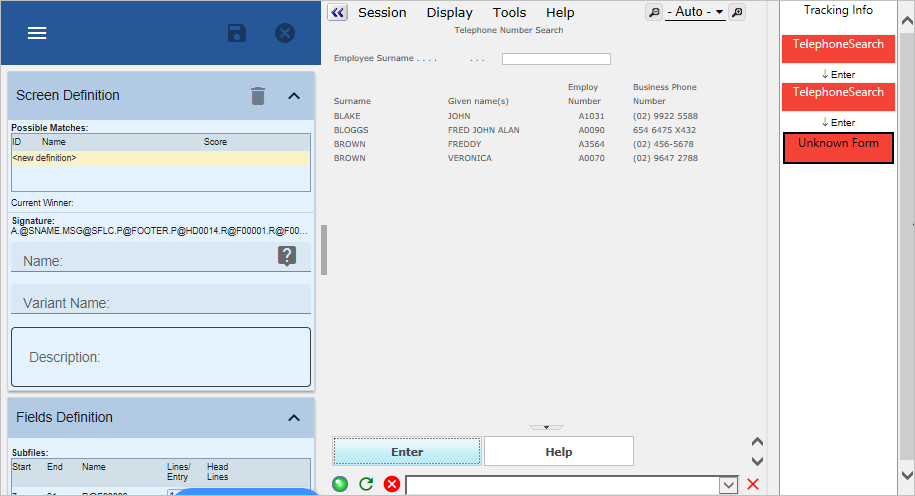
5. Enter a letter in the Employee Surname field and press Enter. Note that the screen is redisplayed with the subfile and another signature, so RAMP shows the screen as Unknown Form.
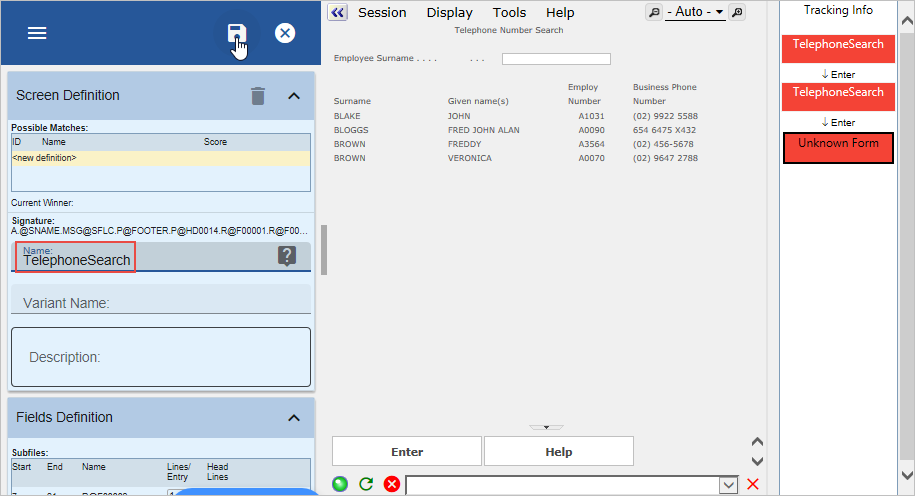
6. Give the screen the same name TelephoneSearch and save the name.
7. Define the TelephoneSearch screen as a destination.
8. Cancel out of the screen and select option 7 again.
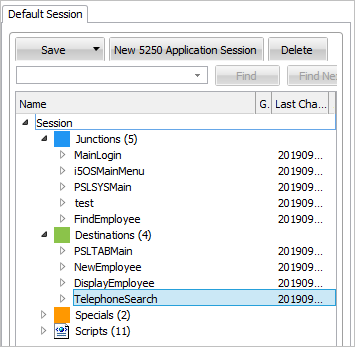
9. Enter a letter in the Surname field and press Enter. Notice that both TelephoneSearch screens are now defined as a destination and that they are shown as one screen in the screens and script list:
10. Track navigation to and from the TelephoneSearch destination screen with Auto Update Navigation Scripts turned on.
11. Do a partial save of the RAMP definition.
Next you need to create a business object with which to associate the TelephoneSearch screen:
12. Use the Instant Prototyping Assistant (from the Tools menu) to create a new business object Telephone Search, add the Details command to it and then associate it with the Personnel application.
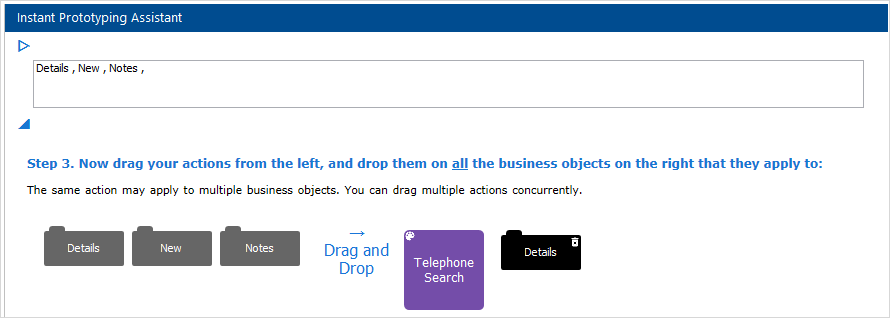
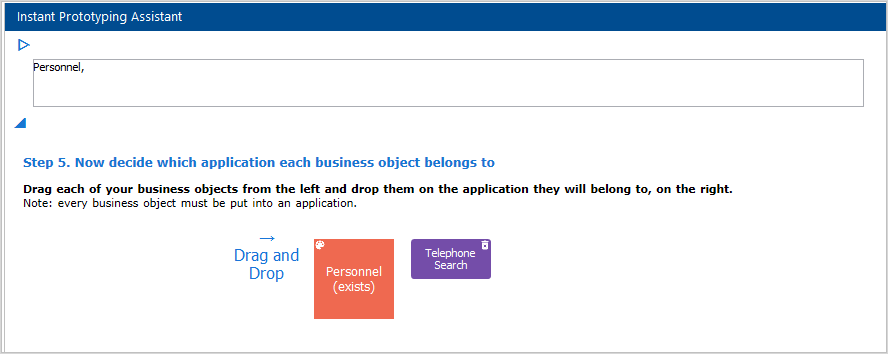
13. When the Telephone Search business object has been created:
- Open its properties
- Delete the New Filter created by default
- Make the Details command a Business Object Command in the Commands Allowed tab
- Click the Close button to the message asking to Restart the Framework
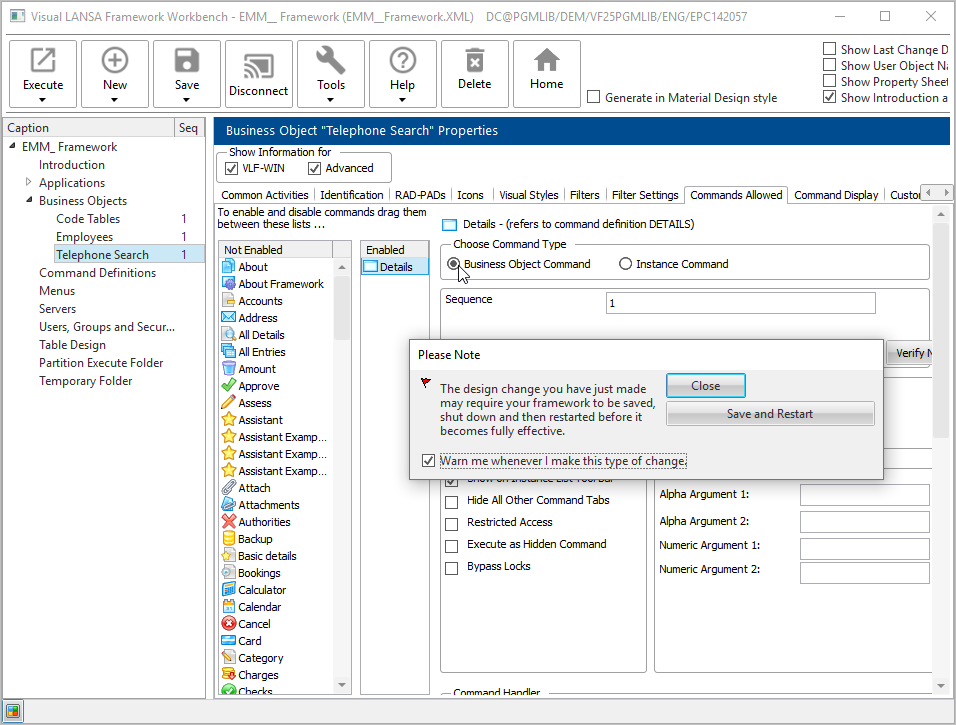
- Close the properties.
14. Display RAMP Tools.
15. Select the TelephoneSearch destination screen in the screens and script list and display its details.
16. Refresh the Associated Command Handlers list.
17. Select the Details command handler of the Telephone Search business object as the command handler.
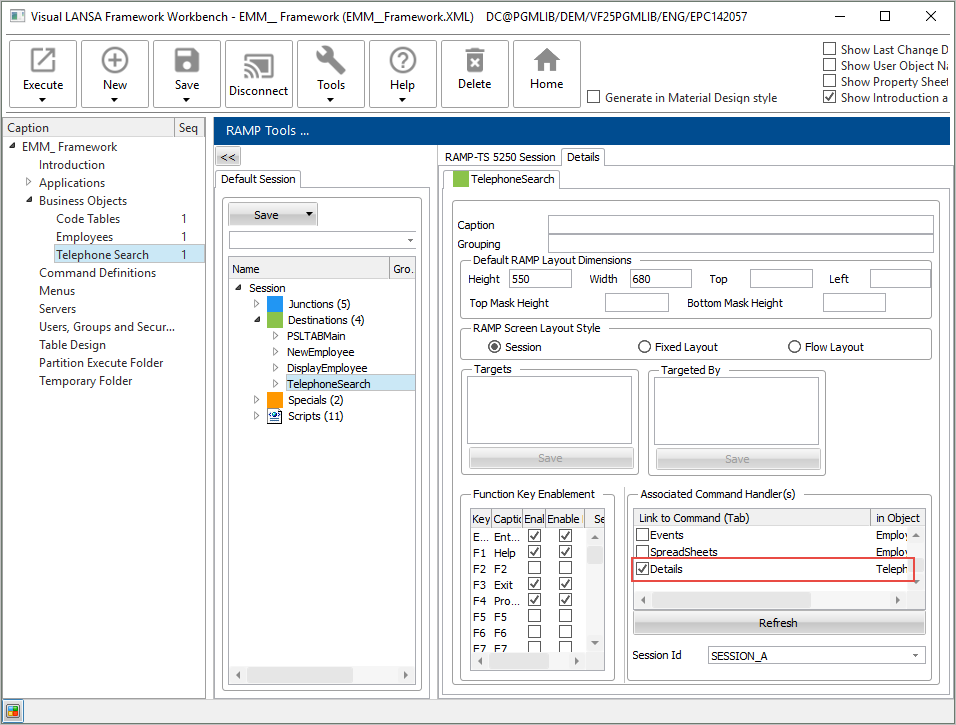
18. Disable all function keys and buttons except Enter.
19. Save and restart the Framework.
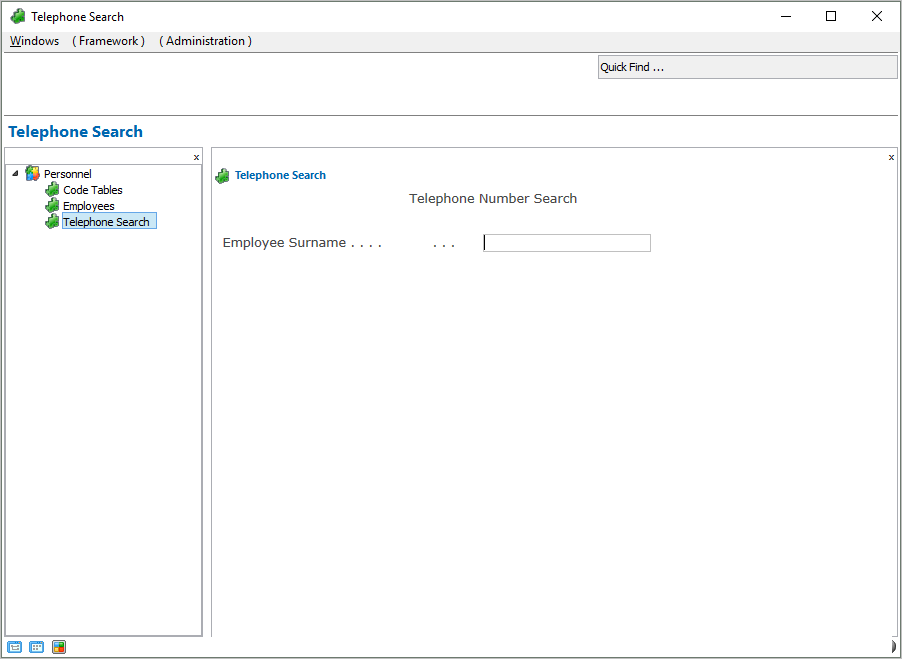
20. Execute the Framework as a VLF-WIN application, as Designer, and select the Personnel application and the Telephone
Search business object.
21. Test the command handler:
Note that if you want to name any fields on the TelephoneSearch destination, you must do it on both screen variations.