Page History
This example shows a form which manages its child forms using a keyed collection:
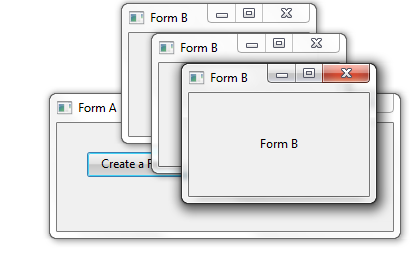
When you click on the Create a Form B button, a new instance of Form B is created and added to the collection. You can use the other two buttons to move the forms right or left.
Define the Collection
The collection to store child forms is defined like this:
Define_Com Class(#Prim_Kcol<#FormB #Std_Num>) Name(#FormBs)
...
Add Items to the Collection
The code to create a new form B in the collection is contained in the Click event of the Create a Form B button:
Change Field(#LISTCOUNT) To('#FormBs.ItemCount + 1')
Invoke Method(#FormBs<#listcount>.showform)
In the above note that:
...
Work with the Collection Items
The click events of the two buttons to move the child forms to right and left use two different ways of working with items in a collection.
The click event of the Move all Form Bs Right button invokes a MoveRight method of Form B for all forms in the collection:
Invoke Method(#formBs<>.MoveRight)
To work with all items in the collection specify a blank key for the collection:
#CollectionName<>
The click event of the Move all Form Bs Left uses a For/EndFor loop to iterate through the items in the collection and to move them to the left:
For Each(#Current) In(#FormBs)
Change Field(#NEW_LEFT) To('#Current.Left - 5')
Set Com(#Current) Left(#New_Left)
Endfor
Also see
Multi-Form Applications
Source Code for Collection Example 3
Form A
Function Options(*DIRECT)
Begin_Com Role(*EXTENDS #PRIM_FORM) Caption('Form A') Clientheight(108) Clientwidth(336) Height(135) Layoutmanager(#GDLM_1) Left(286) Top(124) Width(344)
...