Page History
Wiki Markup
To start tracing in RAMP VLF-ONE, choose _Turn Tracing On_ option in the Execute Framework as a VLF-ONE dialog.
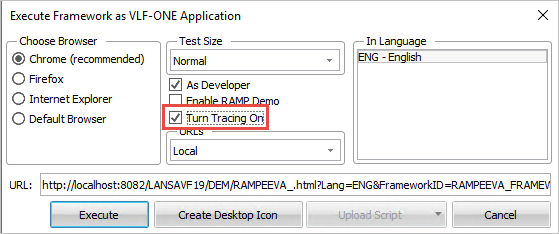
To start tracing in RAMP Windows, click on the (Framework) menu, select (Tracing) -> Application Level.
RAMP execution might produce a large number of statements.
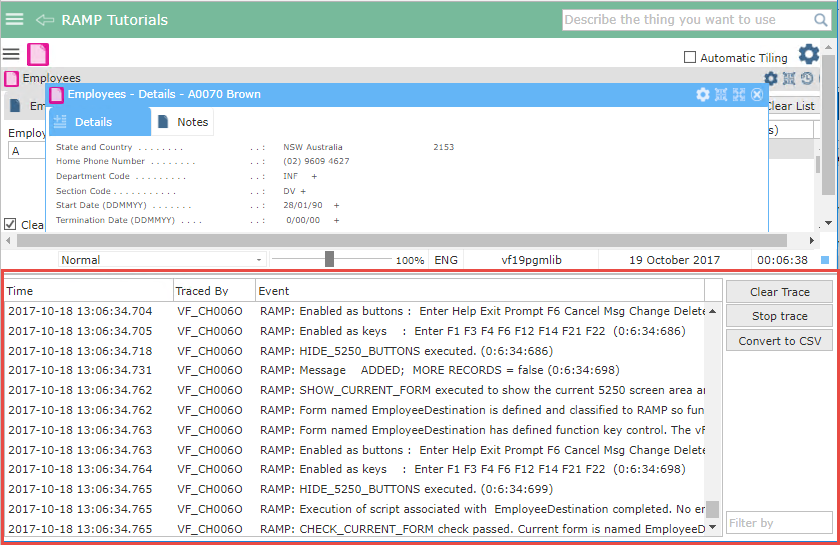
For RAMP execution tracing in VLF-ONE, we recommend to use the Convert to CSV button to save the trace into a CSV file in your temp directory.
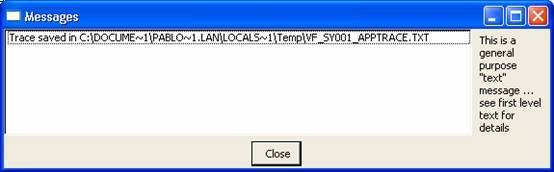
For RAMP execution tracing in Windows, we recommend to use the Save Trace to File button to save the trace into a text file in your temp directory. The exact location and file name of the trace file produced will appear in a message.
Press the Messages button to find out about the location of the trace file.
Adding Your Own Tracing Statements
The shipped Java Script function TRACE() allows you to add your own trace statements to the trace:
For example, this trace statement:
TRACE("");
TRACE("Value of AKEY1 is =>" + objListManager.AKey1[0] + "<=");
TRACE("");
Generates this tracing:
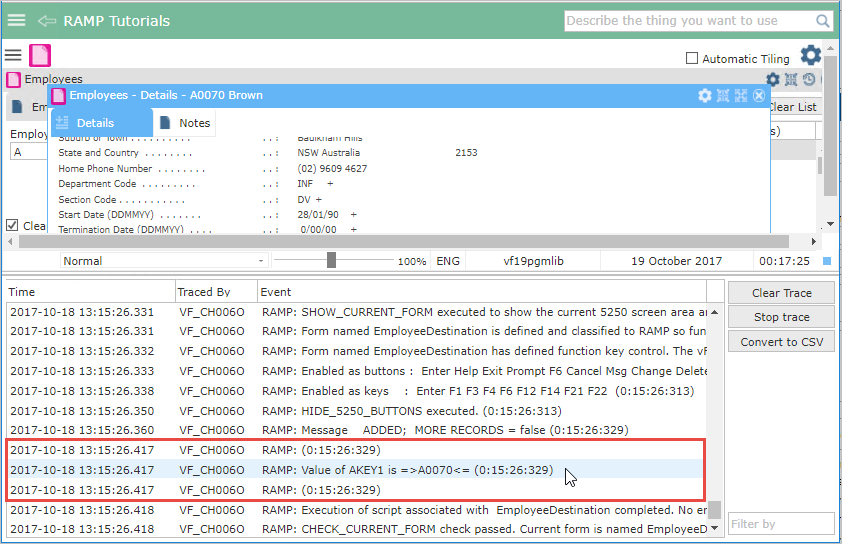
The blank lines before and after the actual trace statement are generated by TRACE(""); simply to make it easier to read.
For more information about the trace statement refer to Script Functions. !worddavaf485e25f57cd86bb5b0fc63f3f1b1cc.png|height=32,width=32! To start tracing in RAMP Windows, click on the (Framework) menu, select (Tracing) -> Application Level. RAMP execution might produce a large number of statements. !worddavaf485e25f57cd86bb5b0fc63f3f1b1cc.png|height=32,width=32! For RAMP execution tracing in VLF-ONE, we recommend to use the Convert to CSV button to save the trace into a CSV file in your temp directory. For RAMP execution tracing in Windows, we recommend to use the Save Trace to File button to save the trace into a text file in your temp directory. The exact location and file name of the trace file produced will appear in a message. Press the Messages button to find out about the location of the trace file. !worddavaf485e25f57cd86bb5b0fc63f3f1b1cc.png|height=32,width=32! Adding Your Own Tracing Statements The shipped Java Script function TRACE() allows you to add your own trace statements to the trace: For example, this trace statement: TRACE(""); TRACE("Value of AKEY1 is =>" + objListManager.AKey1\[0\] + "<="); TRACE(""); Generates this tracing: !worddavaf485e25f57cd86bb5b0fc63f3f1b1cc.png|height=32,width=32! The blank lines before and after the actual trace statement are generated by TRACE(""); simply to make it easier to read. For more information about the trace statement refer to [<span style="color: #0000ee"><span style="text-decoration: underline; ">Script Functions</span></span>|lansa050_1545.htm#_Ref129505741]. [<span style="color: #0000ee"><span style="text-decoration: underline; ">Show Contents List</span></span>|../../index.htm#lansa/lansa050_1575.htm]