Page History
...
Refer to Tree View (std_treeview_v2) Properties for further details.
Your WAM will build an initial list based on the department table (DEPTAB), so that initially the tree will contain a single level. You will later add routines to handle expanding the tree view at each level.
Note: The supplied code can be copied from the WAM tutorials in the Visual LANSA online guide. Most of the code to support the tree view is provided, but you should ensure that you review it in detail so that you become familiar with the concepts.
1. Create a new WAM:
Name: iiiTreeView
Description: Using a Tree View Weblet
Layout Weblet: iiilay01
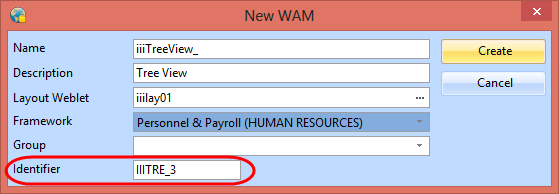
Make a note of the Identifier which is assigned to this WAM. You will need to use the Identifier when setting the WAM Name field in the working list which builds the tree view. JavaScript will call the WAM/WebRoutine to display details for the selected level. This requires the WAM Identifier, not the Long Name.
2. Define the fields and lists required to support the tree view
Define Field(#listid) Reffld(#std_name) Define Field(#listpid) Reffld(#std_name) Define Field(#listcapt) Reffld(#std_desc) Define Field(#onsubid) Reffld(#std_name) Define Field(#onsublvl) Reffld(#std_code) Define Field(#haschld) Reffld(#std_flag) Define Field(#selwam) Reffld(#std_name) Define Field(#selwrn) Reffld(#std_name) Define Field(#currid) Reffld(#std_name) Def_List Name(#emptree) Fields(#listid #listpid #listcapt #haschld #selwam #selwrn) Type(*Working) Def_List Name(#ancestor) Fields(#listid) Type(*Working) Entrys(3)
The list named ancestor will be explained in a later step.
3. Define a WebRoutine deptview which:
...
- select the image using the Ellipsis button. Drill down by selecting the normal and 16 folders.
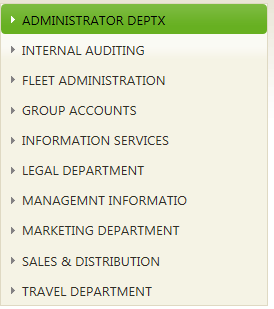
7. Save your changes and run the WAM in the browser. Your tree view should display description for all departments:
- select the image using the Ellipsis button. Drill down by selecting the normal and 16 folders.