Page History
...
Select Push Button
When = S
clear list SECTLIST
select fields in working list from the section table with the key dept_in
add entry to working list
end of select loop
end of case loop
3. Define a response WebRoutine AutoComplete to build the list DEPTS to support the AutoComplete weblet
Define WebRoutine AutoComplete with a Response(*JSON) keyword
Map DEPT_IN for input
Map list DEPTS for output as a *JSON list
Convert the first character of DEPT_IN to uppercase
clear list of departments
Select DEPTMENT from the file DEPTAB with the key DEPT_IN, with a Generic(*yes) keyword
Add an entry to the department list
end select
end subroutine
Your completed code should now look like the following:
Function Options(*DIRECT) Begin_Com Role(*EXTENDS #PRIM_WAM) Layoutweblet('iiilay01') Define Field(#dept_in) Reffld(#deptment) Def_List Name(#depts) Fields(#deptment) Type(*Working) Def_List Name(#sectlist) Fields(#STDSELECT (#SECTION *out) (#SECDESC *out) (#SECADDR1 *out)) Type(*Working) Web_Map For(*both) Fields((#stdrentry *hidden)) WebRoutine Name(Begin) Desc('Select a Department') Web_Map For(*both) Fields(#dept_in #sectlist) Case (#stdrentry) When (= S) Clr_List Named(#sectlist) Select Fields(#sectlist) From_File(sectab) With_Key(#dept_in) Add_Entry To_List(#sectlist) Endselect Endcase Endroutine WebRoutine Name(AutoComplete) Response(*JSON) Web_Map For(*input) Fields(#dept_in) Web_Map For(*output) Fields((#depts *json)) #dept_in := #dept_in.substring( 1, 1 ).upperCase Clr_List Named(#depts) Select Fields(#deptment) From_File(deptab) With_Key(#dept_in) Generic(*yes) Add_Entry To_List(#depts) Endselect Endroutine End_Com
4. Compile your WAM and open the Begin WebRoutine in the Design view.
Your web page should look like the following:
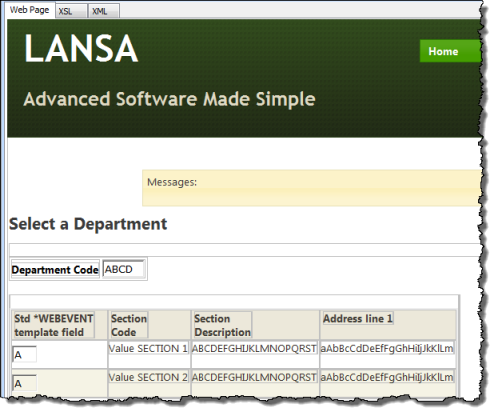
5. Drag and drop an jQuery UI AutoComplete weblet onto the Department Code field. Select the Details tab and set up the AutoComplete properties:
Property
Value
sourceWrName
AutoComplete
Listname
DEPTS
valueField
DEPTMENT
|
6. If the Select column (field STDSELECT) is shown as an input field (i.e. it does not have a clickable image weblet field visualization defined in the Repository), drop a Clickable Image weblet into the field in the first column.
7. With the clickable image selected, select the Details tab and set up its properties:Property
Value
currentrowhfield
SECTION
currentrownumvalue
$SECTION
Rentryvalue
S
tooltip
Select a Section
on_click_wrname
Details
|
Note:- To return a field value from a list define the value as $FIELDNAME (upper case). i.e. $SECTION in this case.
- Although 'SECTION' is an *output field in the list, you can return a field value via the clickable image weblet.
- The Details WebRoutine is not yet defined in your WAM, so you need to type in this value for the on_click_wrname property.
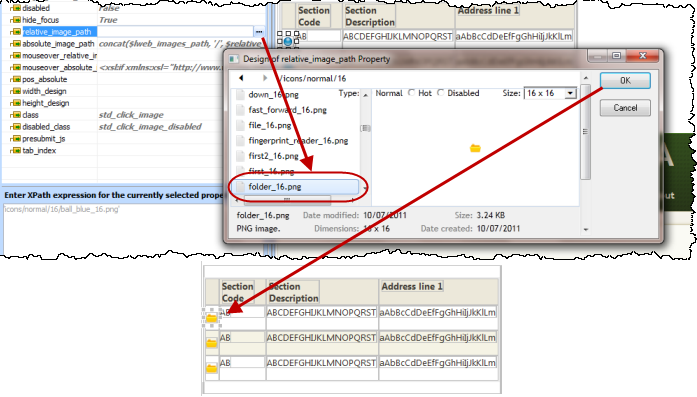
8. Select a clickable image weblet. Set the relative_image_path by clicking in the Value column, and then using the Elipsis button and select the /normal/16 folder and then select any suitable image. See the example following:
9. Select the column heading "Std *WEBEVENT template field" and delete it.
10. If the field SECTION has a dropdown field visualization defined in the Repository, it will not be displayed in the list – since it is an *output field. If necessary, select the field SECTION in the list and use the context menu to select the option Replace with an Output Field.
11. Select anywhere in the table containing "Department Code" and the AutoComplete weblet. Use the context menu, and select the option Table Items / Add columns… to add one column to the right. Add a push button into this new column and remove the * placeholder characters from this cell.
Set up the push button properties:
...
|
Note: Whenever possible, set a weblet property value by selection from its dropdown list. Using a list of values provided by the editor, when available, will help to minimize errors in your XSL.
12. Save your changes and run the web page in the browser. Your page should look like the following: