Page History
...
Your complete code for the Details WebRoutine should look like the following:
WebRoutine Name(Details) Desc('Section Details') Web_Map For(*BOTH) Fields(#SEC_DETL (#SECTW *HIDDEN) (#dept_in *hidden)) Case Of_Field(#STDRENTRY) * Initial call from clickable image When Value_Is(= S) Fetch Fields(#SEC_DETL) From_File(SECTAB) With_Key(#dept_in #SECTION) #dept_in := #DEPTMENT #SECTW := #SECTION * Update button clicked When Value_Is(= U) * ensure that DEPTMENT and SECTION can be redisplayed if a validation error occurs #DEPTMENT := #dept_in #SECTION := #SECTW Update Fields(#SEC_DETL) In_File(SECTAB) With_Key(#dept_in #SECTW) Val_Error(*NEXT) If_Status Is(*OKAY) #STDRENTRY := L Message Msgtxt('Section changed') Transfer Toroutine(BEGIN) Else Message Msgtxt('Error occurred on update') Endif * Delete button clicked When Value_Is(= D) Delete From_File(SECTAB) With_Key(#dept_in #SECTW) Val_Error(*NEXT) If_Status Is(*OKAY) #STDRENTRY := S Message Msgtxt('Section deleted') Transfer Toroutine(BEGIN) Else Message Msgtxt('Error occurred on deletion') Endif Endcase Endroutine
4. Recompile your WAM and open the Design view for the Details WebRoutine. Your page should look like the following:
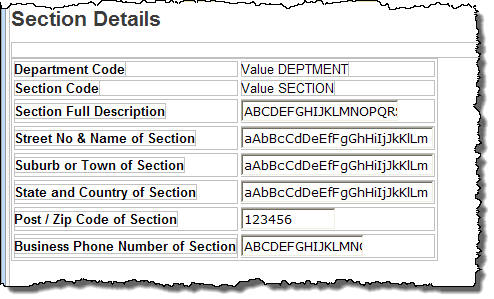
5. If the Department and Section code fields have a combo box field visualization weblet defined in the Repository, select each of them and use the context menu to Replace with output field. Fields with a visualization weblet defined, will not display on the page in "output" mode.
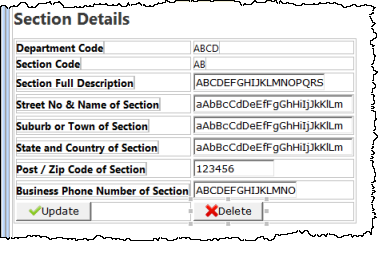
6. Use the context menu to Add a row to the bottom of the table, and drop a Push Button with Image into each cell.
7. Set up the push button properties based on the following:
...
|
The left_relative_image and submitExtraFields properties should be selected using the Ellipsis button and the Design of… dialog.
8. Save your web page design.
Your completed design should look like the following:
9. Re-test your WAM. Check what happens on a successful update or delete. Check what happens after an update with a validation error.