Page History
...
Your new code should look like the following:
* add new top row to skills list When (= N) #skl_list := *default Add_Entry To_List(#empskls) After(*START) Message Msgtxt('Complete new skill in the first list entry')
6. When processing a list entry, a value of zero for Date Acquired (DATEACQR) means the entry is new.
Add the following new logic to the CASE loop, for when STDRENTRY = S.
New code is shown in red.
When (= S) Selectlist Named(#empskls) If (#dateacqr *NE *zeroes) Update Fields(#empskls) In_File(pslskl) With_Key(#empno #skilcode) Val_Error(*next) Else Insert Fields(#empskls) To_File(pslskl) Val_Error(*next) Endif Endselect If_Status Is(*okay) Message Msgtxt('Skills for ' #empno ' were changed') Endif
7. Create a method routine BuildSkills to populate the skills list SKILLS.
a. Clear the list SKILLS
b. Select all records from file SKLTAB and add entries to list SKILLS
c. Position to the first entry
Your code should look like the following:
Mthroutine Name(BuildSkills) Clr_List Named(#skills) Select Fields(#skills) From_File(skltab) Add_Entry To_List(#skills) Endselect Get_Entry Number(1) From_List(#skills) Endroutine
8. Add an output web_map for the SKILLS list to the Details WebRoutine as JSON data. Your code should look like the following:
Web_Map For(*output) Fields((#skills *JSON))
9. Invoke the BuildSkills method at the end of the Details WebRoutine. Your code should look like the following. New code is shown in red.
Endcase
#com_owner.BuildSkills
Endroutine
10. Compile your WAM.
11. Open the Details WebRoutine in the Design view.
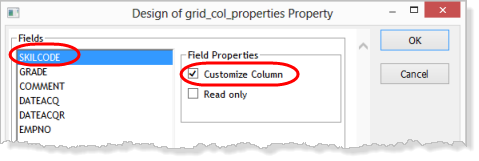
12. Select the Skills tab, and select the Grid weblet. On the Details tab use the Ellipsis button for the grid_col_properties value to open the Design of …. dialog. With SKILCODE field selected, select the Customize Column check box and then click OK to close the dialog.
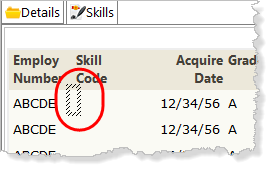
13. Drop a Dynamic select box into the Skill Code column. See the image below showing how the editor will highlight the column when the cursor is in the correct position.
Adjust Adjust the width of the dropdown so that it can display skill description.
14. Select the Dynamic select box and set up its properties as shown:
...
|
Adjust the width of the push button to display the caption as single line.
Remove the place holder characters from table cell.
16. Select Select the Details tab page and then Save your changes. Your Skills tab page should look like the following:
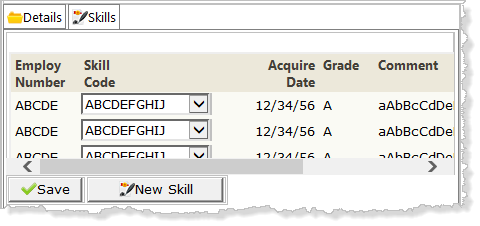
17. Retest Retest your WAM. Select an employee and select the Skills tab. The Dynamic select box for skills should display the correct skill description in each row.
...