Page History
...
The Parent Items Working List
In most, if not all cases, your tree view will have multiple levels and, usually, will contain data that follows a parent/child pattern. In our examples, this is true of the Department/Sections/Employees data.
The Parent Items working list is passed into the WAM, providing a list of ancestors of an item that has been selected or is expanding. As such, it contains just one field, which must match the field used in the Tree View working list to hold a tree item's key information. More information about using this working list can be found later in this document.
When a Webroutine is Invoked
When a Tree Item is Selected
The list_onselect_wrname_field property of the tree view points to a field that contains the name of the Webroutine that is to be invoked when the corresponding item in the tree is selected. In the example WAMs, this is set to ShowDepartmentDetail for each Department entry.
When this Webroutine is invoked, certain information is passed into it:
The key information of the selected tree item. This is the field that is specified in the list_tag_field property. This can be used to access additional or related information that is relevant to the tree item. A Web_map to receive this field is required at all times.
The working list that contains the identifiers of the selected tree item's parents or ancestors. This is the list specified in the listname_of_parents_of_selected property. See the Accessing Key Information section for more information.
When a Tree Item is Expanded
The onexpand_wrname property of the Tree View can be used to build the contents of a branch when it is expanded. In the example WAMs, when a Department or Section branch is expanded, the TreeExpanding Webroutine is invoked.
As well as the key information of the expanding tree item, the level of the tree item is passed into this Webroutine, along with the tree list itself and the list of parents of the expanding tree item. Based on the level of the expanding tree item, the appropriate method is invoked to add child items to the tree for the selected parent item.
So, a level of 1 indicates that a Department tree item is being expanded, and so Sections belonging to that Department are added to the tree. A level of 2 indicates that a Section tree item is being expanded, and so Employees are added.
Accessing Key Information
Because a tree item can have parent tree items, a working list to hold this information is required. It should be defined as containing just the field that is specified in the list_tag_field property of the tree.
It must be specified as a Web_map for the Webroutine that is used to display the main tree view working list. In WAMEX50, the ShowPage Webroutine has a Web_map specified for the list.
When passed into the WAM, it will have an entry for each of the selected item's parent items. Each entry contains the key information of the parent item. For tree items that do not have any parents, the list will be empty.
A Web_map to receive this list is only required if you wish to access information in it. This would typically be required for the selection Webroutine and the Tree Expanding Webroutine.
In the example WAMs, when a Section is selected, this list is used to ascertain the key value of the Department to which the Section belongs.
The Tree View Target Weblet
Usually, you will want to display additional information relating to a tree item that has been selected.
In the example WAMS, when a Department is selected, the ShowDepartmentDetail Webroutine is invoked to show additional information for the Department.
There must be an area on the web page for this information to be shown. This is what the Tree View Target weblet is used for. When a tree item is selected, the Tree View Target associated with the tree (via the Tree View Target's treeview_name property) becomes active, or gets focus. The output from the Webroutine invoked when the tree item is selected is thus directed to the Tree View Target.
For more information on the Tree View Target (std_treeview_target)weblet, refer to its documentation.
Using a Navigation Panel
In WAMEX50, which is a simple enquiry, the Tree View and Tree View Target weblets are displayed by the ShowPage Webroutine. This works fine for enquiry purposes.
It becomes slightly more complex, however, if an update function for the details that are displayed in the Tree View Target weblet is introduced. For example, if the user changes the Department description and presses an update push button, you would expect the Tree View to be updated with the new description.
In order to get this to happen, the Tree View must be displayed in a different way to that shown in WAMEX50. Here, the Tree View is directly placed in the left-hand portion of the Vertical Splitter.
In WAMEX51, the left-hand portion of the Vertical Splitter contains a navigation panel. This panel is set to navigate to the DepartmentTree Webroutine. This is the Webroutine that contains the Tree View weblet. Separating it out like this means the Tree View can be easily refreshed on the web page, as it is, in effect, in its own sub-page of the main web page.
A Closer look at WAMEX51
To help reinforce the techniques described, this section contains sections of the WAM code, along with property settings of the Tree View and associated weblets.
The List Definitions
The RDML code below shows the field and list definitions that are used by the Tree View weblet.
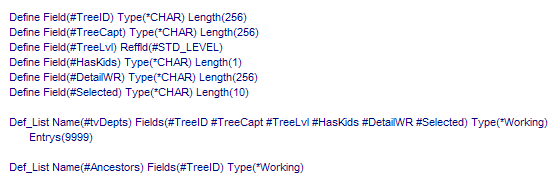
The tvDepts working list is the list used to populate the Tree View. The function of its fields is as follows:
...
The entry point of the WAM (that which should used to execute the WAM via a browser URL or from another WAM) is the ViewDepartments Webroutine. It is designed to be the only entry point, to be executed only once. Any initialization logic for the WAM could be placed here. See below:
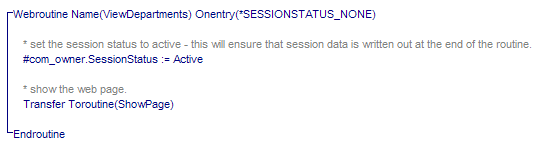
In this example, the only thing it has to do is set the Session Status to Active. This controls the writing out and reading in of any persistent session data when executing Webroutines in the WAM.
The ShowPage Webroutine is then executed. Again, this is designed to be the only place in the WAM used to display the web page. In this example, no Web_maps specify what is to be displayed – all such information is handled by other Webroutines, as you will see. Non-field and list data has been specified via the LANSA Editor, and so the ShowPage Webroutine shows as being 'empty'.
Building the Tree View
1. Right-click on the ShowPage Webroutine and select the LANSA Editor option.
2. Click on the left-hand side of the Vertical Splitter and select the Details tab to display the Navigation Panel's properties, as shown below: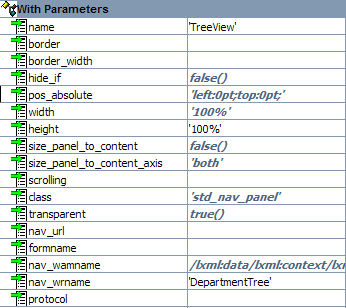
...