Page History
...
With your project iii Training open in Studio, expand the folder Integrator / properties and open the file HTTPInboundXMLBindService.properties in the Properties Editor. This contains the properties you have already created in exercises INT004 and INT005:
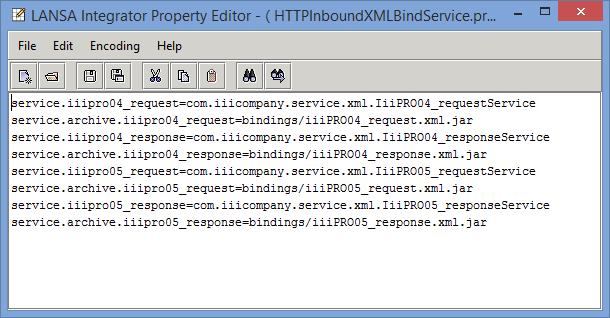
These properties have already been published as a section in the server HTTPInboundXMLBindService.properties file. You will now add properties for the iiiPRO06_request and iiiPRO06_response services.Info Note: If your project did not already contain this information, by opening the server on your project tab and then using Retrieve Section on the Instance / HTTPInboundXMLBindService.properties file, you can retrieve this properties section into your project Integrator / properties folder. - You will refer to the properties editor shown above as Properties Editor (1).
- Open the HTTPInboundXMLBindService.properties file in the Server XML Employees Request folder, and copy the code into Properties Editor (1). Close the second editor
- Open the HTTPInboundXMLBindService.properties in Server XML Employees Response folder and copy this code to Properties Editor (1). Close the second editor.
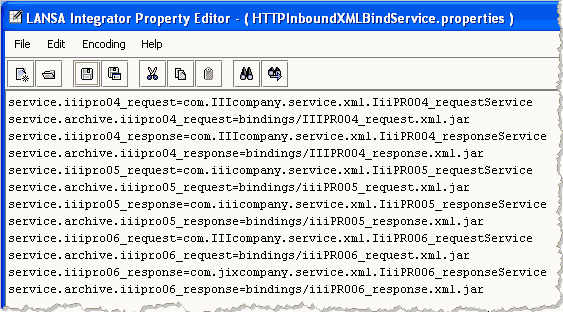
- Your properties file should now look like the following:
- Save your changes and exit the Properties editor.
- Right click on your local HTTPInboundXMLBindService.properties file (in the left panel, in Integrator / Properties) and select the Publish Section option from the pop-up menu. A message will ask you to confirm publish. Select Yes. You have now updated the project section in the HTTPInboundXMLBindService.properties file on the server.
- Deploy the jar files.
You must now copy the jar files from your PC into the appropriate JSM server directory. You will send the jar files to the directory \instance\bindings.- In the Server XML Employees Response folder, right click on iiiPRO06_response.xml.jar and select Send To / Integrator Folder from the pop-up menu. Select Yes when asked if you want to copy the file over.
- Repeat for iiiPRO06_request.xml.jar.
- In the left panel, expand the Integrator / bindings folder. One at a time, right click on each jar file and select Publish File. Select Yes when prompted.