Page History
...
- Select the Operations tab of the SOAP Wizard.
- Right-click in the Operations panel to open the context menu.
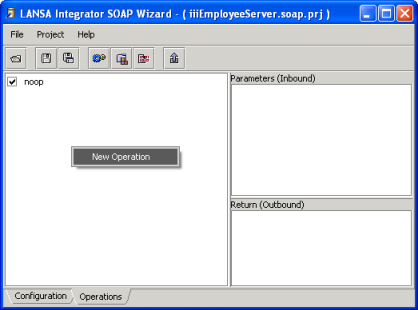
- Select New Operation from the context menu.
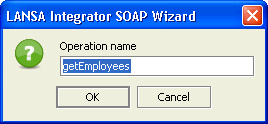
- In the resulting dialog, enter the Operation Name, getEmployees and click OK.
- Now you will define the Inbound parameters. To do so:
- Right-click on the getEmployees Operation to open the context menu.
- Select New Parameter from the context menu.
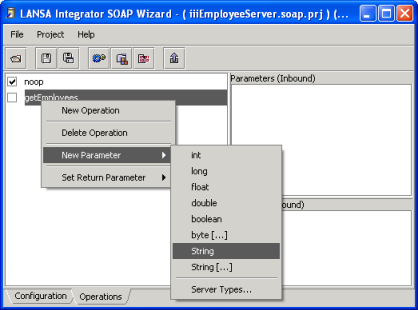
- Select the type for the parameter, in this case, a String.
- In the resulting dialog, enter the Parameter name, in this case departmentCode and click OK.
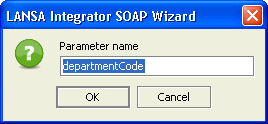
- Now repeat the same sequence for the remaining inbound parameter sectionCode, which is also a String and click OK.
- Define the return or Outbound parameter. This follows a similar procedure to the Inbound parameters.
- Right-click on getEmployees to open the context menu.
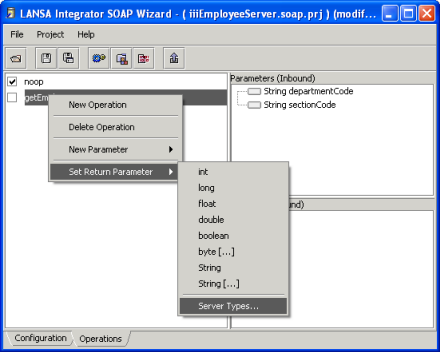
- Select Set Return Parameter from the context menu and select Server Types... from the sub menu.
Server Types is selected because your return parameter is going to be the Server Type you created in Step 2. Define custom SOAP Server Types.
- Right-click on getEmployees to open the context menu.
- In the Server Types dialog box, there are two entries for your Employee Server Type. The first one represents a single instance of Employee. The second one with [...] represents an array of Employees.
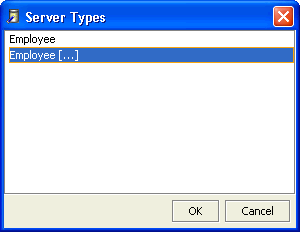
Because you are returning an array of employees, select Employee [...] and click OK.
You are returned to Operations tab of the SOAP Wizard where you can see the inbound and outbound parameters that you have defined. If you expand the entries in the Employee return parameter you will see the elements that make up the Employee server type.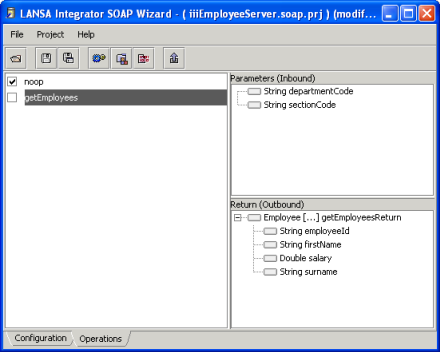
You have now defined your SOAP Operation and its parameters.
When you define your own web services, you will probably define more than one SOAP Operation, but you will only create one for this exercise. - Save your changes.