Page History
...
5. Note that when you click on a search result, the guide Contents opens to the section concerned. On the details page, each word in the search is highlighted in different colors.
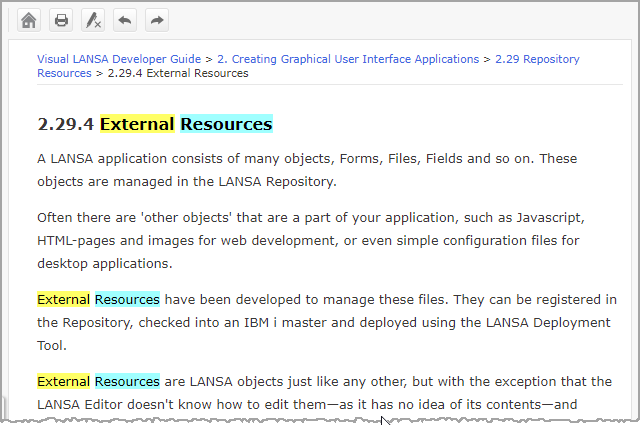
6. Click the  Remove Highlights toolbar button to clear highlighting.
7. Click on the  Previous Previous toolbar button. Note that this goes to the previous topic in the guide and expands the contents if necessary.
8. Click on the  Home Home toolbar button. This will return to the LANSA Documentation home page. From the home page, you can do a google search of all the guides.
9. Return to Visual LANSA. You previously used the  Help toolbar button to open the LANSA guides. Note that the editor also has a menu button
  at the far right of the toolbar. This button opens a toolbar listing:
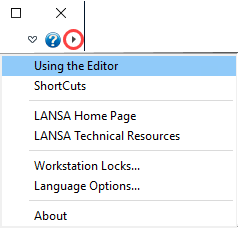
Using the Editor or ShortCuts opens the corresponding topics in the User Guide.
LANSA Home Page and LANSA Technical Resources are links to the LANSA website.
About provides detailed information for your Visual LANSA software.
If you are making a support call, you may be asked to use the About dialog to save information about your installed software and configuration.
...