Page History
...
For each total or summary, a row with a label instead of a row number is added to the data in the Results window. For example, an 'Average' row will be labeled Avg. These rows are colored blue for group totals and green for the final total. Totals are provided for groups only if the Summary Options apply to grouped fields option was selected with the query's grouping.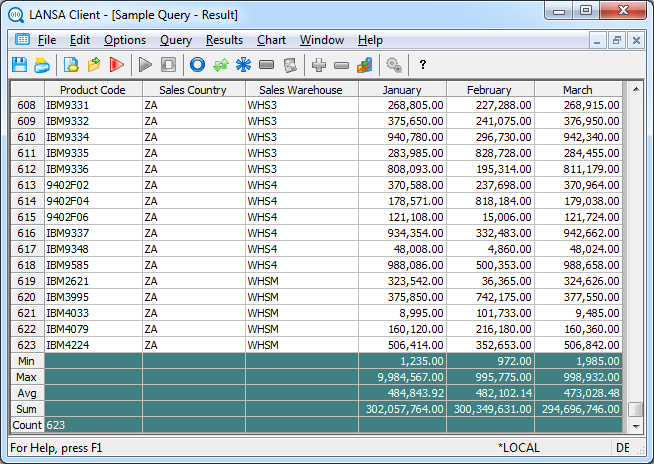
You can add summaries to a query when you are defining it in the Query window or when you are viewing the retrieved data in the Results window.
...
To specify the summaries required, select the Summary Options command in the Options menu or the  toolbar icon. The Summary Options dialog box is displayed.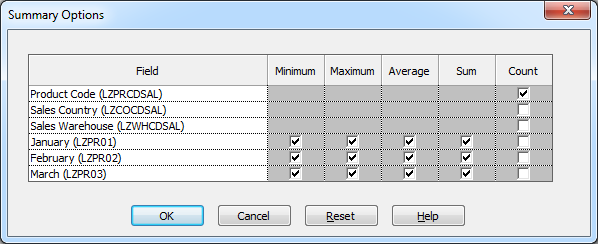
The Summary Options dialog box contains two main areas. These are:
...
You can select one or more of these options for each numeric field:
Minimum | For the lowest number in the field/column. |
|---|---|
Maximum | For the highest number in the field/column. |
Average | The average value of the field/column. |
Sum | The total of the field/column. |
Count | The total number of occurrences of the field. Count can be used with alphanumeric as well as numeric fields. |
Where a specific type of summary can be calculated, there will be a small button in the center of the summary option's box. Select the option you require for each field. When you select an option, a tick is inserted in this small box.
The small button will not be present when a summary cannot be calculated, such as when a field is alphabetic.
Saving your Summary Options
Once you are satisfied with the summary options you have selected, select the OK button. Otherwise, select the Cancel button or select the Reset button to remove all the summaries and totals.
The grouping and summary options you specify will be saved with your query's options when you save the query.