Page History
...
Create a WAM and name it WAMSTART.
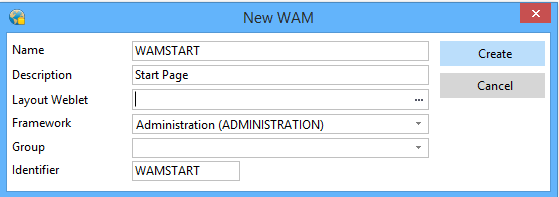
Once the WAM has been created you are presented with a dialog to create a webroutine. You can dismiss this dialog and start editing the WAM yourself, or you can use the dialog to fill in the details for your new webroutine and then go straight to the Design phase and let the RDMLX/Web Design interaction automatically build the web maps in the RDMLX source for you. In this example we will use the dialog to create a webroutine.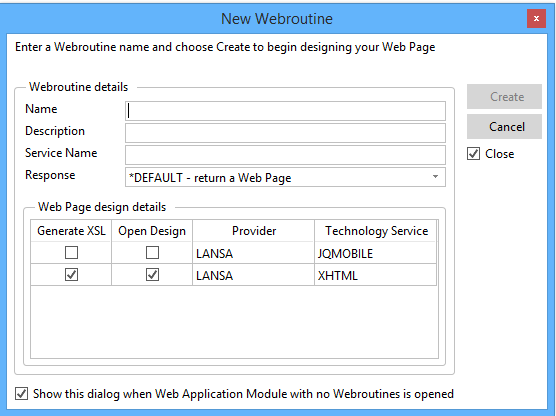
You will now automatically be taken into the Web Design phase and see the following Web Design.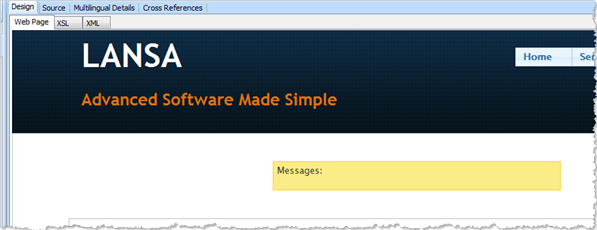
Drag the DEPTMENT field from the Repository and drop it on the Web Design. This operation will also add a web map to the RDMLX Source.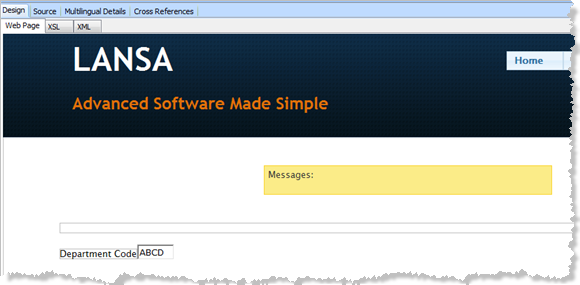
To facilitate the search you want to add a push button to the page. To do this, open the Weblet Templates in the Repository and locate the push button weblet. Simply drag the push button onto the Design view where you want it to be displayed.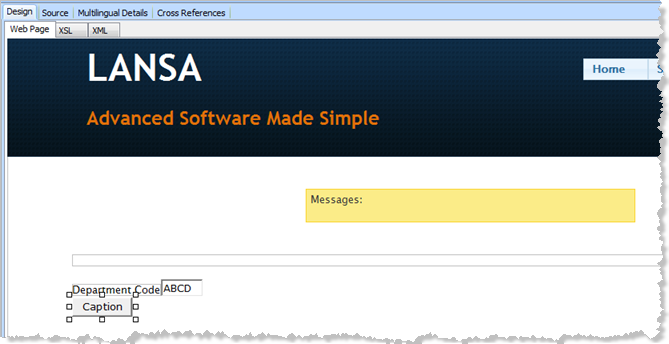
Ensure the focus is on the newly added push button. Select the Details tab to review the push button's properties.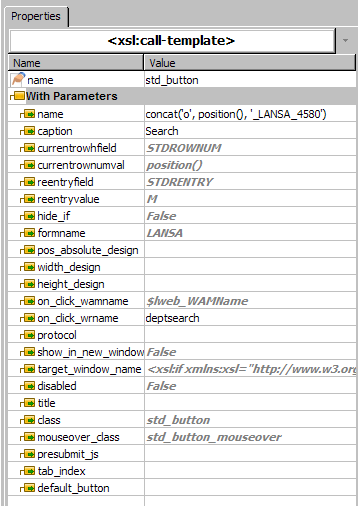
Change the caption property to Search and the on_click_wrname property to deptsearch. This indicates that when the push button is clicked on the resulting web page, a webroutine deptsearch (defined in the current WAM) will be executed. Note that this webroutine is currently not defined so it must be added to the WAM before the push button will execute correctly.
...
Before executing the WAM it must be compiled but be careful not to regenerate the XSL for All webroutines as this will replace the manual changes to the XSL applied by dragging and dropping the weblet template.