Page History
...
7. Open the ShowPage WebRoutine in the design view. Your web page should look like the following: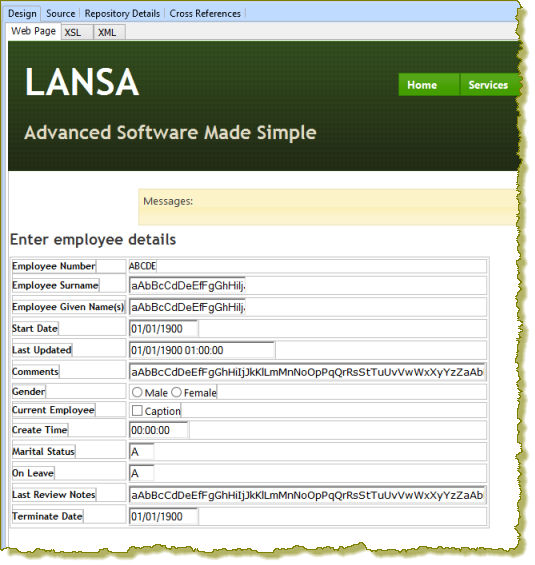
a. Note that Start Date, Last Updated, Comments, Gender, Current Employee and Create Time are all shown as weblets. For example click on the Start Date field and select the Details tab. Note that this is the std_datepicker weblet.
These weblets are all defined as weblet field visualizations in the Repository.
b. Select Last Review Notes and then Terminate Date and check their definition using the Details tab. Notice that they have also been defined in the web page as weblets (std_varchar and std_DatePicker respectively) based on their field type. These are fields you defined in the WAM.
c. The single character (Alphanumeric) fields Marital Status and On Leave are input fields. In the Design view you will replace these with weblets.
| Anchor | ||||
|---|---|---|---|---|
|
...
14. Select the Terminate Date field (std_DatePicker weblet) and set its properties as for the Start Date in sub step 8. Select the field Start Date and set up its properties as follows:.
15. Save your changes.
16. Drop a Push Button with Image weblet into the bottom right of the table, next to the Terminate Date field. Set up its properties as follows:
Property | Value |
|---|---|
Caption |
|
left_relative_image |
|
on_click_wrname |
|
submitExtraFields |
|
|
...
17. In this step you will add a link to the Show Saved List page to return to the Select Employee Number page.
a. Open the showlist WebRoutine in the Design view.
b. Drop a Push Button with Images onto the page, below the list.
c. Set up the push button properties as follows:
Property | Value |
|---|---|
caption |
|
left_relative_image |
|
on_click_wrname |
|
submitExtraFields |
|
|
...
Note: The dateFormat = Auto property for the DatePicker weblet, will be correct for most applications. The date format will be determined by the partition's ISO Language setting. For the UK this should be en-GB since en will give DD/MM/YYYY.
18. Save Save your changes.