Page History
...
Your web page will currently look like the following: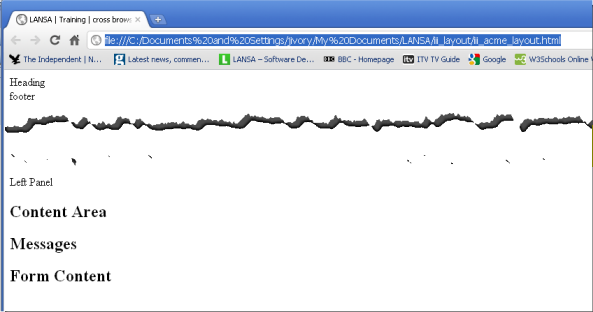
Leave your web page open in the browser.
6. Copy the following code into Notepad and use the Save as type: All option to save it as iii_acme_style.css, to folder \My Documents\iii_layout.
     #acme_content
     {
     overflow: auto;
     position:absolute;
     z-index:6;
     top:160px;
     bottom:50px;
     left:200px;
     right:0;
     border: solid solid;
     border-color: red red;
     padding: 10px 10px;
     }
html      html {
     height:100%;
     max-height:100%;
     padding:0;
     margin:0;
     border:0;
     font-family:georgia, palatino linotype, times new roman, serif;
overflow: hidden;
}
body
{
 palatino linotype, times new roman, serif;
     overflow: hidden;
     }
     body
     {
     height:100%;
     max-height:100%;
     overflow:hidden;
     padding:0;
     margin:0;
     border:0;
     border: none none;
     }
     #acme_header
header
     {position:absolute;
     margin:0;
     top:0;
     left:0;
     display:block;
     width:100%;
     height:160px;
     z-index:5;
     overflow:hidden;
     font-family:georgia, palatino linotype, times new roman, serif;
border : solid;
 palatino linotype, times new roman, serif;
     border : solid;
     border-color: fuchsia fuchsia;
     }
     #acme_footer
footer
     {
     position:absolute;
     margin:0;
     bottom:0;
     left:0;
     display:block;
     width:100%;
     height:50px;
     font-family: Verdana Verdana, Geneva Geneva, Arial Arial, Helvetica Helvetica, sans sans-serif;
     z-index:5;
     overflow:hidden;
     border: solid solid;
     border-color: aqua aqua;
     }
     #acme_sidebar
sidebar
     {
     position:absolute;
     left:0;
     top:0;
     bottom: 0 0;
     width:200px;
height : 100%;
     height : 100%;
     z-index:4;
     border: solid solid;
     border-color: orange orange;
}
#acme_content p
{
padding:10px;
}
.bold {font-size:1.2em; font-weight:bold;}

dd {display:none;}
.p1
{
font-size: .4em;
color: white;
}
#acme_messagesContainer
{
top:0px;
min-height: 50px;
left: 0px;
overflow: auto;
z-index: 6;
border: solid;
border-color: green;
}
Notepad is not an ideal editor for CSS files. For your own work, we recommend you use a proper stylesheet editor such as TopStyle.
Leave the CSS file open in Notepad.
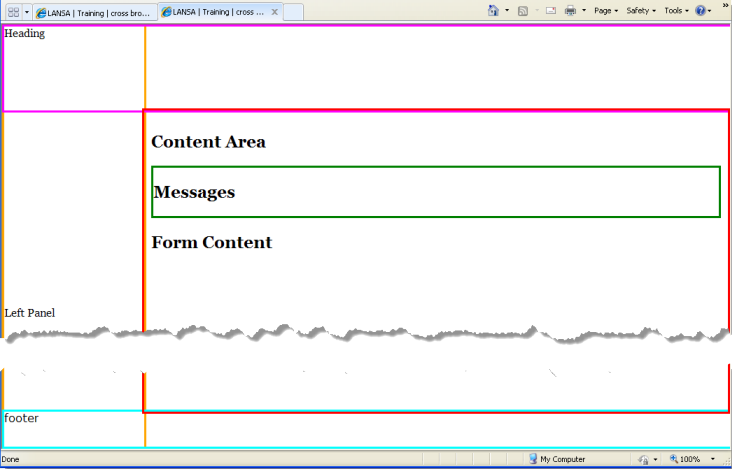
7. Review the styles sheet, which contains:
a. Styles for each id used in your web page, for example #acme_content{overflow : auto; . . . . . }
b. The head, foot, sidebar and content DIVs are all position absolutely.
c. acme_head is positioned at the top of the page (top : 0; left : 0;)
d. acme_content is positioned below acme_head and to the right of acme_sidebar (top : 120px; left 200px;)
e. The acme_head, acme_foot, acme_sidebar, acme_content and acme_messagesContainer DIVs each have a solid coloured border (just for the moment, to make their position visible).
f. acme_content has a setting of overflow : auto. This will provide a scroll bar if the content exceeds the space available.
8. Refresh your web page which should still be open in the browser. It should look like the following:
9. Make the following changes to your Stylesheet file (CSS)
a. Remove the border and border-color styles from acme_head, acme_foot, acme_sidebar, acme_content and acme_messagesContainer.
b. Make the following additions to the styles shown:
#acme_content { Background : #fafad2; Color : #7b68ee; } #acme_header { Background : #2ea129; Color : #fff; } #acme_footer { Background : #2ea129; Color : #fff; } #acme_sidebar { Background : #a19c29; Color : #fff; } #acme_messagesContainer { Background : #ffffbb; Color : black; }
c. Save your style sheet.
10. Refresh your web page in the browser. It should now look like the following:
...