Page History
...
     #acme_content
     {
     overflow: auto;
     position:absolute;
     z-index:6;
     top:160px;
     bottom:50px;
     left:200px;
     right:0;
     border: solid;
     border-color: red;
     padding: 10px;
     }
     html {
     height:100%;
     max-height:100%;
     padding:0;
     margin:0;
     border:0;
     font-family:georgia, palatino linotype, times new roman, serif;
     overflow: hidden;
     }
     body
     {
     height:100%;
     max-height:100%;
     overflow:hidden;
     padding:0;
     margin:0;
     border:0;
     border: none;
     }
     #acme_header
     {position:absolute;
     margin:0;
     top:0;
     left:0;
     display:block;
     width:100%;
     height:160px;
     z-index:5;
     overflow:hidden;
     font-family:georgia, palatino linotype, times new roman, serif;
     border : solid;
     border-color: fuchsia;
     }
     #acme_footer
     {
     position:absolute;
     margin:0;
     bottom:0;
     left:0;
     display:block;
     width:100%;
     height:50px;
     font-family: Verdana, Geneva, Arial, Helvetica, sans-serif;
     z-index:5;
     overflow:hidden;
     border: solid;
     border-color: aqua;
     }
     #acme_sidebar
     {
     position:absolute;
     left:0;
     top:0;
     bottom: 0;
     width:200px;
     height : 100%;
     z-index:4;
     border: solid;
     border-color: orange;
     }
     #acme_content p
{
content p
     {
     padding:10px;
     }
.bold      .bold {font-size:1.2em; font font-weight:bold;}
dd
     dd {display:none;}
     .p1
     {
     font-size:  .4em;
     color: white white;
     }
     #acme_messagesContainer
     {
     top:0px;
     min-height: 50px 50px;
     left: 0px 0px;
     overflow: auto auto;
     z-index: 6 6;
     border: solid solid;
     border-color: green green;
     }
Notepad Notepad is not an ideal editor for CSS files. For your own work, we recommend you use a proper stylesheet editor such as TopStyle.
Leave Leave the CSS file open in Notepad.
7. Review the styles sheet, which contains:
a. Styles for each id used in your web page, for example #acme_content{overflow : auto; . . . . . }
b. The head, foot, sidebar and content DIVs are all position absolutely.
c.
...
acme_head is positioned at the top of the page (top : 0; left : 0;)
d. acme_content is positioned below acme_head and to the right of acme_sidebar (top : 120px; left 200px;)
e. The acme_head, acme_foot, acme_sidebar, acme_content and acme_messagesContainer DIVs each have a solid coloured border (just for the moment, to make their position visible).
f. acme_content has a setting of overflow : auto. This will provide a scroll bar if the content exceeds the space available.
8. Refresh your web page which should still be open in the browser. It should look like the following: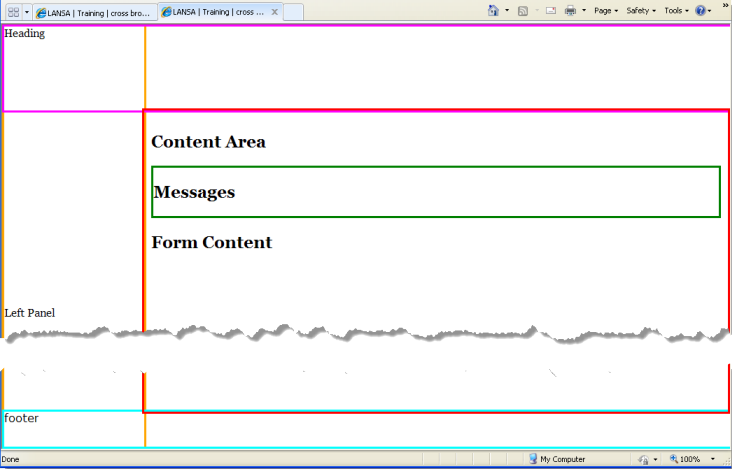
9. Make the following changes to your Stylesheet file (CSS)
a. Remove the border and border-color styles from acme_head, acme_foot, acme_sidebar, acme_content and acme_messagesContainer.
b. Make the following additions to the styles shown:
#acme_content
...
          {
          Background : #fafad2;
          Color : #7b68ee;
          }
          #acme_header
          {
          Background : #2ea129;
          Color : #fff;
          }
          #acme_footer
          {
          Background : #2ea129;
          Color : #fff;
          }
          #acme_sidebar
          {
          Background : #a19c29;
          Color : #fff;
          }
          #acme_messagesContainer
          {
          Background : #ffffbb;
          Color : black;
          }
c. Save your style sheet.
10. Refresh your web page in the browser. It should now look like the following: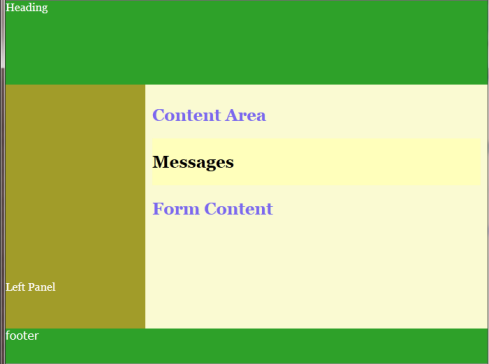
11. Go to the following web site:
...
http://generator.lorem-ipsum.info/
...
a. Using Notepad to edit your web page HTML document, copy and paste text from the lorem-ipsem web site into the messages DIV and the content DIV below the messages DIV and the Form Content text. Paste enough text to overflow the content area in the browser.
b. Remove the Content Area text (and H2 tags) from the top of the content DIV.
c. Refresh your web page in the browser. It should now look like the following: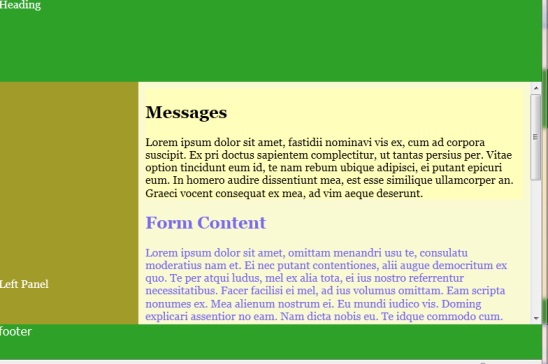
...
Note that the content area has been given a vertical scroll bar.