Page History
...
In addition, you can choose to display the Processing Sequence Log window for previously completed Processing Sequence runs in a number of ways, including, for example, by using the Process Monitor or from the Run History command tab for a Processing Sequence.
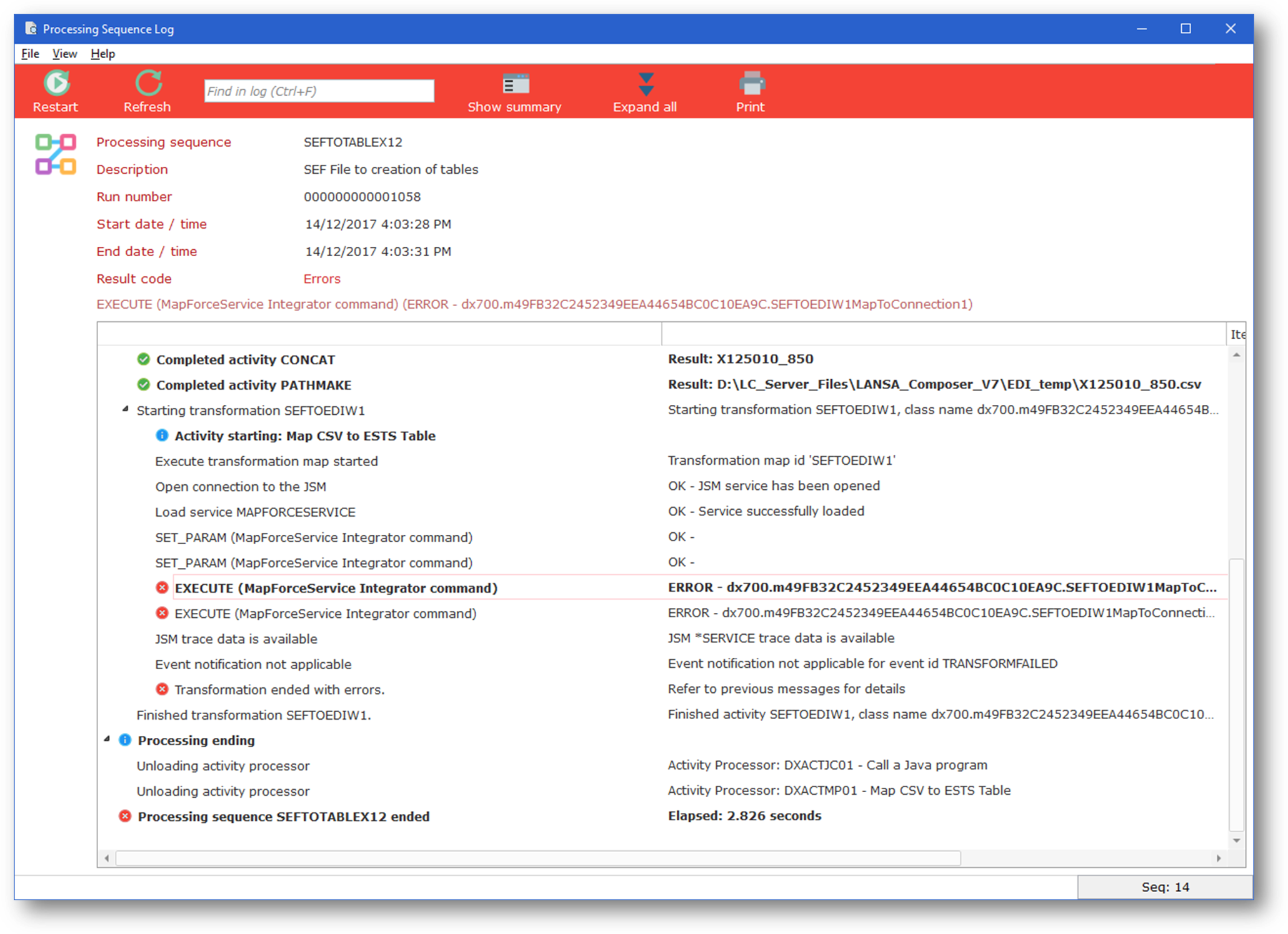
The Processing Sequence Log window lets you view or print the Processing Sequence log in a variety of ways. Some of the things you can do from this window are described under the following headings:
...
For a completed processing sequence run, you can display the collected performance data using theShow performance data option from the View menu. For more information refer to Collect and Analyze Processing Sequence Performance Data.
...
- Type a search term in the Find box in the toolbar. (Press Ctrl+F to move the focus to the Find box.)
- Press Enter. LANSA Composer will display the first instance of the specified search term in the log.
- To find further references to the search term, press F3 to find the next reference (relative to the log entry currently selected) or press Shift+F3 to find the previous reference.
- When you type a new search term, the search will begin again at the top of the log.
Note that LANSA Composer searches all available processing sequence log entries, not just those that are currently loaded or expanded. This means that the search may expand items and/or switch the display to Show details mode. Searches are case-insensitive.
...
Note that LANSA Composer searches all available processing sequence log entries, not just those that are currently loaded or expanded. This means that requesting the next or previous bookmark may expand items and/or switch the display to Show details mode.
You may use the LOGBOOKMARK and/or LOGUSERINFO activities in your LANSA Composer solutions to create bookmarks in the logs. The following supplied activities may also generate bookmarked log entries:
| Anchor | ||||
|---|---|---|---|---|
|
You can click the Print button or choose Print from the File menu to print the Processing Sequence Log.
When you print the Processing Sequence Log from the Processing Sequence Log window, LANSA Composer will print the log "as displayed" – that is, log messages that are collapsed or expanded will be printed in the same way. So to print the log exactly as you want it, first expand and/or collapse items as required.
...
When displaying the log for an "active" processing sequence run, you can click the End button or choose End from the File menu to request "controlled end" of the processing sequence run.
...
If the Processing Sequence run ended in error and can be restarted, you can click the Restart button or choose Restart from the File menu to restart the run from the point of failure.
...
If you wish to, you can permanently update the status of such runs to confirm that they ended abnormally. To do so, you can choose Mark as ended abnormally from the File menu in the Processing Sequence Log window.
| Note |
|---|
| Note that doing so does NOT end or cancel the run if it is still active – it simply updates the status. If you need to cancel the job running the Processing Sequence, then you must do so the appropriate interfaces provided by your server operating system. |
...
In any event (but subject to System Settings relating to the logging level), you can switch between the detailed and summary views by clicking the Show Summary or Show Details buttons or using the equivalent options on the View menu.
...
You can expand all entries in one go by clicking the Expand All button or using the corresponding View menu item. Note that expanding all entries may take a long time for large Processing Sequence logs.
...