Page History
This step will run the details WebRoutine in Windows using the X_RUN command and pass in the employee number using the UDEF, a user defined run time parameter.
The X_RUN.EXE program is in the Visual LANSA \execute folder, for example:
C:\
...
Program Files\LANSA_D12\X_WIN95\X_LANSA\execute
You could add this path to your Windows Path environment variable, in which case the X_RUN program will be found when it is run from a simple batch file. For this exercise you will create a DOS batch file using Notepad and set up the required path. 1. Open
- Open Notepad and add the following code:
cd\
...
cd program files\lansa\x_win95\x_lansa\
...
execute
     x_run PROC=*WAMSP WMOD=iiiEMP_
...
4 WRTN=DETAILS WAML=LANSA:
...
XHTML PART=DEM LANG=ENG USER=D12PGMLIB WASP=C:\temp\iiiEMPDET.
...
html UDEF=A0090
...
Info
...
Important: With your WAM open in the editor, select the Repository Details tab to find its Identifier. This must be used in the X_RUN (that is, replace WMOD=IIIEMP_4 in this code).
...
- If necessary change the change directory command (cd) to reflect your Visual LANSA installed path.
...
Review the X_RUN command carefully and correct it for your Visual Lansa path, partition name, user and output HTML file name.
...
The specific X_RUN parameters you may need to change are:- WMOD – WAM Identifier
- PART – partition name
- USER – user name (use your Visual LANSA profile name)
- WASP – The output path and file name. Use your initials
- UDEF – The employee number
...
Create a c:\temp folder if necessary.
...
- Use the Save as Type: All to save the file as iiiWAMOUT.bat in folder c:\temp
...
- Navigate to c:\temp with Windows Explorer and double click on iiiWAMOUT.bat to run it. The DOS command prompt should briefly open and close.
...
- Check folder c:\temp for the output file iiiEMPDET.html.
...
- If your run does not output the file iiiEMPDET.html, check the batch file carefully for errors and try again.
...
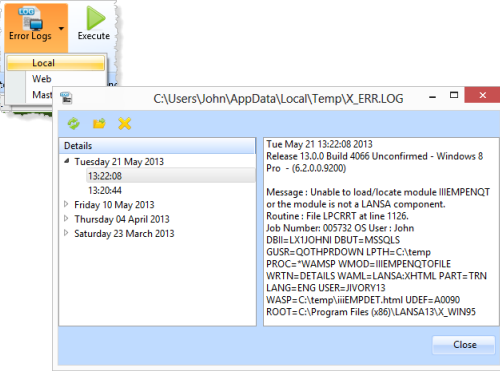
- When running your WAM locally, you can also check for errors in the Visual Lansa Error Log.
...
- See also the Web Runtime Error Log from the Error Logs menu.
...
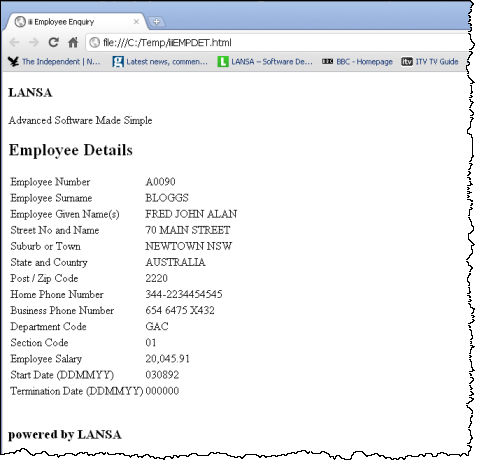
- When your WAM has created the output file, double click on it to open it directly in your PC's default browser. It should look like the following:
...
...
- No cascading style sheets have been applied.
...
- Copy the output file iiiEMPDET.html to your Visual LANSA web server\images path, such as:
C:\
...
Program Files\LANSA\WebServer\Images
...
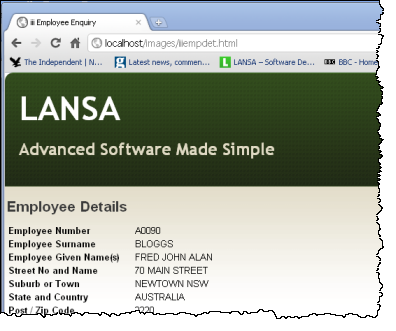
- Open the file by putting the following URL into your browser address bar:
...
http://localhost/images/iiiempdet.html
...
...
Your web page should now be displayed correctly formatted, because the cascading style sheets have been applied. See below: