Page History
ツリービュー・ウェブレットはWAMアプリケーションにより、使用の際にwindowsのようなツリー・ビュー・コントロールを提供します。以下は、どのように使用されるべきかの説明です。記述が非常に長いことに注意してください。
情報のリストを表示する全てのウェブレット・コントロールと同様に、ツリービュー・ウェブレットは最初にWAMの作業リストにより起動されます。作業リストの各エントリーはツリー・アイテムを表します。作業リストのフィールドは、ツリー・ビュー・アイテムの見た目や振る舞いを制御します。ツリー・アイテムの非表示のキー情報や、そのキャプション、アイテムにフォーカスがあたった場合に何をするか、また、ツリー・アイテムが拡張された時に何をするかなども含まれます。
ツリー・ビューをどのように使用したいかによって、異なる技術が使用されます。これらは、「知っておくべきこと」に記述されています。
ツリービューの例について
提供されたツリービューの例は、WAMEX50及びWAMEX51です。
これらは両方とも簡単なツリーの例です。このツリーは、Departmentのブランチを持ち、それを拡張した時は、Departmentに属するSectionのブランチを表示、更に拡張した時には、Sectionに属するEmployeeを表示するものです。
両方ともVertical Splitterウェブレットを使用しています。これにより、ツリービュー・ウェブレットはウェブページの左側に表示され、選択されたツリー・アイテムの詳細は、ツリービュー・ターゲット・ウェブレットで、ウェブページの右側に表示されるようになります。
WAM50は参照のみの例なのに対し、WAMEX51は選択された部の記述を更新できます。ツリーの更新のために、WAMEX51はいくつか追加のウェブレットと、WAMEX50とはわずかに異なるコーディング・テクニックを使用します。
両方の例とも、基礎となるWAMコードと同様に、ツリービュー・ウェブレット、及び、それが他の、関連するウェブレットとどのように関わるか、を説明するよい概要となることを目的としています。
重要事項:
ツリー作業リスト
全ての場合において、作業リストが必要です。作業リストの各エントリーがツリー・ビューのアイテムを表すことを覚えていてください。作業リストはウェブレットのlist_*プロパティを構成するフィールドを含んでいる必要があります。それらのリストの為に、「プロパティ - Tree View」を参照してください。ただし、最低限、作業リストは以下の項目を含んでいる必要があります。
- ツリー・アイテムのキャプションを保持するフィールド。ツリー・アイテムを表現するどんなフリー・フォーマットのテキスト文字列でもよい。例のWAMでは、これは、Departmentの記述、Sectionの記述、もしくはEmployeeの名前です。
- ツリー・アイテムのキーやタグを保持するフィールド。WAMの例では、このフィールドはDepartment Code、Section Code、もしくはEmployee Numberを保持します。複合キーは与えられたアイテムの祖先となる項目を保持した他の作業リストを参照することで得られます。これについては「キー情報にアクセスする」のセクションで説明します。
- ツリー・アイテムが選択された時に呼び出されるWebroutineの名前を保持するフィールド。ツリー・アイテムが選択された時、選択されたアイテムに関連する詳細情報を表示したりするなど、通常いくつかのアクションを行いたくなるはずです。例のWAMでは、Department、Section及びEmployeeの詳細情報を表示するためにあるWebroutineが呼び出されます。詳細については、「Webroutineが呼び出される時」を参照してください。
- Sub-Item Groupフィールド。この数値フィールドはツリー・アイテムのルート・アイテムからのネスト・レベルを保持します。例のWAMでは、Departmentはレベル1、Sectionは2、Employeeは3です。
- HasChildrenフィールド。これは、YもしくはNを含む1バイトのフィールドです。これは、ツリー・アイテムが従属する情報を表示するために拡張されるブランチであるかどうかを表しています。例のWAMでは、各Departmentは従属するSectionを持っており、このフィールドにはYがセットされます。同様に、Sectionは従属するEmployeeを持っており、このフィールドにはYがセットされます。しかし、Employeeは従属する情報を持っていないため、このフィールドにはNがセットされます。
親項目の作業リスト
ほとんどの場合、全てのケースまでとはいかないが、ツリー・ビューには複数のレベルがあり、親/子のパターンを伴うデータを含みます。例で言えば、Department/Section/Employeeのデータがそうです。
親項目作業リストはWAMに受け渡され、選択されたもしくは拡張された項目の祖先のリストを提供します。それは1つのフィールドしか含まず、そのフィールドはツリー・アイテムのキー情報を保持するツリー・ビュー作業リストで使用されるフィールドと一致していなくてはいけません。この作業リストの使用については、このドキュメントで後ほど更に説明しています。
Webroutine起動時
ツリー・アイテム選択時
ツリー・ビューのlist_onselect_wrname_fieldプロパティは、ツリーの対応するアイテムが選択された時に呼び出されるWebroutineの名前が含まれるフィールドを示します。WAMの例では、各DepartmentエントリーにShowDepartmentDetailがセットされています。
Webroutineが呼び出された時、以下のような情報がそれに受け渡されます。
選択されたツリー・アイテムのキー情報。これは、list_tag_fieldプロパティに指定されたフィールドです。これには、ツリー・アイテムに関連する追加情報、もしくは関連する情報にアクセスするのに使用される場合があります。このフィールドを受け取るWeb_mapはいつでも必ず必要です。
The tree view weblet provides a windows-like tree view control for use by your WAM application. Following is a description of how it should be used. Note that this description is very long.
As with all weblet controls that display a list of information, the Tree View Weblet is primarily driven by a working list in your WAM. Each entry in the working lists represents a tree item. Fields in the working list control the tree view item's appearance and behavior. These include the hidden key information of the tree item, its caption, what to do when the item receives focus and what to do when the tree item is expanded.
Depending on how you wish to utilize the tree view, different techniques are used. These are documented in What You Need to Know.
About the Tree View Examples
The Tree View examples supplied are WAMEX50 and WAMEX51.
They are both simple examples of a tree that contains Department branches which, when expanded, show Section branches belonging to the Department, which, in turn, show Employees belonging to the Section.
Both examples use a Vertical Splitter weblet. This allows the Tree View weblet to be displayed on the left of the web page and details for a selected tree item to be displayed, in a Tree View Target weblet, on the right of the web page.
WAM01 is an enquiry-only example, whereas WAMEX51 allows the update of the selected department's description. Due to the updating of the tree, WAMEX51 uses additional Weblets and slightly different coding techniques to those of WAMEX50.
Both examples are intended to give you a good introduction to the Tree View weblet and how it interacts with other, related weblets, as well as the underlying WAM code.
What You Need to Know
The Tree Working List
In all cases, you will need a working list. Remember that each entry of the working list represents an item in the tree view. The working list should contain fields that will populate the list_* properties of the weblet. Refer to Properties - Tree View for a list of these. As a minimum, however, the working list should contain the following:
- A field to hold a caption for the tree item It can be any free-format text string that describes the tree item In the example WAMs, this is the Department description, the Section description, or the name of an Employee.
- A field to hold the key, or tag, of the tree item In the example WAMs, this field holds either the Department Code, Section Code, or Employee Number Composite keys are derived by querying another working list that holds ancestor items of a given item This is discussed in the Accessing Key Information section.
- A field to hold the name of the Webroutine to be invoked when a tree item is selected When a tree item is selected, you will usually want to perform some action, such as display the details associated with the selected item In the example WAMs, a Webroutine is invoked to display details of Departments, Sections and Employees Refer to the When a Webroutine is Invoked section for more information.
- A Sub-Item Group field This numeric field holds the nesting level of the tree item from its root item In the example WAMs, Departments have a level of 1, sections 2 and employees 3.
- A HasChildren field This is a single-byte field that should contain a Y or N. This denotes whether or not the tree item is a branch that can be expanded in order to display dependant information In the example WAMs, each Department has dependant Sections, so this field is set to Y Likewise, Sections have dependant Employees, so this field is also set to Y Employees, however, do not have any dependant information, so this field is set to N.
The Parent Items Working List
In most, if not all cases, your tree view will have multiple levels and, usually, will contain data that follows a parent/child pattern. In our examples, this is true of the Department/Sections/Employees data.
The Parent Items working list is passed into the WAM, providing a list of ancestors of an item that has been selected or is expanding. As such, it contains just one field, which must match the field used in the Tree View working list to hold a tree item's key information. More information about using this working list can be found later in this document.
When a Webroutine is Invoked
When a Tree Item is Selected
The list_onselect_wrname_field property of the tree view points to a field that contains the name of the Webroutine that is to be invoked when the corresponding item in the tree is selected. In the example WAMs, this is set to ShowDepartmentDetail for each Department entry.
When this Webroutine is invoked, certain information is passed into it:
The key information of the selected tree item. This is the field that is specified in the list_tag_field property. This can be used to access additional or related information that is relevant to the tree item. A Web_map to receive this field is required at all times.
...
選択されたツリー・アイテムの親や祖先の識別名を含む作業リスト。これは、
listname_of_parents_of_selected
...
プロパティに指定されたリストです。詳しくは、「キー情報にアクセスする」のセクションを参照してください。
ツリー・アイテム展開時
ツリー・ビューのブランチが展開された時、ツリー・ビューのonexpand_wrnameプロパティがブランチの中身を構築するのに使用されます。例に挙げられたWAMでいえば、DepartmentやSectionのブランチが拡張された時、TreeExpandingWebroutineが呼び出されます。
展開ツリー・アイテムのキー情報と同じように、ツリー・アイテムのレベルもツリー・リスト自体及び展開ツリー・アイテムの親のリストと一緒に、このWebroutineに受け渡されます。展開ツリー・アイテムのレベルに基づき、選択された親項目に対しツリーに子項目を追加するために、適切なメソッドが呼び出されます。
ということで、1のレベルはDepartmentツリー・アイテムが展開されていることを示し、そのDepartmentに属するSectionがツリーに追加されます。2のレベルはSectionツリー・アイテムが展開されていることを示し、Employeeが追加されます。
キー情報にアクセス
ツリー・アイテムが親ツリー・アイテムを持つことができるため、この情報を保持する作業リストが必要になります。そこには、ツリーのlist_tag_fieldプロパティに指定されているフィールドのみが定義されているはずです。
これは、メイン・ツリー・ビュー作業リストを表示するために使用されるWebroutineのWeb_mapとして指定されるべきです。WAMEX50では、ShowPageWebroutineはリストのためにWeb_mapを指定しています。
WAMに受け渡される時には、作業リストは選択された項目の親項目それぞれについてエントリーを持っています。各エントリーは親項目のキー情報を持っています。親を持たないツリー・アイテムについては、リストは空になります。
このリストを受け取るWeb_mapは、その中の情報にアクセスしたいときだけ必要になります。これは通常、selectionWebroutine及びTree ExpandingWebroutineに必要となります。
例のWAMでは、Sectionが選択された時、このリストがSectionが属するDepartmentのキー値を確かめるのに使用されます。
ツリービュー・ターゲット・ウェブレット
通常、選択されたツリー・アイテムに関連する追加情報を表示したいはずです。
WAMの例では、Departmentが選択された時、Departmentの追加情報を表示するためにShowDepartmentDetailWebroutineが呼び出されます。
表示されるこの情報のウェブ・ページにあるエリアがあるはずです。これはTree View Targetウェブレットが使用するものです。ツリー・アイテムが選択された時、ツリーに関連するTree View Targetが(Tree View Targetのtreeview_nameプロパティを使って)アクティブになるか、フォーカスがあたります。ツリー・アイテムが選択された時に呼び出されたWebroutineからの出力は、このように、Tree View Targetに割り当てられます。
When a Tree Item is Expanded
The onexpand_wrname property of the Tree View can be used to build the contents of a branch when it is expanded. In the example WAMs, when a Department or Section branch is expanded, the TreeExpanding Webroutine is invoked.
As well as the key information of the expanding tree item, the level of the tree item is passed into this Webroutine, along with the tree list itself and the list of parents of the expanding tree item. Based on the level of the expanding tree item, the appropriate method is invoked to add child items to the tree for the selected parent item.
So, a level of 1 indicates that a Department tree item is being expanded, and so Sections belonging to that Department are added to the tree. A level of 2 indicates that a Section tree item is being expanded, and so Employees are added.
Accessing Key Information
Because a tree item can have parent tree items, a working list to hold this information is required. It should be defined as containing just the field that is specified in the list_tag_field property of the tree.
It must be specified as a Web_map for the Webroutine that is used to display the main tree view working list. In WAMEX50, the ShowPage Webroutine has a Web_map specified for the list.
When passed into the WAM, it will have an entry for each of the selected item's parent items. Each entry contains the key information of the parent item. For tree items that do not have any parents, the list will be empty.
A Web_map to receive this list is only required if you wish to access information in it. This would typically be required for the selection Webroutine and the Tree Expanding Webroutine.
In the example WAMs, when a Section is selected, this list is used to ascertain the key value of the Department to which the Section belongs.
The Tree View Target Weblet
Usually, you will want to display additional information relating to a tree item that has been selected.
In the example WAMS, when a Department is selected, the ShowDepartmentDetail Webroutine is invoked to show additional information for the Department.
There must be an area on the web page for this information to be shown. This is what the Tree View Target weblet is used for. When a tree item is selected, the Tree View Target associated with the tree (via the Tree View Target's treeview_name property) becomes active, or gets focus. The output from the Webroutine invoked when the tree item is selected is thus directed to the Tree View Target.
...
詳しくは、
Tree View Target (std_treeview_target)
...
Using a Navigation Panel
In WAMEX50, which is a simple enquiry, the Tree View and Tree View Target weblets are displayed by the ShowPage Webroutine. This works fine for enquiry purposes.
It becomes slightly more complex, however, if an update function for the details that are displayed in the Tree View Target weblet is introduced. For example, if the user changes the Department description and presses an update push button, you would expect the Tree View to be updated with the new description.
In order to get this to happen, the Tree View must be displayed in a different way to that shown in WAMEX50. Here, the Tree View is directly placed in the left-hand portion of the Vertical Splitter.
In WAMEX51, the left-hand portion of the Vertical Splitter contains a navigation panel. This panel is set to navigate to the DepartmentTree Webroutine. This is the Webroutine that contains the Tree View weblet. Separating it out like this means the Tree View can be easily refreshed on the web page, as it is, in effect, in its own sub-page of the main web page.
A Closer look at WAMEX51
To help reinforce the techniques described, this section contains sections of the WAM code, along with property settings of the Tree View and associated weblets.
The List Definitions
...
ウェブレットのドキュメントを参照してください。
ナビゲーション・パネルの使用
WAMEX50では、単純検索の機能ですが、ツリービュー及びツリービュー・ターゲット・ウェブレットがShowPageWebroutineによって表示されます。これは、検索目的の場合、うまく動きます。
しかしながら、ツリービュー・ターゲット・ウェブレット・ウェブレットに表示された詳細の更新機能がある場合には、もう少し複雑になります。例えば、ユーザーがDepartmentの記述を変更し、更新ボタンを押した場合、ツリー・ビューは新しい記述で更新されると予想されるはずです。
これを実現するために、ツリービューはWAMEX50で表示されるのとは異なる方法で表示されなくてはいけません。WAMEX50では、ツリービューは垂直スプリッターの左半分に直接配置されてます。
WAMEX51では、垂直スプリッターの左半分にはナビゲーション・パネルが格納されています。このパネルはDepartmentTreeWebroutineに処理を移すように設定されています。これは、ツリービュー・ウェブレットを含むWebroutineです。このようにそれを分割するということは、ツリービューがウェブ・ページにおいて簡単にリフレッシュできるということです。なぜなら、事実上、メインのウェブ・ページのサブページにあるからです。
WAMEX51の詳細な考察
記述されたテクニックを強化するために、このセクションには、Tree Viewのプロパティの設定や関連するウェブレットと共に、WAMコードのセクションを含んでいます。
リスト定義
下のRDMLコードは、Tree Viewウェブレットで使用されるフィールドとリスト定義を示しています。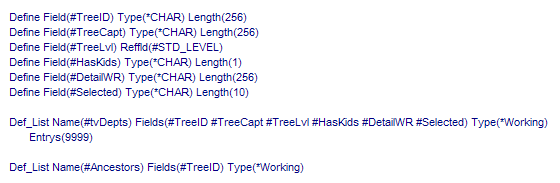
Depts作業リストは、Tree Viewを構成するのに使用されるリストです。そのフィールドの機能は以下のとおりです。
- TreeID ツリー・アイテムのキー情報を保持するのに使用されます。
- TreeCapt ツリー・アイテムのキャプションを保持するのに使用されます。
- TreeLv WAMに選択されたツリー・アイテムのレベルを返すために使用されます。
- HasKids ツリー・アイテムが子項目を持つかどうかを示すのに使用されます。
- DetailsWR ツリー・アイテムが選択された時に呼び出されるWebroutineの名前を保持するのに使用されます。
- Selected ツリー・アイテムが選択されるべきか制御するのに使用されます。
Ancestorsリストは選択されたツリー・アイテムについてツリービュー・ウェブレットから親ツリー・アイテムのキー情報を受け取るために使用されます。
DepartmentTreeWebroutineを右クリックして、LANSAエディターのオプションを選択してください。LANSAエディターが開かれたら、ツリー自体をクリックし、詳細タブを選択してください。ツリー・ビューのプロパティが、以下のように表示されます。
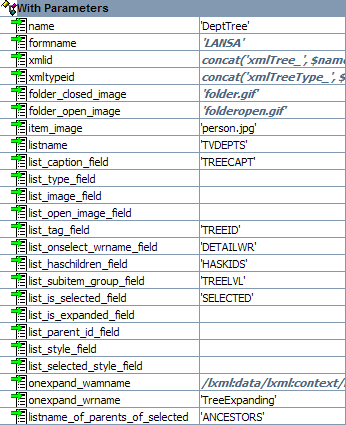
listnameプロパティはツリー・ビュー作業リストの名前、tvDeptsを含んでいることに注意してください。また、list_*プロパティ、onexpand_wrnameプロパティ、及び
- TreeID, used to hold the key information for the tree item.
- TreeCapt, used to hold the caption for the tree item.
- TreeLvl, used to return the selected tree item's level to the WAM.
- HasKids, used to denote whether the tree item has children.
- DetailsWR, used to hold the name of the Webroutine to be invoked when the tree item is selected.
- Selected, used to control whether a tree item should be selected.
The Ancestors list is used to receive parent tree item key information from the Tree View weblet for the selected tree item.
Right-click on the DepartmentTree Webroutine and select the LANSA Editor option. Once the LANSA Editor has opened, click on the tree itself and then select the Details tab. The properties of the tree view will be shown, as follows:
Note the listname property contains the name of the tree view working list, tvDepts. Note also how the list_*, onexpand_wrname and listname_of_parents_of_selected properties relate back to fields in tvDepts.
Invoking the WAM
...
In this example, the only thing it has to do is set the Session Status to Active. This controls the writing out and reading in of any persistent session data when executing Webroutines in the WAM.
The ShowPage Webroutine is then executed. Again, this is designed to be the only place in the WAM used to display the web page. In this example, no Web_maps specify what is to be displayed – all such information is handled by other Webroutines, as you will see. Non-field and list data has been specified via the LANSA Editor, and so the ShowPage Webroutine shows as being 'empty'.
Building the Tree View
1. Right-click on the ShowPage Webroutine and select the LANSA Editor option.
...
BuildTree is a Boolean field that is used to control the building of the tree view. Its default (in its field definition, at the top of the source) is True, which means that when this Webroutine is invoked for the first time, by the Navigation Panel, the tree view will be built. BuildTree is then set to False, ensuring that the tree is not rebuilt on subsequent invocations.
BuildDepartmentList method:
...
The Role of the Tree View Target Weblet
1. Right-click on the ShowPage Webroutine again and select the LANSA Editor option.
2. Click on the right-hand side of the Vertical Splitter and then click the Details tab. The properties for the Tree View Target will be displayed.
Note the treeview_name property points to the name of the Tree View weblet as defined in the DepartmentTree Webroutine. This indicates that the Tree View Target will receive selection events from the tree view. Effectively, it will become the active, target portion of the web page when something is selected in the tree.
This, in combination with the list_onselect_wrname_field property of the tree view, will display details of a selected Department, Section or Employee.
3. Close the LANSA Editor.
DepartmentDetail Webroutine in the WAM source:
...
The SelID field is defined as a persistent session field (Web_map with *NONE and *PERSIST) and is used to hold the selected key on multiple invocations of the WAM. This is used when rebuilding the tree.
When the Webroutine ends, because the active portion of the web page is the Tree View Target, the output from the Webroutine is directed to it, so you see the department details in the right-hand portion of the Vertical Splitter.
Rebuilding the Tree View
...
プロパティがtvDeptsのフィールドにどのように関連付けられるかにも注意してください。
WAMの起動
WAMのエントリー・ポイント(ブラウザーURLか他のWAMからWAMを実行するのに使用されるもの)はViewDepartmentsWebroutineです。これは、エントリー・ポイントとしてのみ、一回のみ実行されるために、デザインされています。WAMの初期化ロジックはここに置かれます。以下のようになります。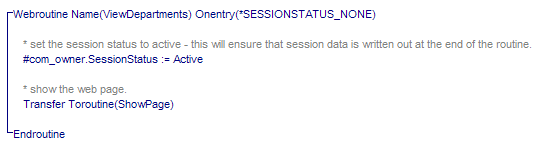
この例では、すべきことはただ1つ、セッション・ステータスをActiveにすることです。これは、WAMでWebroutineを実行した時に永続的なセッション・データを書き出したり読み込んだりするのを制御します。
ShowPageWebroutineが次に実行されます。これも、ウェブ・ページを表示するために使用されるWAMが置かれるためだけにデザインされています。この例では、何を表示するか指定するWeb_mapはありません。お分かりのように、そのような情報は全て他のWebroutineで扱われています。フィールドやリストのデータがLANSAエディターで指定されないため、ShowPageWebroutineは‘空’の状態で表示を行います。
ツリービューの構築
- ShowPageWebroutineを右クリックして、LANSAエディターのオプションを選択してください。
- 垂直スプリッターの左側をクリックし、詳細タブを選択して、以下のようにNavigation Panelのプロパティを表示してください。
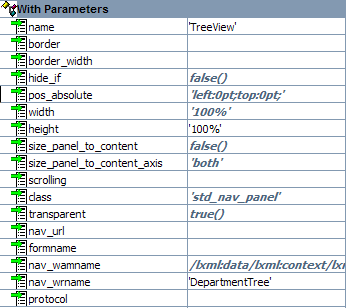
nav_wrnameプロパティに注目してください。これは、Navigation Panelが表示されるたびに呼び出されるWebroutineです。この例では、DepartmentTreeWebroutineを示しており、これはツリー・ビューを構築するのに使用されます。 - XMLエディターを閉じ、WAMソースのDepartmentTreeWebroutineを見てください。以下のようになります。
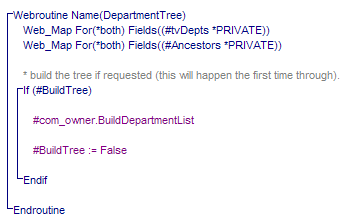
Web_map定義に注意してください。このWebroutineはツリー・ビューを表示するために使用されるため、選択されたツリー・アイテムの祖先の項目を保持するのに使用される作業リストと一緒に、ツリーを表す作業リストのWeb_mapを持っています。ツリー・ビュー作業リストがWeb_mapとして指定されるところはどこでも、祖先のリストもWeb_mapとして指定されなくてはいけません。そうでない場合、WAMは正しく動きません。
BuildTreeはツリー・ビューの構築を制御するのに使用されるBooleanフィールドです。デフォルト値(ソースのトップにある、フィールド定義において)はTrueであり、これは、このWebroutineがNavigation Panelによって最初に呼び出される時に、ツリー・ビューが構築されるということを意味しています。BuildTreeにはそれからFalseがセットされ、ツリーが次の呼び出し時に再構築されないようにします。
BuildDepartmentListメソッド:
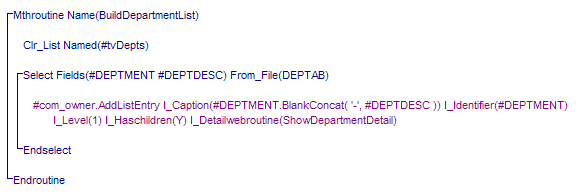
各エントリーに対する設定はツリー・ビュー作業リストに追加されることに注意してください。これについての詳しい説明については、 WAMEX51の詳細な考察の「リスト定義」を参照してください。
ツリービュー・ターゲット・ウェブレットの役割
- 再度ShowPageWebroutineを右クリックして、LANSAエディターのオプションを選択してください。
- 垂直スプリッターの右側をクリックし、詳細タブをクリックしてください。ツリービュー・ターゲットのプロパティが表示されます。
treeview_nameプロパティがDepartmentTreeWebroutineに定義されたとおりにTree Viewウェブレットの名前を示すことに注意してください。Tree View Targetがツリー・ビューから選択イベントを受け取るということを示しています。実際上、ツリーで何かが選択された時に、それがウェブ・ページのアクティブな、ターゲット部分になります。
これは、ツリー・ビューのlist_onselect_wrname_fieldプロパティと協力して、選択されたDepartment、Section、Employeeの詳細を表示します。 - LANSAエディターを閉じます。
WAMソースのDepartmentDetail Weroutineは以下の通りです。
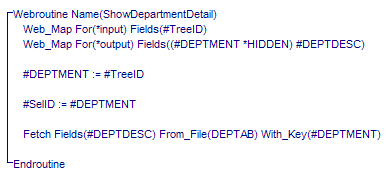
これはツリー・ビューでDepartmentが選択された時に呼び出されるWebroutineです。*input Web_mapに注意してください。これは、list viewウェブレットのlist_tag_fieldプロパティに対して指定されたフィールドです。ここには、選択されたツリー・アイテムの識別子もしくはキーが格納されています。
SelIDフィールドは永続的なセッション・フィールド(*NONE 及び *PERSISTのついたWeb_map)として定義されており、WAMが複数起動された時に選択されたキーを保持するのに使用されます。これはツリーを再構築する時に使用されます。
Webroutineが終わる時に、ウェブ・ページのアクティブな部分がTree View Targetであるため、Webroutineからの出力がその部分に割り当てられます。そのため、垂直スプリッターの右側の部分に部門の詳細が表示されます。
ツリー・ビューの再構築
- ShowDepartmentDetailWebroutineを右クリックして、LANSAエディターのオプションを選択してください。部門の記述と同様に、更新ボタンも表示されることに注意してください。それをクリックし、詳細タブを開いてください。そのプロパティが表示されます。以下のようになります。
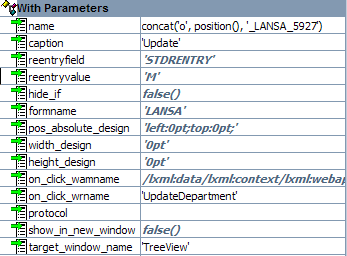
on_click_wrname及びtarget_window_nameプロパティに注意してください。on_click_wrnameプロパティはボタンがクリックされたときに呼び出すWebroutineの名前を持っています。
target_window_nameプロパティはWAMの出力を指定したウィンドウに割り当てるのに使用されます。結果、これはウェブ・ページのアクティブな部分になります。この例では、Navigation Panelが対象のウィンドウになります。 - LANSAエディターを閉じます。
WAMソースのUpdateDepartmentWebroutineは以下の通りです。
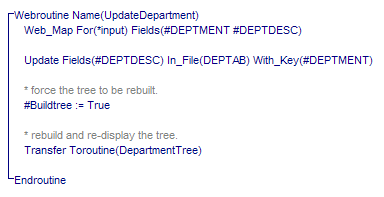
BuildTree booleanフィールドにはTrueがセットされ、ツリーが再構築されるべきということを示していることに注意してください。制御はツリー・ビューが再構築されるところから、DepartmentTreeWebroutineに移ります。AddListEntryメソッドについても見てください。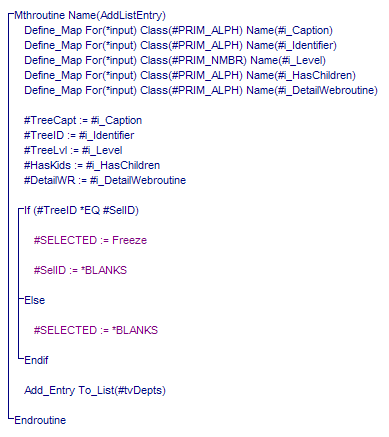
If/Else/Endif コードに注意してください。SelIDフィールドを覚えていますか?ツリーに追加されたエントリーがたった今更新されたものと同じものである場合、SELECTEDフィールドには'freeze‘がセットされます。SELECTEDは、ツリー・ビューのlist_is_selected_fieldプロパティを動かすツリー・ビュー作業リストのフィールドです。それにfreezeを設定すると2つのことを行います。ツリー・ビューを事前選択することと、TreeViewTargetを再ロードするのをやめることです。
ツリー・アイテムの展開処理
LANSAエディターでDepartmentTreeWebroutineを開き、tree viewウェブレットを選択します。詳細タブをクリックし、そのプロパティを開きます。onexpand_wrnameプロパティにTreeExpandingが設定されることに注意してください。これはツリー・アイテムのエクスパンダー (+)がクリックされたときに呼び出されるWebroutineです。LANSAエディターを閉じて、WAMソースのTreeExpandingWebroutineをご覧ください。
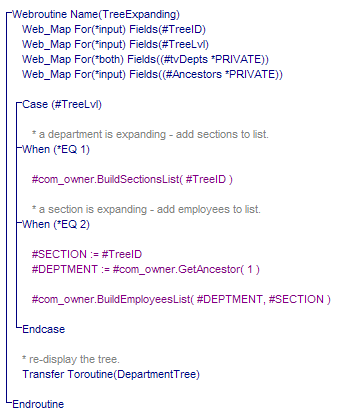
*input field Web_mapsに注意してください。TreeID fieldは、展開ツリー・アイテムのキー情報を保持するものであり、TreeLvl fieldは、展開ツリー・アイテムのレベルを示すものです。ツリー・ビュー作業リストも、展開ツリー・アイテムの祖先のリストと一緒に受け渡されます。ツリー・ビュー作業リストには*bothが指定されることに注意してください。これは、TreeExpandingルーチンの最後にDepartmentTreeWebroutineに受け渡されます。また、ANCESTORSリストは*inputです。これはこのルーチンによってのみ必要とされるものです。
Case文はツリー・ビュー作業リストに何を追加すべきかを決定します。レベルが1の場合、Departmentのツリー・アイテムは展開されているということであり、Sectionが追加される必要があります。レベルが2の場合には、Sectionが展開されており、Employeeが追加される必要があります。ツリー作業リストにエントリーが追加されたら、ツリーを表示するDepartmentTreeWebroutineに処理が戻ります。
Ancestorの情報にアクセスするにおいては、親のキー情報を検索するために何をする必要があるかを示すため、Sectionツリー・アイテムが拡張された時に何が起こるかにフォーカスを置いています。
祖先情報にアクセス
戻ってツリー・アイテムの展開を行うを参照してください。レベル2を処理する際、SECTIONフィールドには入力された識別子がセットされます。(これはBuildSectionsListメソッドでSectionがツリー・ビュー作業リストに追加されたときにセットされたものです。)もちろん、SectionはDepartmentという親を持っています。
拡張されたSectionがどのDepartmentに属するかを決定するため、ANCESTOR作業リストが使用されます。このリストはTreeIDフィールドの複数のエントリーを持っています。Sectionはたった1つの親を持っているため、Ancestor作業リストは1エントリーのみを持っています。この例では、GetAncestorメソッドが実行され、Sectionの親のキー値が検索されます。
より多くのレベルをもつツリーでは、ANCESTOR作業リストはレベル3以上のアイテムについて複数のエントリーを持ち、そのためmultiple Get_entrysが親キーの完全なリストを作り上げるために使用されます。
The target_window_name property is used to direct the output of the WAM to a specified window. In effect, this becomes the active portion of the web page. In this example, the Navigation Panel will be the target window.
2. Close the LANSA Editor.
UpdateDepartment Webroutine in the WAM source:
...
Processing Expanding Tree Items
...
Note the *input field Web_maps: the TreeID field, which holds the key information of the expanding tree item, and the TreeLvl field, which indicates the level of the expanding tree item. The tree view working list is also passed in, along with the list of ancestors of the expanding tree item. Note that the tree view working list is specified as *both – it will be passed to the DepartmentTree Webroutine at the end of the TreeExpanding routine. Also, the ANCESTORS list is *input – it is only needed by this routine.
The Case statement determines what should be added to the tree view working list. If the level is 1, it means a Department tree item is being expanded, so Sections need to be added. If it's 2, a Section is being expanded and Employees need to be added. Once entries have been added to the tree working list, control is transferred back to the DepartmentTree Webroutine which displays the tree.
In Accessing Ancestor Information, the focus is on what happens if a Section tree item is being expanded in order to show what you need to do to retrieve parent key information.
Accessing Ancestor Information
Refer back to Processing Expanding Tree Items. When processing level 2, the SECTION field is set to the incoming identifier (this was set when the Sections were added to the tree view working list in the BuildSectionsList method). Of course, a Section has a parent of Department.
In order to determine the Department to which the Section being expanded belongs, the ANCESTORS working list is used. This list contains multiple entries of the TreeID field. A Section only has one parent, so the ancestor working list will contain one entry. In this example, the GetAncestor method is executed to retrieve the key value of the Section's parent.
If the tree contained more levels, the ANCESTOR working list would contain more than one entry for a level three or higher item, and so multiple Get_entrys could be used to build up the full list of parent keys.