Page History
The WhereScape Migration tool allows you to migrate metadata repositories from WhereScape RED Classic to WhereScape RED 10+. The following sections provide information on how to install and use the WhereScape Migration tool.
| Table of Contents |
|---|
Prerequisites For PostgreSQL Metadata
Before you begin the following prerequisites must be met:
...
- RED supports the following versions for the metadata repository: PostgreSQL 12 or higher
Installing the Migration Tool
- Launch the Install Wizard as administrator.
- Select Create a new repository.
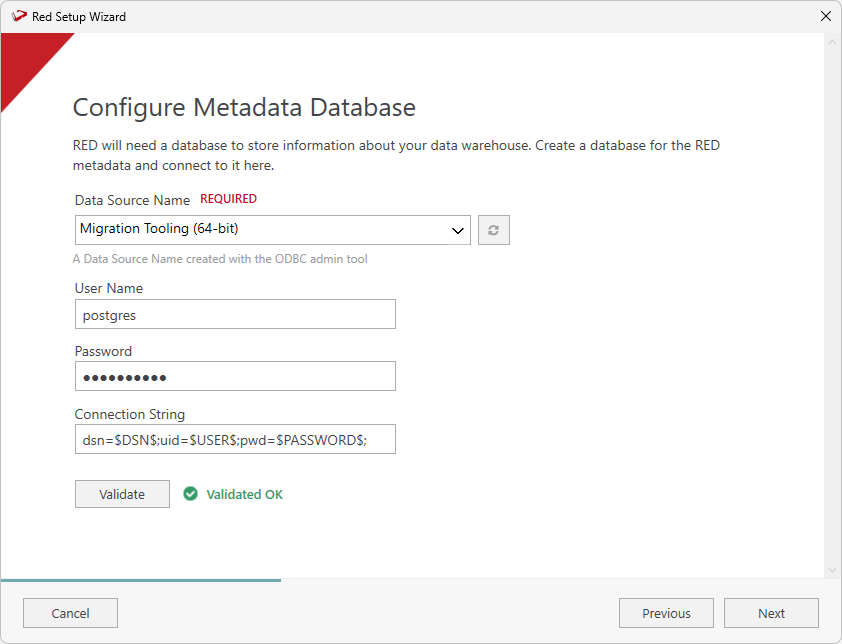
- Configure the metadata repository.
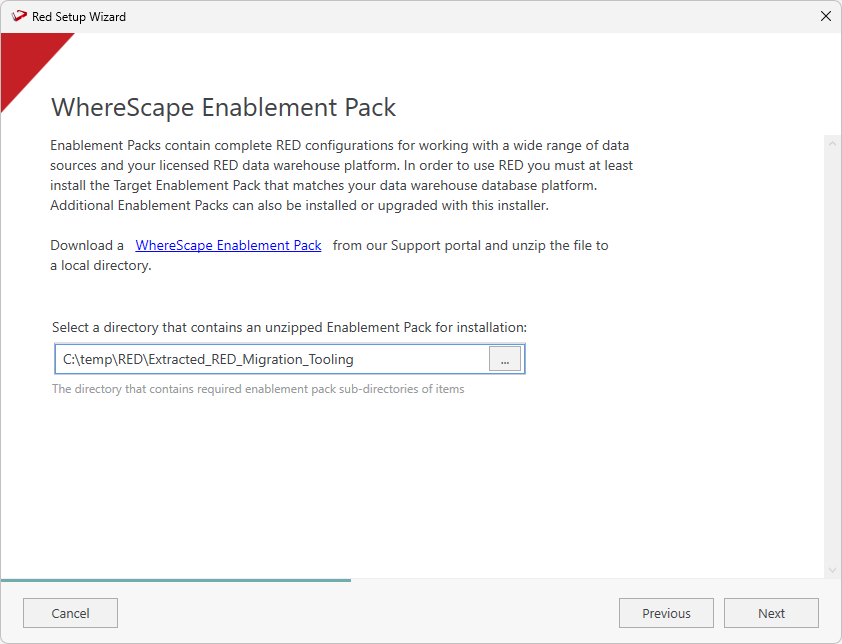
- Select the directory that contains the unzipped migration tool. Click Next.
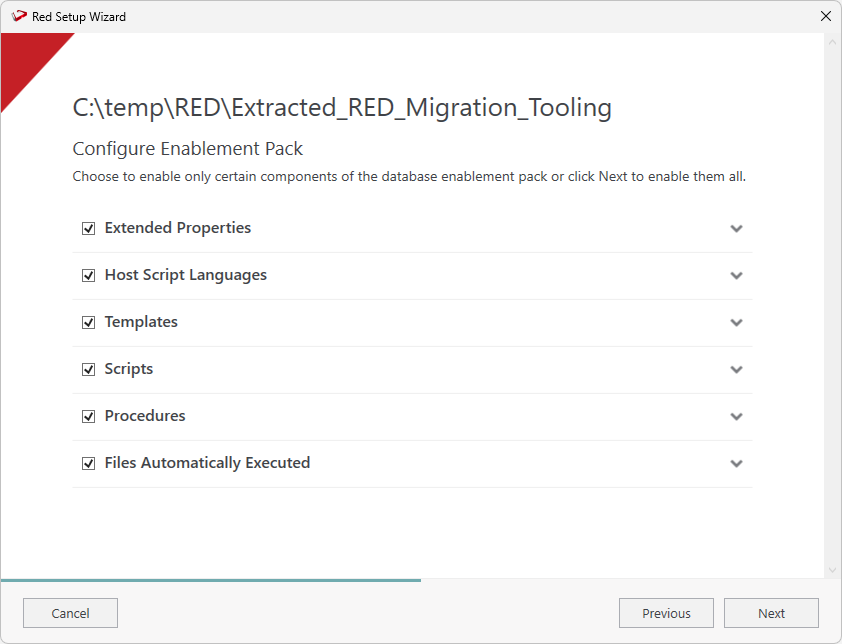
- Select the components that you want to install. Click Next.
...
You must create two PostgreSQL connections with the following characteristics:
| Name | Database Type | Target Name |
|---|---|---|
| Target | Custom* | red |
| Reports | Custom* | red |
| Info |
|---|
*Custom will be your licensed Custom Database Target type which might have a different label in the UI than 'Custom', basically for these two connections we can't use the inbuilt SQL, Oracle or Teradata target types. |
...
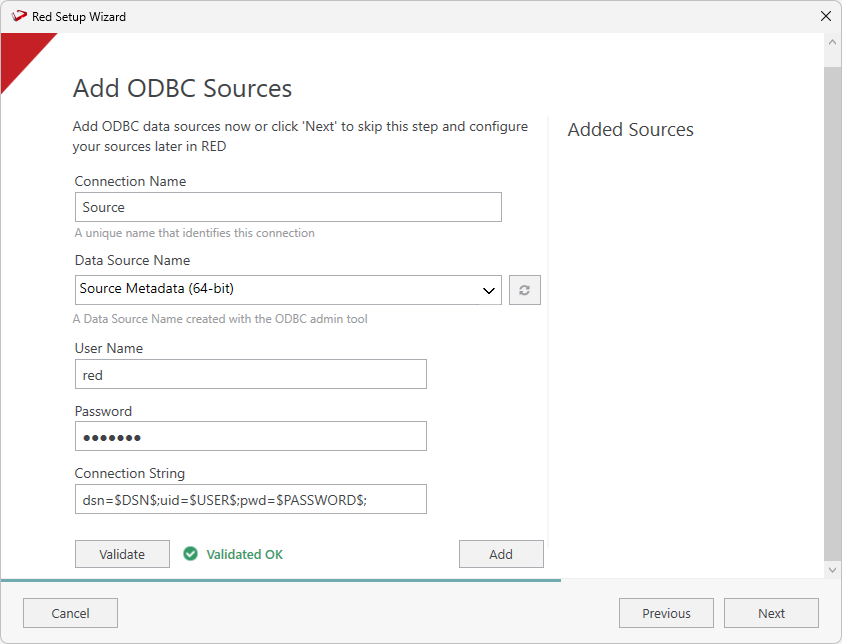
- On the Add ODBC Sources screen, configure the data source you want to migrate from RED Classic. Click Validate to check your configurations and then click Add.
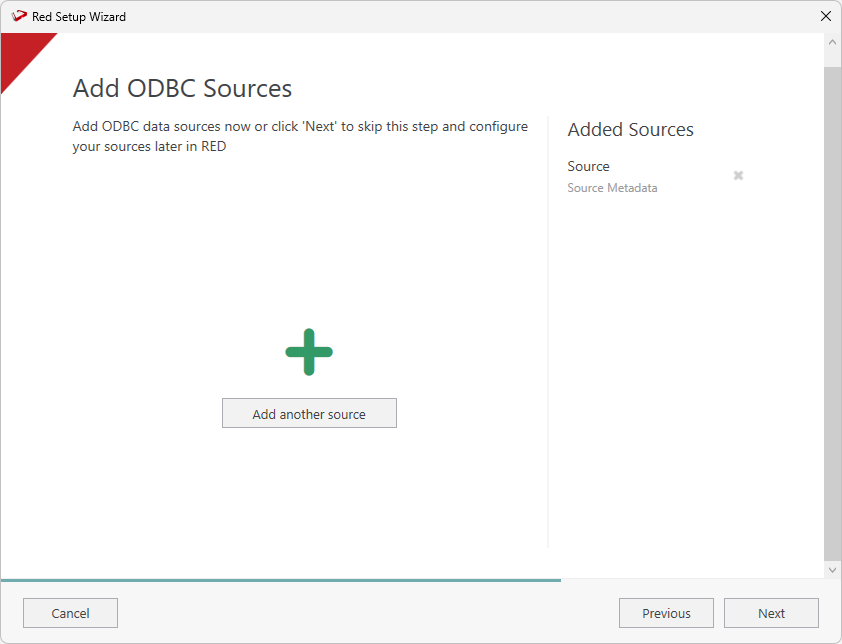
- The Add ODBC Sources screen will show the connection you just added. Click Next to continue or click Add another source to add more sources.
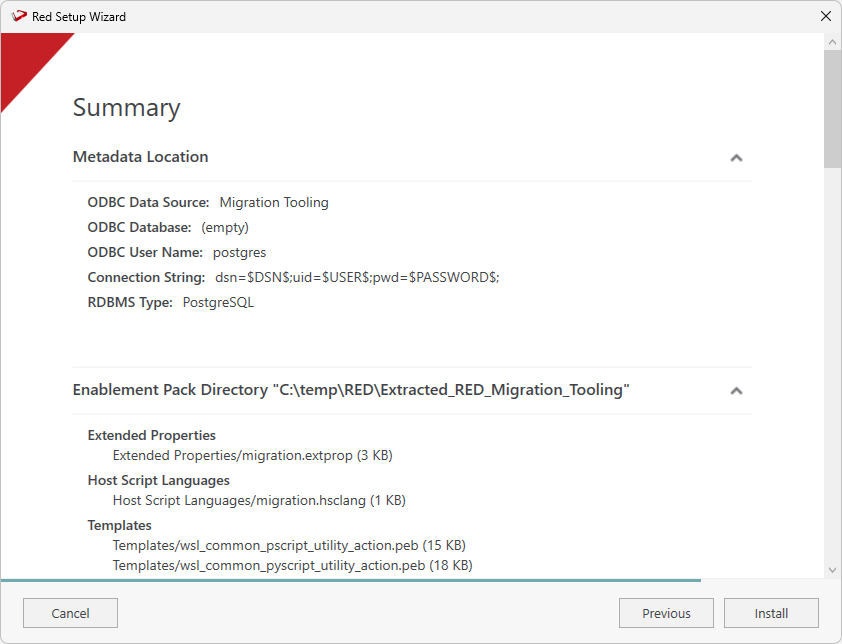
- On the Summary screen review your configurations are correct, you can click Previous to make changes or click Install to continue.
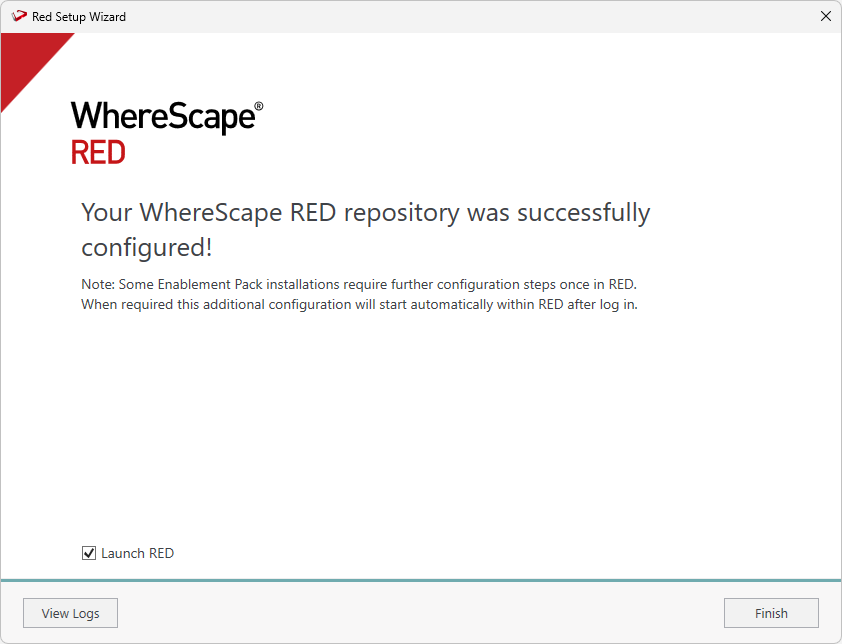
Once the installation finishes, click Finish to close the installer and launch RED.
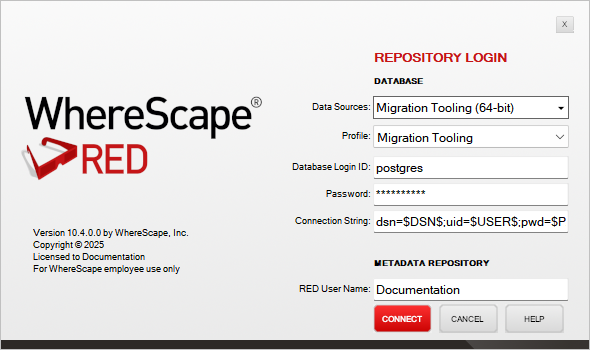
Enter your login settings and click Connect.
Migration Preparation
Migration Preparation Script
When WhereScape RED starts for the first time, after the installation steps described in the previous section, the script that prepares the Migration Tool executes automatically.
If you get failures in the Reports pane after opening WhereScape RED, then one or more of the preparation steps in the host script named '1_prepare_migration' did not succeed.
Take note of the failure message and see if you can correct the issue, then rerun the script. On subsequent script runs you may get additional failures due to the earlier run having already applied a change but in general rerunning this script will not cause issues and some failures may be dismissed.
If you have not set up the required connections, the Results pane will display a failure message similar to the image shown below. Please expand the Connections node in the left tree and add or amend connections as required before rerunning the script.

If you do add or adjust connections at this point, then ensure you 'Save your Connection Profile' and restart RED so that the in-memory profile of connections credentials is up to date.
The Migration Preparation Script will prompt for two items:
- Source Repository Database Type - either SQL Server, Oracle or Teradata
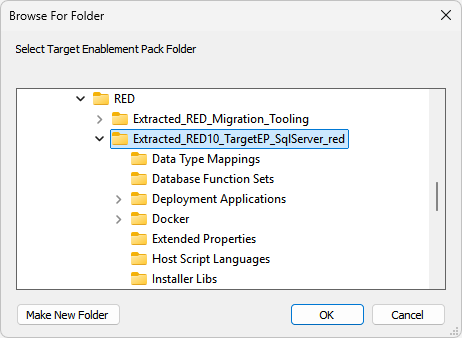
- Target Database Enablement Pack - this is the location of the unpacked RED 10 compatible Enablement Pack for your licensed target