Page History
...
- Source Repository Database Type - either SQL Server, Oracle or Teradata
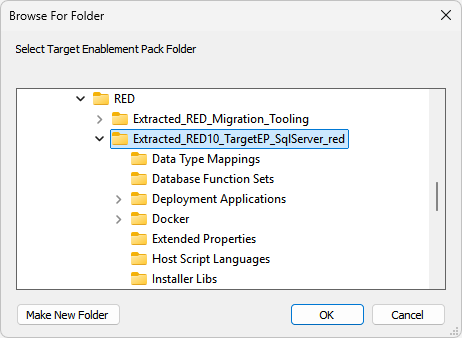
- Target Database Enablement Pack - this is the location of the unpacked RED 10 compatible Enablement Pack for your licensed target
Manual Checks
- For each connection Target, Source and Reports:
- Open the connection and click the 'Derive' button to ensure the server and port fields are up to date.
- Browse the connection to ensure the credentials are working (note that the Target connection will not have any objects to display yet).
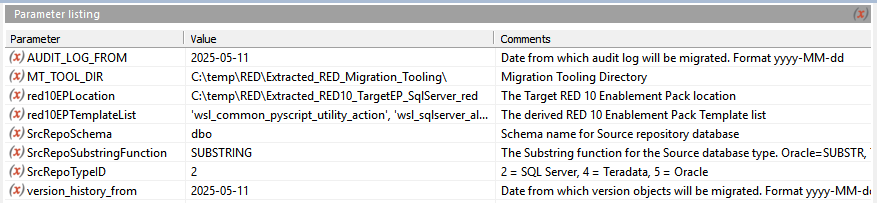
- Check the Parameters which the start-up script added make sense for your environment:
Setup the Migration Tool Scheduler
Install
Next, we'll need a Windows Scheduler installed to perform the migration tasks. Follow the Windows Scheduler Installation instructions to install a WhereScape RED Scheduler
| Tip |
|---|
Remember your Profile Encryption Secret for later entry into the Scheduler Profile Maintenance wizard. |
Configure Local Credentials
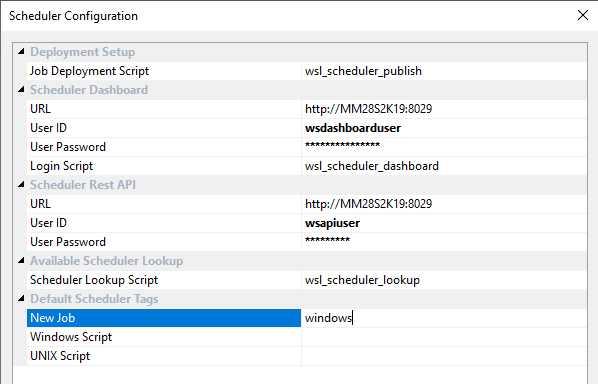
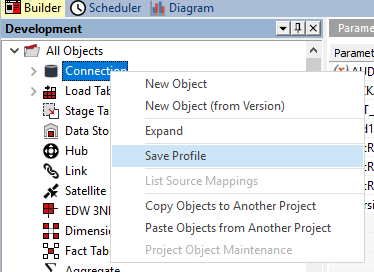
After installing the Scheduler ensure to enter your scheduler credentials into the Configuration page of the Scheduler tab in RED, then Save your Profile again to ensure your credentials are preserved between RED sessions.
Configure Scheduler Credentials
Before running any jobs, you must first setup the Scheduler Profile which adds the encrypted connection credentials rows for the connections in RED. This makes those credentials available to scheduled jobs. To do this run the Host Script 'wsl_scheduler_profile_maintenance'
| Tip |
|---|
You will need your Profile Encryption Secret added during Scheduler installation. |
Publish and Run jobs
-
Run the Migration Jobs
-