Page History
The WhereScape Migration tool allows you to migrate metadata repositories from WhereScape RED Classic to WhereScape RED 10+. The following sections provide information on how to install and use the WhereScape Migration tool.
| Table of Contents |
|---|
Prerequisites For PostgreSQL Metadata
Before you begin the following prerequisites must be met:
- Create Database and ODBC DSN:
- Supported* version of PostgreSQL (PostgreSQL 12 or higher)
- A database to house the RED Metadata Repository.
- A database for the Range Table DB (Optional)
- A database to house scheduler (Optional)
- Software Installations
- WhereScape RED10 with valid license key entered and EULA accepted
- WhereScape Enablement Pack for target database version RED10
- Supported* version of PostgreSQL (PostgreSQL 12 or higher)
- Windows Powershell (64-bit) version 4 or higher
- To check the Windows Powershell Version:
- Run the below command in Windows Powershell
No Format Get-Host|Select-Object Version
- Run the below command in Windows Powershell
- To check the Windows Powershell Version:
- Run the below command in the Command Prompt
No Format powershell $psversiontable
- Run the below command in the Command Prompt
...
|
Prerequisites
Migration Source
Metadata:
- A supported RED Metadata Repository on SQL Server or Azure SQL.
- ODBC DSN and user with select permissions to the metadata database.
Data Warehouse:
- Any Custom* data warehouse platform utilizing the standard WhereScape Target Enablement Pack.
Preparation steps:
- Metadata has been validated.
- All objects have been versioned.
- Nested jobs are not supported in RED 10, these should be separated out prior to the migration for best results.
| Info |
|---|
*Custom will be your licensed Custom Database Target type which might have a different label in the UI than 'Custom', basically for these two connections we can't use the inbuilt SQL, Oracle or Teradata target types. |
Migration Target
Metadata:
- A supported RED Metadata Repository on PostgreSQL (with lowercase db name).
- ODBC DSN and user with full permissions on the metadata database.
- Compatible PostgreSQL command line tools.
Configuration:
- RED 10 compatible WhereScape Target Enablement Pack installed.
- A clean repository: except EP installation no new objects should be created.
- Azkaban Scheduler installed and operational.
- Set Default Update Templates in Object Type Maintenance if not already set.
Connections:
- All connection objects in the source metadata will be migrated to the target metadata so only the target connection for Custom* database created as a part of the EP install is required.
| Info |
|---|
*Custom will be your licensed Custom Database Target type which might have a different label in the UI than 'Custom', basically for these two connections we can't use the inbuilt SQL, Oracle or Teradata target types. |
Migration Tool
- The tool should be unzipped to a local directory on the system where the migration script will be run.
- Requires a Windows user with permissions to run a cmd as administrator in order to relax the PowerShell ExecutionPolicy to run the migration script.
- The latest RED 10 version should be installed on the system running the migration with a valid license installed and the EULA accepted for the windows user running the migration tool.
- PostgreSQL tools should be available on the environment variable “Path” for the Azkaban service user. Psql.exe is used in a Powershell script to bulk load the source metadata to the target.
How the Migration Tool Works
The WhereScape Red Migration Tool is a set of scripts and jobs that you can run from RED GUI, the scripts can be divided into three categories.
Scripts running
...
| No Format |
|---|
[Net.ServicePointManager]::SecurityProtocol = [Net.ServicePointManager]::SecurityProtocol -bor [Net.SecurityProtocolType]::Tls12
Register-PSRepository -Default -Verbose
Set-PSRepository -Name "PSGallery" -InstallationPolicy Trusted |
- Progress bar placeholder info line
No Format Install-Module -Name PoshProgressBar -SkipPublisherCheck -Force
- Progress bar placeholder info line
...
Installing the Migration Tool
...
- Source Repository Database Type - either SQL Server, Oracle or Teradata
- Target Database Enablement Pack - this is the location of the unpacked RED 10 compatible Enablement Pack for your licensed target
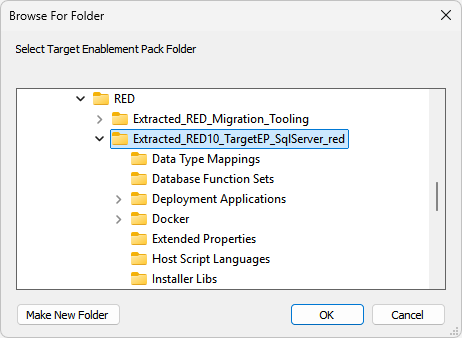
Manual Checks
- For each connection Target, Source and Reports:
- Open the connection and click the 'Derive' button to ensure the server and port fields are up to date.
- Browse the connection to ensure the credentials are working (note that the Target connection will not have any objects to display yet).
- Check the Parameters which the start-up script added make sense for your environment:
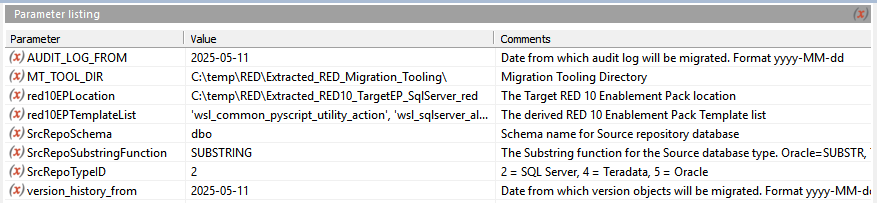
Setup the Migration Tool Scheduler
Install
Next, we'll need a Windows Scheduler installed to perform the migration tasks. Follow the Windows Scheduler Installation instructions to install a WhereScape RED Scheduler
| Tip |
|---|
Remember your Profile Encryption Secret for later entry into the Scheduler Profile Maintenance wizard. |
Configure Local Credentials
After installing the Scheduler ensure to enter your scheduler credentials into the Configuration page of the Scheduler tab in RED, then Save your Profile again to ensure your credentials are preserved between RED sessions.
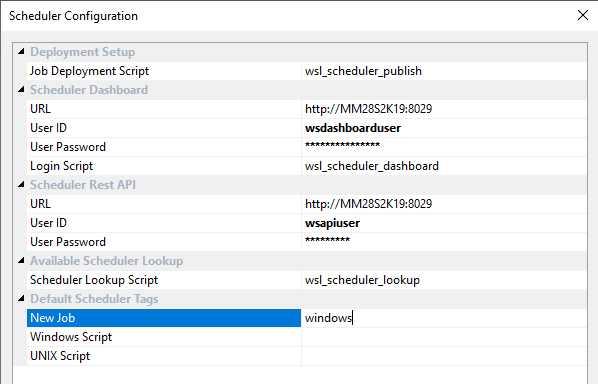
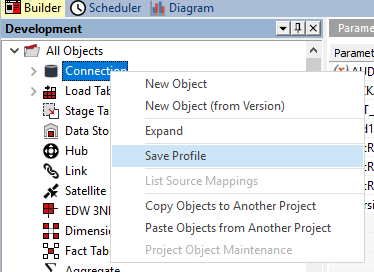
Configure Scheduler Credentials
Before running any jobs, you must first setup the Scheduler Profile which adds the encrypted connection credentials rows for the connections in RED. This makes those credentials available to scheduled jobs. To do this run the Host Script 'wsl_scheduler_profile_maintenance'
...