Page History
...
- A RED Metadata Repository on SQL Server, Oracle or Teradata which has a RED version of 8.6 or higher
- An ODBC DSN and a user with at least select permissions to the source metadata database.
...
- An empty PostgreSQL database to become your migrated metadata repository.
- An ODBC DSN and a user with full permissions on the database (see see setting up database and users in PostgreSQL for RED).
- Compatible PostgreSQL command line tools.
...
- An empty PostgreSQL database to house your Migration Tooling, this database can be removed once migration is complete.
- An ODBC DSN and a user with full permissions on the database database (see setting up database and users in PostgreSQL for RED).
- Compatible PostgreSQL command line tools.
Tooling:
- Downloaded A downloaded and unzipped Migration Tooling Enablement Pack.
- RED 10.4.0.2 or higher installed.
- Valid A valid RED license installed with a Custom Target enabled.
...
- Launch the RED Setup Wizard (RedSetupWizard.exe) from the RED installation directory
- Select Create a new repository.
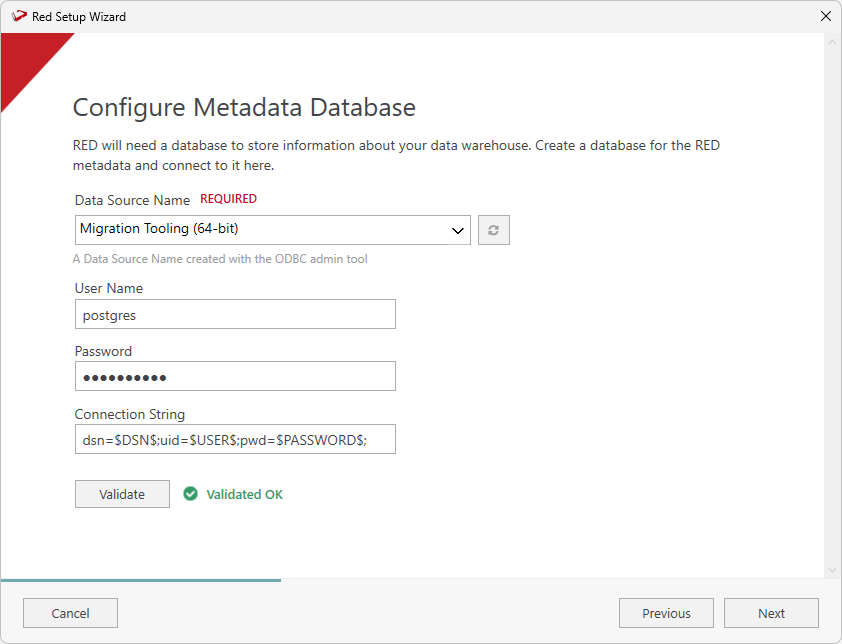
- Configure the metadata database - , this will be your Migration Tooling metadata.
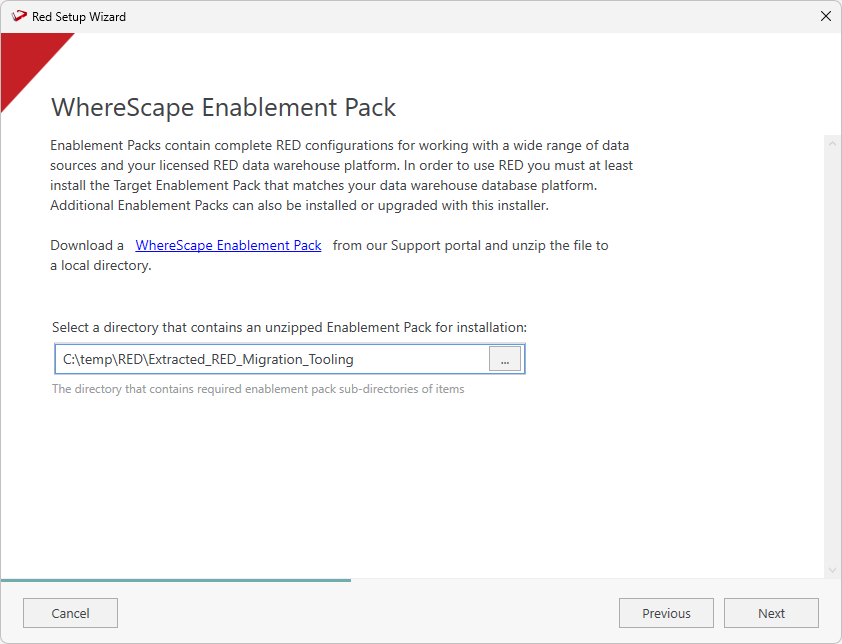
- Select the directory that contains the unzipped RED Migration Tooling. Click Next.
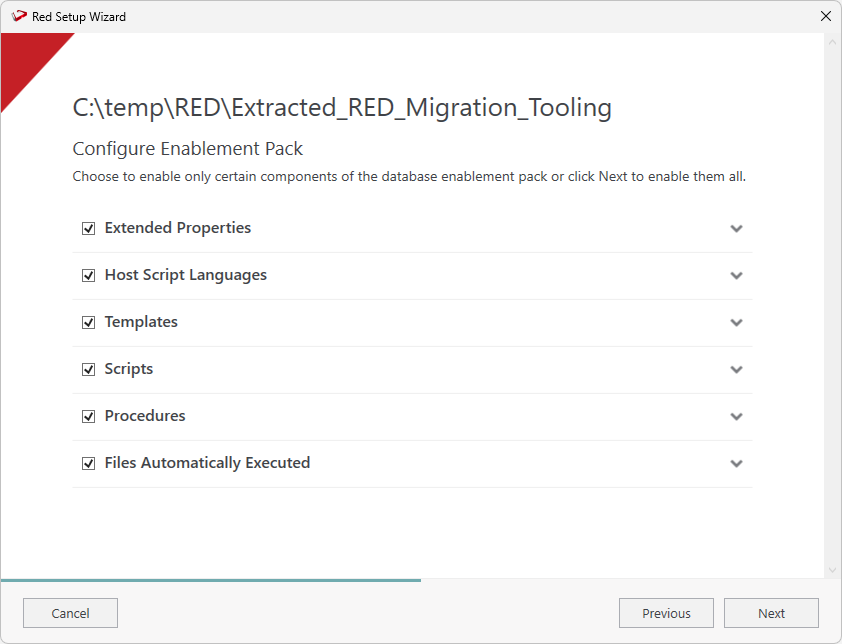
- Review the components that will be installed. Click Next.
...
- On the Connection Name field, ensure to enter 'Target' as a name.
- On the Data Source Name field, ensure you select the connection to the destination metadata repository.
- On the Target Storage Locations field, ensure to enter 'red'.
- Complete the other fields with the appropriate data, then click Validate to check your configurations.
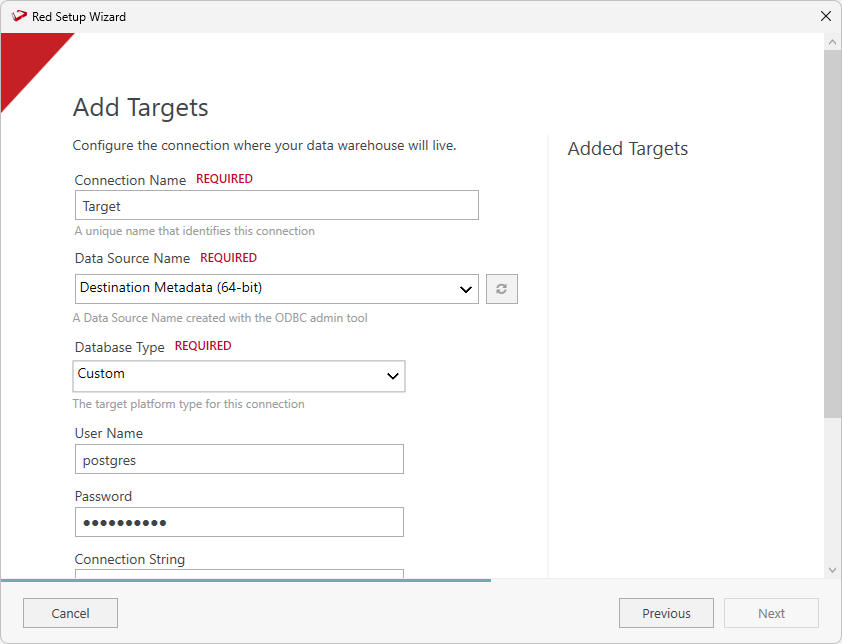
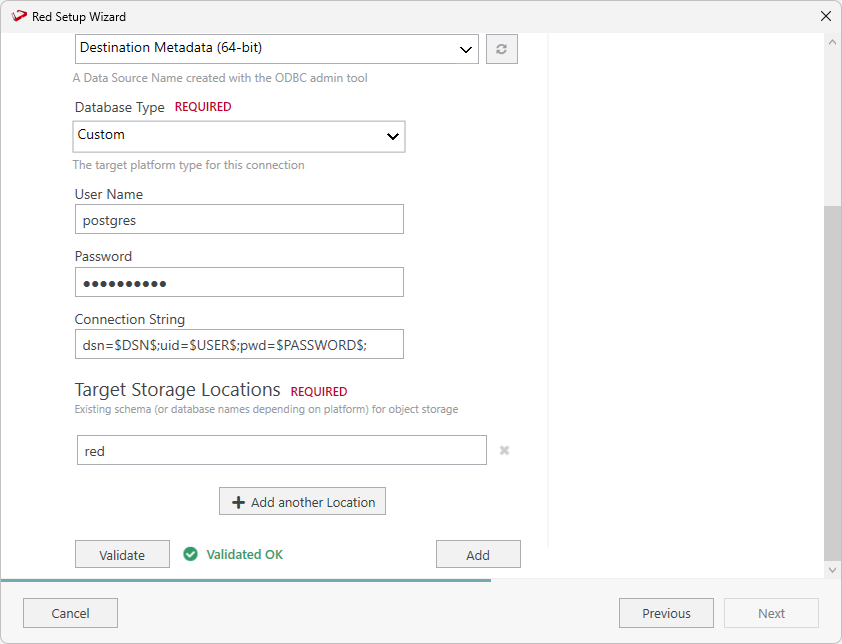
- Once you validate your configurations click Add.
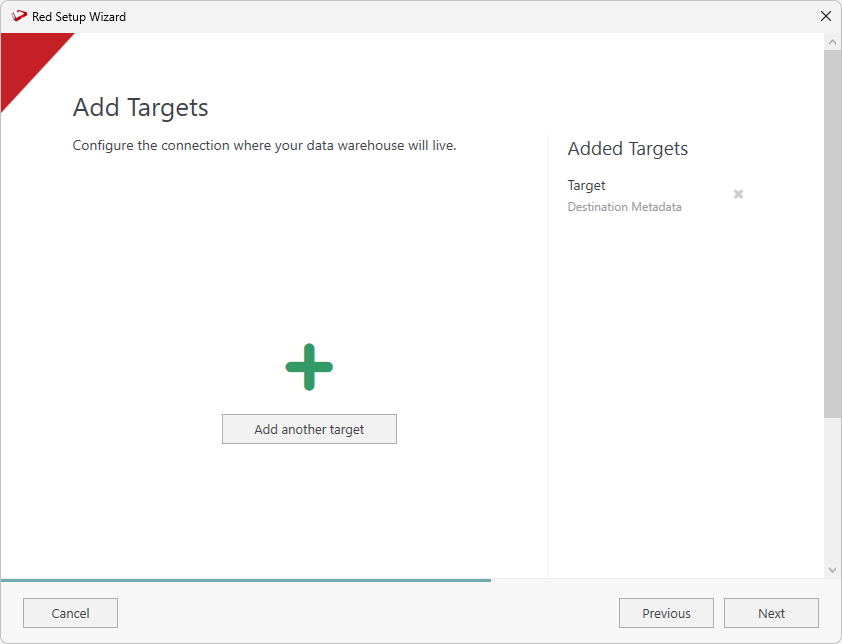
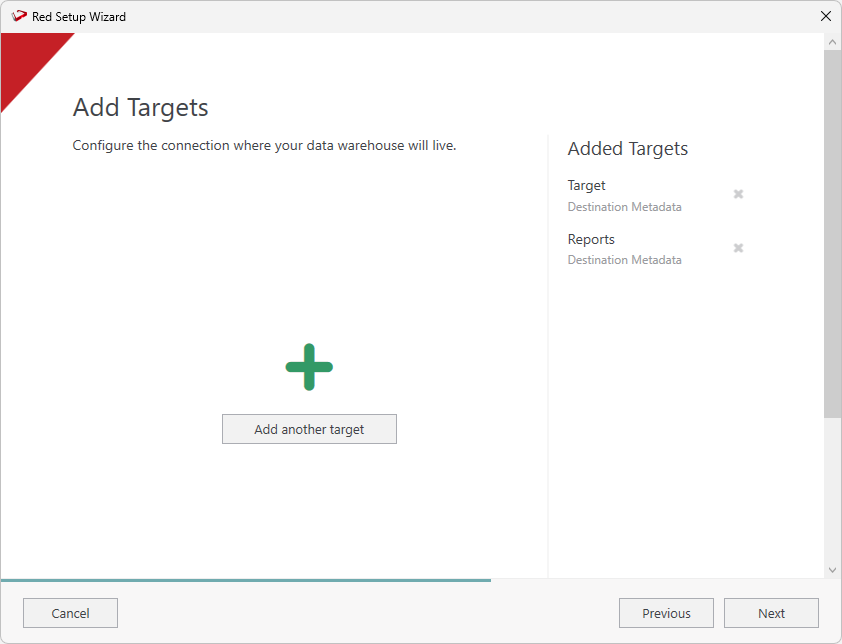
- On the Add Targets screen you will see the connection you just added. Click Add another target to add the Reports connection.
...
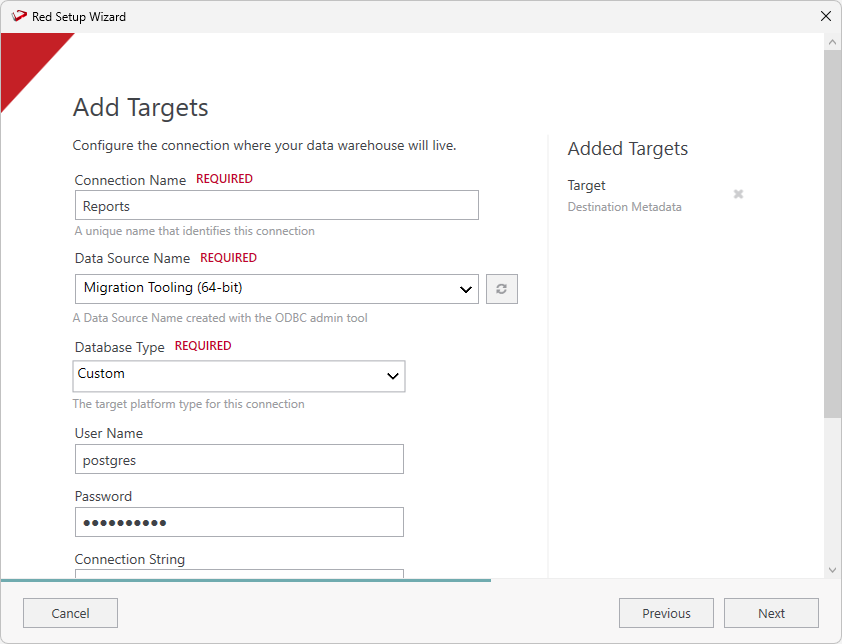
- On the Connection Name field, ensure you enter 'Reports' as the connection name.
- On the Data Source Name field, ensure you select the connection to the destination metadata repository.
- On the Target Storage Locations field, enter 'red' as the storage location.
- Complete the other fields with the appropriate data, then click Validate to check your configurations.
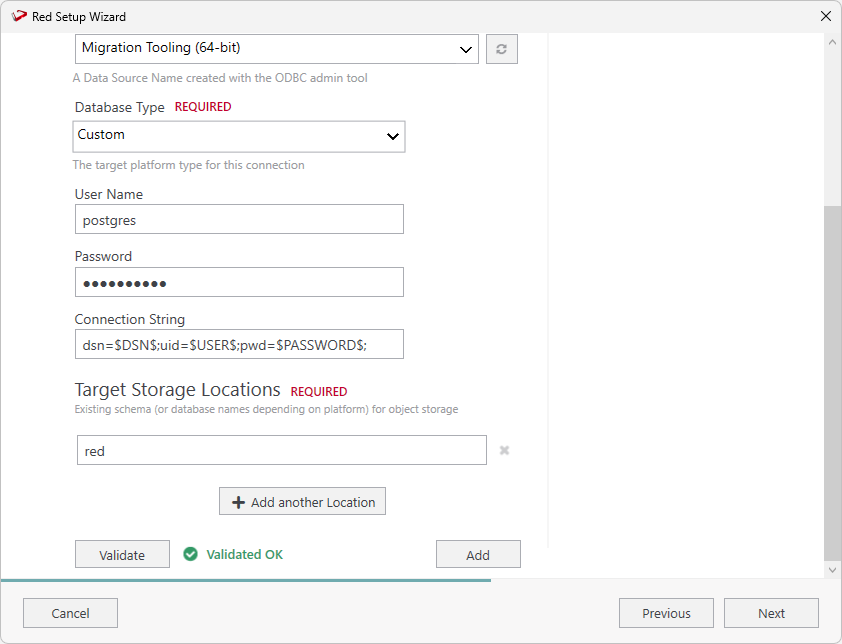
- Once you validate your configurations click Add.
- On the Add Targets screen you will see the two connections you just added. Click Next continue and add the source connection.
...
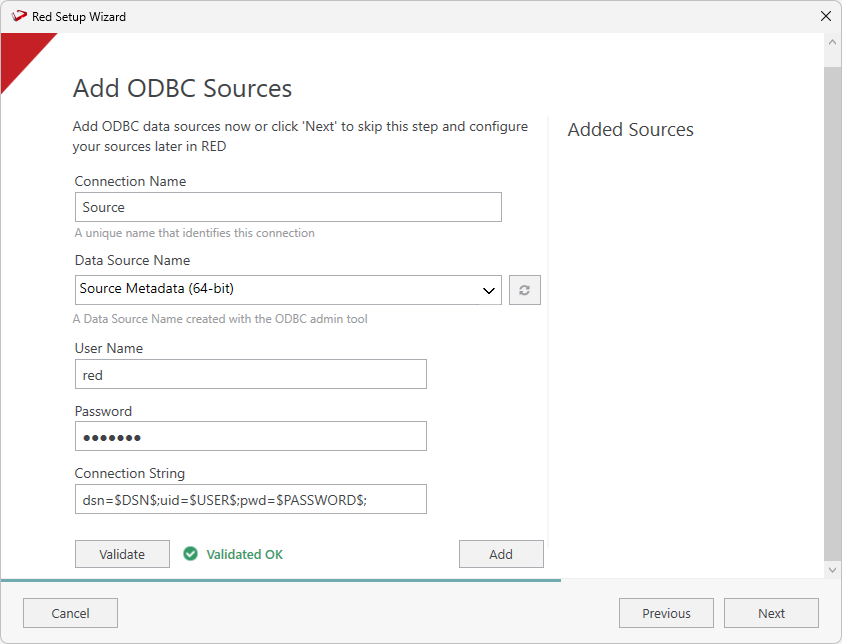
- On the Add ODBC Sources screen, configure a connection with 'Source' as the connection name, select the DSN relating to your existing RED 8.6 or 9.0 metadata repository. Click
- Click Validate to check your connection and then click Add.
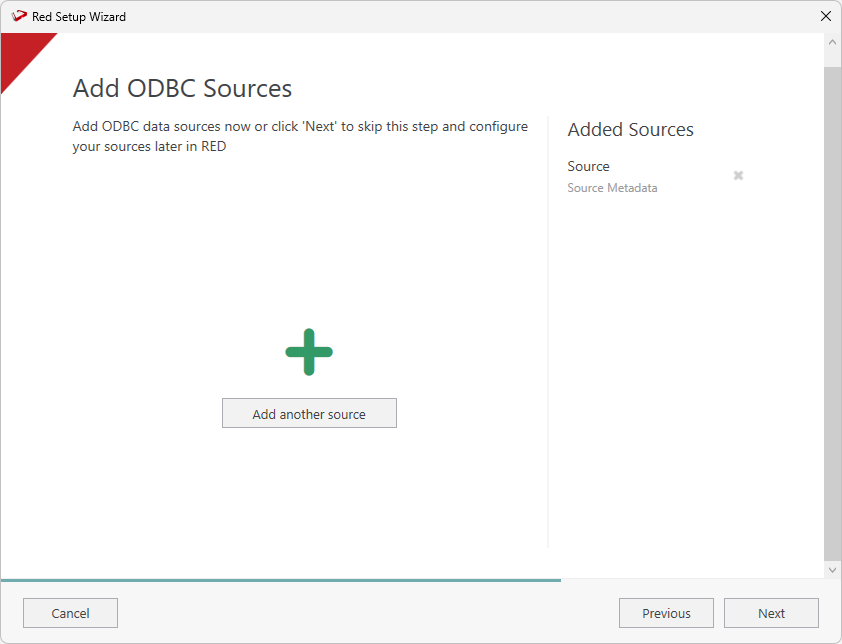
- The Add ODBC Sources screen will show the connection you just added. Click Next to continue or click Add another source to add more sources.
...