Page History
...
- RED application installed
- RED metadata repository exists with ODBC DSN created.
Azkaban PostgreSQL database to install the Azkaban 'white' schema and metadata tables (can be installed to the RED metadata database). You can also create a database with the installation wizard.
- A Windows User for the services to run under, with:
- user rights to 'Log On As A Service'
- write permissions on the Azkaban installation location (and work directory if not default user temp)
...
Go to the installer path C:\Program Files\WhereScape\RED, run RedSchedulerInstaller.exe.
The Scheduler Installation screen opens. Select all the installation options: Install Scheduler, Install Executor, and Add Scheduler Configuration to RED, and click Next.
- Only one Scheduler can be installed per RED metadata repository
- If you installed a scheduler already and only want to install another Executor then deselect the other options

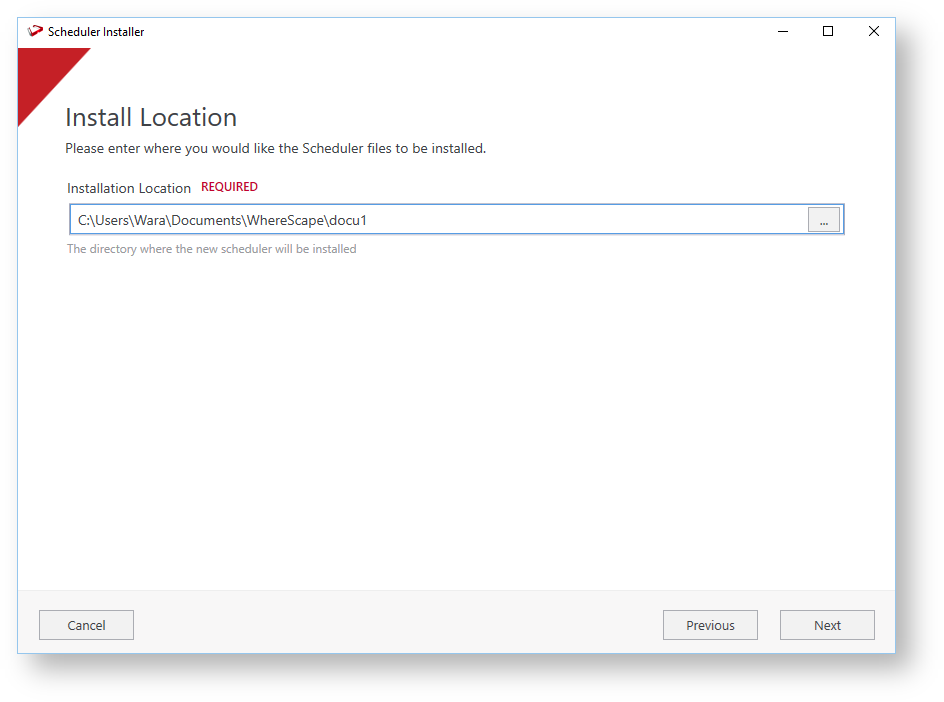
In the Install Location screen, select the Installation Location. It is recommended to create a folder under the C: disk to install Azkaban. Click Next.
Tip title Azkaban Install Location The install location must be writeable for the Service User which the service will run under so should not be installed in a directory under Windows Users. Typically you would create a folder called Azkaban in your 'C:\Program Files\WhereScape' directory, but it can be installed anywhere on the machine that the service you has write access to.
The Scheduler Metadata screen shows the information of the database that contains the scheduler metadata. Fill out the Database Name, the User Name, and the Password of the You can use a database you already created for Azkaban (Follow the same steps you follow to create the PostgreSQL Database). , or you can create one during installation.
Using an existing database
Provide the following information:
Database Host Name: Enter the database server name or IP.
Database: Server port: Enter the port number the server listens to.
Database Name: Enter the name of the database that will hold the scheduler metadata.
User Name: Enter the user that will login to the scheduler database.
Password: Enter the password for the user that connect to the scheduler database.
Click Validate to confirm that all the entered information is correct. Click Next.
Note: PostgreSQL Database Server Port is 5432 in default installations, but your database port may be different.
Creating a scheduler database
Select the Create Database option and provide the following information:
Database Host Name: Enter the database server name or IP.
Database: Server port: Enter the port number the server listens to.
Database Name: Enter a name for creating the database that will hold the scheduler metadata.
User Name: Enter the user that will login to the scheduler database.
Password: Enter the password for the user that connect to the scheduler database.
Click Validate to confirm that all the entered information is correct. Click Next.
Fill out the Database Name, the User Name, and the Password of the scheduler database.
Click Validate to confirm that all the entered information is correct. Click Next.
- Enter the RED Metadata database information. Enter the Database Name, the User Name, and the Password. Click Validate to confirm all the information is correct and click Next.

Enter the Scheduler Metadata installation/upgrade or leave blank to use the previously entered user for Azkaban and click Next. These credentials are for an administrative database user with permission to perform DDL operations (If required).

Note title Note If you used the Create Database option, this screen will not show during installation.
The Web Server Configuration screen allows specifying the settings for the Web Server, make any changes necessary, populate all "required" fields and be sure that the option Install as Windows Service is selected before you move on. Note: You can uncheck Install as a Windows Service when upgrading or when you want to manage startup of the Web Server manually.
Tip title Choosing a Port The following netstat command can be run in Windows to find ports currently in use on the machine, both Azkaban Web Server and each Executor Server will require a free port to be assigned otherwise they will fail to start. If a service fails to start and the log indicates the port is already in use, you can correct the port assignment in the azkaban.local.properties file directly.
netstat -an | findstr LISTENING

Tip title Profile Encryption Secret and Windows User The 'Profile Encryption Secret' will be used by RED Scheduler Jobs to decrypt the connection credentials at run-time, therefore you must remember and use this same password when generating the encrypted Scheduler Profile records for your connections. See Scheduler Profile Maintenance for more information.
The 'Service User' is a windows user with the 'Log On As A Service' right. This username has to be fully qualified, for local users it can be something like '.\UserName'. For domain installations, this can be "WhereScape\UserName" or "UserName@Wherescape,com". The Azkaban service runs under this user. During installation the azkaban.local.properties file will be created for each Azkaban server with Windows user-based DPAPI encrypted password values and therefore only this same Service User will be able to decrypt those passwords at run-time.
The 'Job Work Directory' is a location for any RED job related temporary files to be created. When left empty it will default to the Service User's temp directory at run-time. If you specify a value here it is important to make sure it will be writeable for the Server User, so typically you would not use a folder under the Windows Users directory.
In the Executor Configuration, click Add an Executor Tag…, enter the host name or IP address, and click OK. Click Next to continue with the installation.

Under the Email Configuration, enter the values you need to configure the email notifications, for more details refer to Configuring email. Click Next.

A window pops up to select the Data Source Name from the drop-down menu which is the RED Metadata database that you created previously, its credentials, Validate the data, and click Login.

The Add Scheduler Configuration to WhereScape RED window shows the information on how the new Scheduler will be accessed. Click Next.
Tip title RED Scheduler Configuration It is important to note that the credentials for the Azkaban Dashboard User and API User are not applied to RED since these now reside only in the RED Profile file. Therefore after installing the Azkaban Web Server you will need to log in to RED and set these values in you Scheduler Configuration and then right click on 'Connections' node in the object tree to 'Save Profile' and 'include passwords'.
The default credentials used in this screen are: wsdashboarduser, wsdashboardpass and wsapiuser, wsapipass
In the Summary window, review all the information about your installation and click Install.
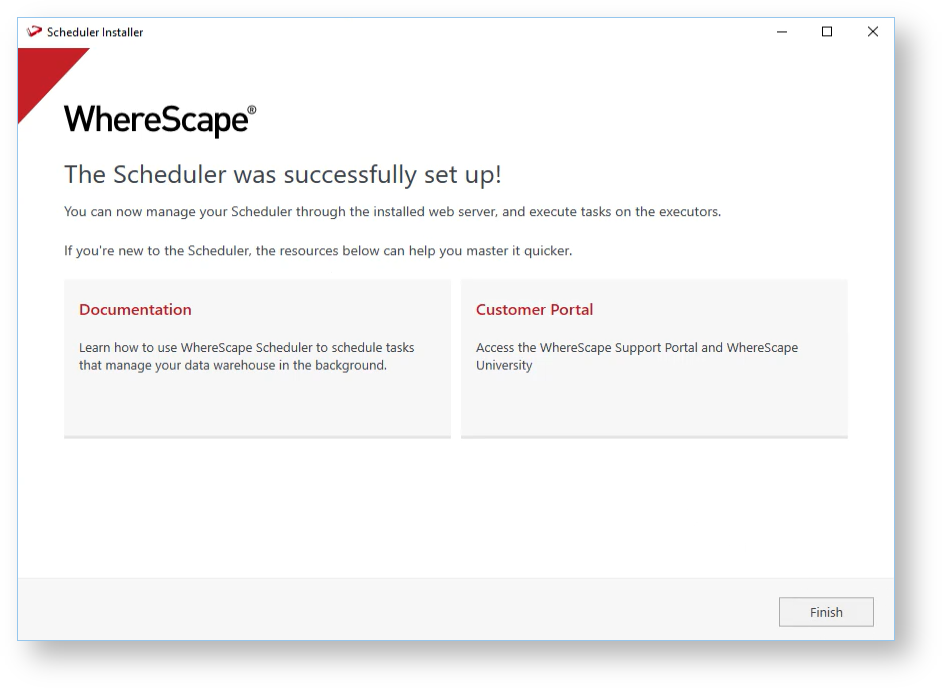
When the installation is complete, click Finish to close the confirmation window.
...