Page History
...
- Open the connection and click the 'Derive' button to ensure the server and port fields are up to date.
- Browse the connection to ensure the credentials are working (note that the Target connection will not have any objects to display yet).
...
Review Parameters
Check the Parameters which the These parameters are added by the start-up script added make sense for your environment, here is an example below: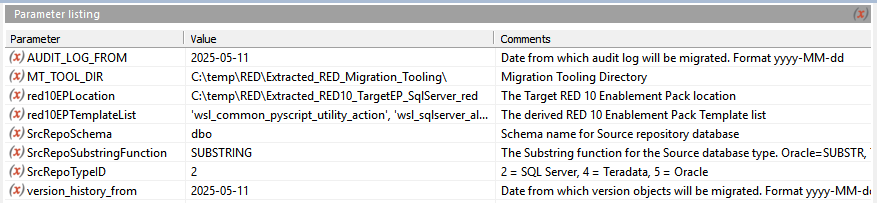 , you should not need to change anything here but it's useful to know that these parameters drive many of the scripts executed during the migration process:
Setup the Migration Tooling Azkaban Scheduler on Windows
...
Running the Migration Jobs
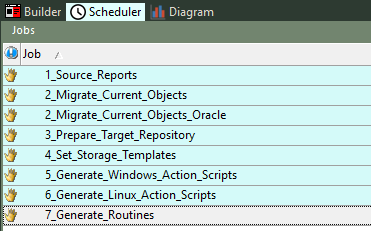

Run the migration Jobs one at a time. Before running a job check if it requires other jobs to be run first.
The following sections describe the jobs and any requirements they may have
1_Source_Reports
You This job is optional and can run this job if you want to have reports for the migration.be run at any time. It runs a set of queries against the source repository providing various object counts in the source. You can view the results by clicking Display Data on the View object in the UI as shown below. There is a corresponding Validation Report which compares the same report run against the destination repository, this can be populated by running the corresponding load table, after completing the migration:

2_Migrate_Current_Objects
This job has to be run for migrating to RED10. Job 2 is the largest and takes the longest to complete. Depending on repository size and performance this job would typically finish within 10 to 30minutes. If there are any failures in Job 2, you should view the failure reason and restart the job at the point of failure from the Azkaban Scheduler Dashboard directly, by rerunning the failed execution.
| Note |
|---|
2_Migrate_Current_Objects is intended for SQL and Teradata source repositories, 2_Migrate_Current_Objects_Oracle is intended for Oracle only. Ensure you only run one of these jobs, depending on your source metadata repository type. |
3_preparePrepare_Target_Repository
Job 2 should be completed successfully before continuing with Job 3. If there are any failures in Job 3, you can complete the job manually from the RED UI by running the scripts in the order outlined in the Migration Scripts Explained section.
After Job 3 has completed, or you have run the scripts manually, please log in to the migrated Destination repository and allow the RED 10 RED 10 Target Enablement Pack post install process to complete. This is also a good point to check the connections and save a RED Profile for your migrated Destination metadata repository.
| Warning | ||
|---|---|---|
| ||
Before continuing to Job 4 please log in to the Destination Repository to allow the Target Enablement Pack |
...
to complete |
...
it's configuration. |
4_Set_Storage_Templates
Job 4 applies the default templates which were set up by the RED 10 Target Enablement Pack, this is why it is important to have completed that install process by logging in to the Destination. This steep can be re-run if it was completed too early, or the individual scripts can be run from the Migration Tooling RED UI.
One of the scripts in this step
5_Generate_Windows_Action_Scripts
...