Page History
...
Maintaining the Scheduler Profile
Using the Scheduler Profile Maintenance Wizard
To use the wizard, launch RedSchedulerProfileMaintenance.exe from the RED installation folder. When launching the wizard outside RED, you will be asked to connect to a repository.
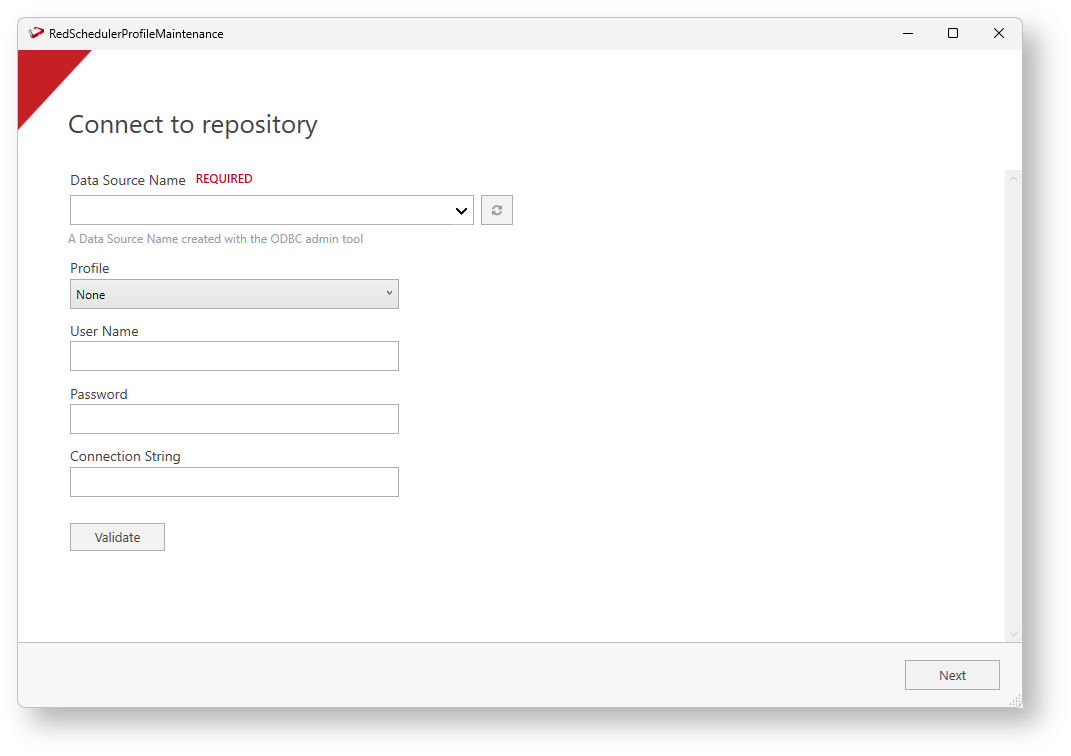
Once you connect to a repository you will be presented with the ‘authentication profile’ screen. On the Encryption filed, enter the Profile Encryption Secret (used to encrypt any passwords entered) and each connection's credentials as well as an appropriate connection string for use by your scheduler service.
| Tip | ||
|---|---|---|
| ||
It is important that you enter and use the same Profile Encryption Secret as you provided in your Azkaban installations otherwise Azkaban will not be able to decrypt these profile records. |

Once you entered the credentials for each connection, click Apply.
The wizard will then take the passwords you have entered and encrypt them using the encryption-util.jar, with lowercased connection names as the encryption salt and the Profile Password as the encryption secret.
After updating the Scheduler Authentication Profile click Finish to close the wizard.

Using the Profile Maintenance Script
The "redadmin"."ws_scheduler_profile" table should be secured from regular users of the RED client and therefore maintenance of the records stored in this table will normally be done by an administrator user or a user with the specific permissions described below.
...