Page History
...
Using the Scheduler Profile Maintenance Wizard
To use launch the wizard from RED UI, go to the Scheduler tab on WhereScape RED the ribbon and click on Authentication.

Click Current metadata to use the current repository.
If you want to use a different repository, click Connect to another. You will be asked to connect to a repository.
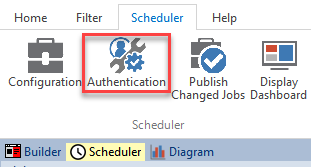
When the wizard opens you have two options:
You can also launch the wizard outside RED, go to the RED installation folder and run RedSchedulerProfileMaintenance.exe. When launching the wizard outside RED you will be asked to connect to a repository.
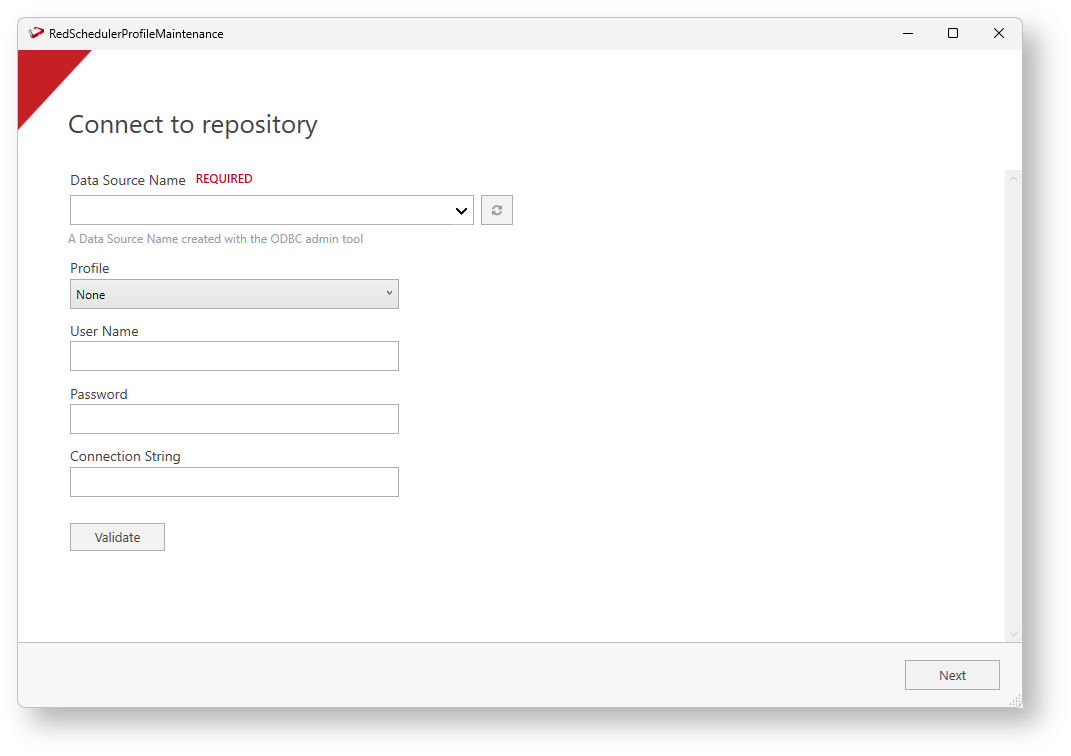
Once you connect to a repository you will be presented with the ‘authentication profile’ screen. On the Encryption filed field, enter the Profile Encryption Secret (used to encrypt any passwords entered) and each connection's credentials as well as an appropriate connection string for use by your scheduler service.
...
After updating the Scheduler Authentication Profile click Finish to close the wizard.

| Note |
|---|
You can also launch the wizard outside RED, go to the RED installation folder and run RedSchedulerProfileMaintenance.exe. When launching the wizard outside RED you will be asked to connect to a repository. |
Using the Profile Maintenance Script
...