Page History
...
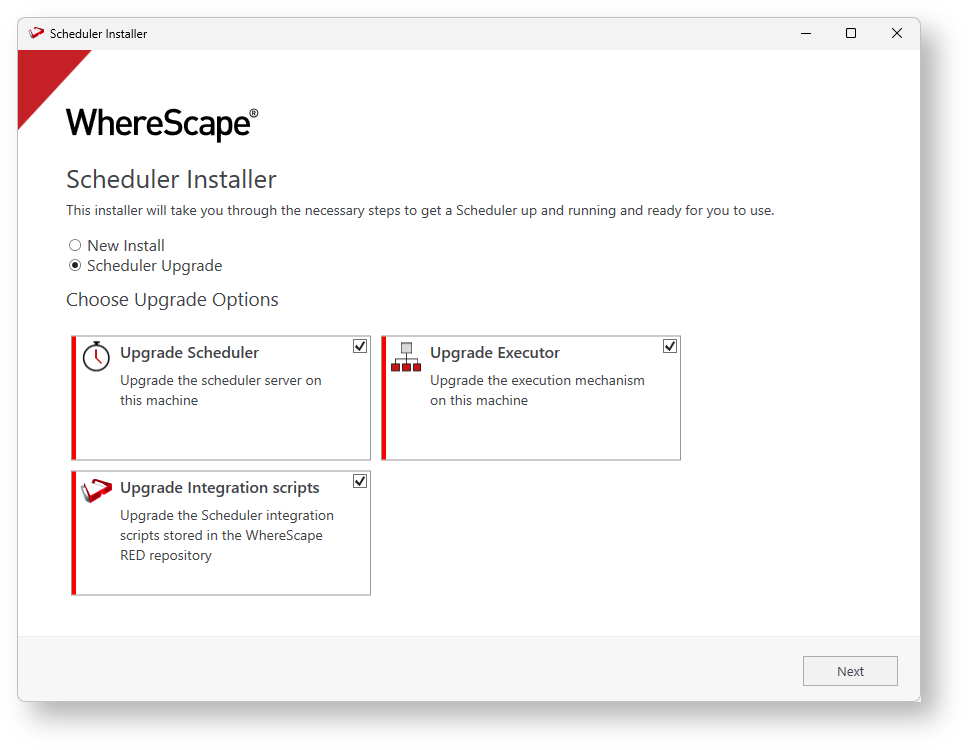
On the RED installation folder, run
RedSchedulerInstaller.exeto start the upgrade process, follow the interactive installer wizardNote title Note For scripted upgrades, the Linux upgrade method described later can also be used on Windows.
- To upgrade the Azkaban metadata and Web Server on this machine, select Scheduler Upgrade and check the components you want to upgrade.

- Choose the existing Azkaban installation location to upgrade.

- Provide the existing RED and Azkaban metadata databases. If you are unsure of the ports and users of your existing servers you can open the azkaban.local.properties file you backed up earlier and extract those details from it.

- Enter your existing server details into the Web Server Configuration and Exec Server Configuration screens ensure you have unchecked the options Install as Windows service as these were already put in place in the original installation.

Tip title Service User vs Local System When you uncheck the 'Install as Windows Service' then entering Service User and Password becomes optional, this is to support backwards compatibility with services created prior to RED 10.2, but is considered less secure.
If you already have a service user for your existing service then you should enter those credentials here to ensure the passwords stored in the Azkaban properties files are more secure.
If you omit Service User and Password then the DPAPI encryption of passwords in Azkaban properties files will be machine wide, allowing for any authenticated user on the machine or services running under the Local System account to decrypt. This is less secure than having a specific user for the service where only that user can decrypt the passwords.
WhereScape recommends using a specific user for running your services for the additional level of security.
- If you are upgrading from a version lower than RED 10.2, you will be required to specify the profile encryption secret and Windows service credentials.
- In the summary window, check your settings are correct.
- Proceed Proceed through the rest of the installation wizard and click Install at the end to complete the upgrade of the Azkaban metadata and the Web and Exec Servers.
- Post install you need to manually merge any customizations to the
azkaban.local.propertiesand users file as required before starting up your services again.
...
- For Linux: Copy the scheduler .jar file from <RED_install_dir>\Azkaban\azkaban-installer.jar to the host machine and run the following command (with Java 11 JRE):
java -jar azkaban-installer.jar --log-file=./install.log install-server --response-file=executor_server_response_file.xml - For Windows: Open a command prompt and run the following command, replacing the directory location placeholders:
<RED_install_dir>\jre\bin\java -jar <RED_install_dir>\Azkaban\azkaban-installer.jar --log-file=c:\temp\install.log install-server --response-file=<EXEC_install_dir>\executor_server_response_file.xml
4. Merge any Customizations
Post-install you need to manually merge any customizations to the azkaban.local.properties and users file as required before starting up your services again.
5. Startup the Services or Processes
For Windows: Open Services in Windows and restart each Web and Executor service
- For Linux: Run the startup script in the Azkaban install location within the bin directory.
...