Page History
...
- Deletes the currently selected model.
- Verifies connection to GIT Repository.
- Brings in the latest changes from the remote repository so your local setup is up to date.
- Saves the current version of your local repository.
- Commits the change to the remote GIT repository.
| Note | ||
|---|---|---|
| ||
A log file will be created and stored within the specified directory each time this workflow is executed. If there are any issues during this operation, the log file will be presented to the user for review. Only create a “Delete Model and Commit” button within a workflow for use at the Model Version level. |
Create Branch
Users will click the workflow button to create a new branch, which executes the ed3d_create_feature_branch template.
This workflow is used for the following reasons:
- Preparing a copy of an existing branch for a new purpose/development task/developer.
This workflow will perform the following tasks:
- Verifies connection to GIT Repository.
- Brings in the latest changes from the remote repository so your local setup is up to date.
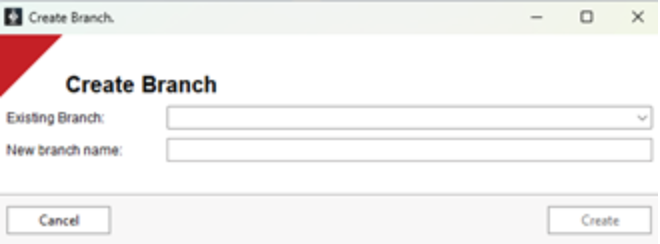
- The user will be prompted with a window and asked to provide the following information:
- The branch they wish to clone.
- The name the new branch.
- Click 'Create'
- WhereScape 3D is closed.
- The selected branch will be cloned on the remote GIT repository.
- The new branch will be pulled onto the local\virtual machine.
- WhereScape 3D is rebuilt using the files within the local GIT repository.
- WhereScape RED (if using) is rebuilt using the files within the local GIT repository.
- WhereScape 3D is reopened.
| Note | ||
|---|---|---|
| ||
A log file will be created and stored within the specified directory each time this workflow is executed. If there are any issues during this operation, the log file will be presented to the user for review. It is recommended that a “Create Feature Branch” button be created within a workflow for use at the Category level. |
Close Branch
Users will click the workflow button to close a branch, which executes the ed3d_close_branch template.
This workflow is used for the following reasons:
- Close and discard the branch without merging changes into another branch.
- Merge the current branch into another branch (e.g. feature branch to be merged into development).
This workflow will perform the following tasks:
- Verifies connection to GIT Repository.
- The user is prompted to select the branch to close. The user can close a branch and discard all changes or close and merge the branch into another branch. The user will choose a branch to switch or merge to.
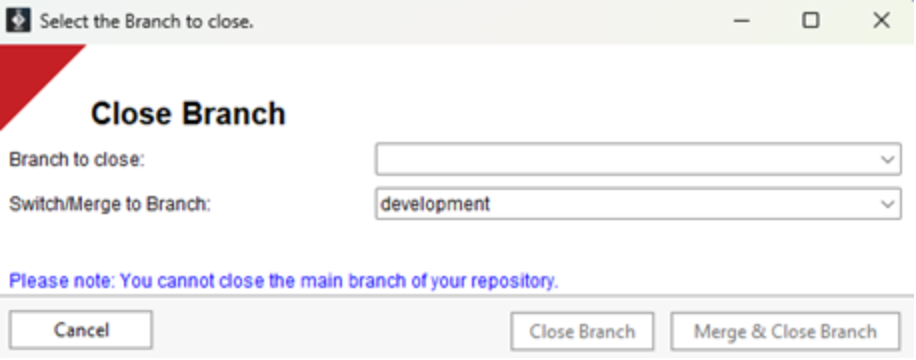
- If the user selects to close and merge, then a GIT merge action will take place between the selected branches. If there are any issues with this merge, the user will be prompted with the files creating issues.
- The local GIT repository is refreshed from the selected branch on the remote GIT repository.
- WhereScape 3D is rebuilt using the files within the local GIT repository.
- WhereScape RED (if using) is rebuilt using the files within the local GIT repository.
- WhereScape 3D is reopened.
| Note | ||
|---|---|---|
| ||
A log file will be created and stored within the specified directory each time this workflow is executed. If there are any issues during this operation, the log file will be presented to the user for review. |
| Info |
|---|
It is recommended that a “Close Branch” button be created within a workflow for use at the Category level. |
Switch Branch
Users will click the workflow button to switch branch, which executes the ed3d_switch_branch template.
| Warning | ||
|---|---|---|
| ||
Ensure that all changes are committed before switching branches, as all uncommitted changes will be discarded as part of this workflow. |
This workflow is used for the following reasons:
- To review the code/data model of the alternative branch.
- Start development on a different branch.
This workflow will perform the following tasks:
- Verifies connection to GIT Repository.
- The user is prompted to select the branch to switch to.
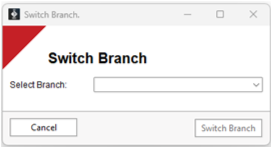
- Refreshes the local GIT repository from the remote GIT repository of the selected branch.
- WhereScape 3D is rebuilt using the files within the local GIT repository.
- WhereScape RED is rebuilt using the files within the local GIT repository.
- WhereScape 3D is reopened.
Pull from GIT
Users will click the workflow button to fetch changes from the remote GIT repository to their current local branch, which executes the ed3d_pull template.
| Warning | ||
|---|---|---|
| ||
Ensure that all changes are committed before making a pull request, as all uncommitted changes will be discarded as part of this workflow. |
This workflow is used for the following reasons:
- Refresh the Developer machines WhereScape repositories with the current (commit) metadata on the remote GIT repository.
- Refresh and rebase the Developer machines WhereScape repositories, discarding any uncommitted changes.
This workflow will perform the following tasks:
- Verifies connection to GIT Repository.
- The “Branch” stored within the WhereScape Repository is the selected branch from which to pull.
- Refresh the local GIT repository with updates from the corresponding remote GIT repository.
- WhereScape 3D is rebuilt using the files within the local GIT repository.
- WhereScape RED is rebuilt using the files within the local GIT repository.
- WhereScape 3D is reopened.
| Note | ||
|---|---|---|
| ||
A log file will be created and stored within the specified directory each time this workflow is executed. If there are any issues during this operation, the log file will be presented to the user for review. |
| Info |
|---|
It is recommended that a “Pull from GIT” button be created within a workflow for use at the Category level. |
| Warning | ||
|---|---|---|
| ||
If WhereScape RED is open while the Pull action is in progress, the RED application may lose connection to the PostgreSQL Database Repository or may become out of sync with the metadata. You may need to refresh the Repository window within RED, to synchronize the application with the metadata. |
Export to RED
To export a RED export model WhereScape RED, users will click the workflow button, which executes the ed3d_git_to_red templates.
This workflow is used for the following reasons:
- Deploy a new Data Model into the WhereScape RED repository.
- Deploy changes to an existing Data Model into the WhereScape RED repository.
This workflow will perform the following tasks:
- Verifies connection to GIT Repository.
- Brings in the latest changes from the remote repository so your local setup is up to date.
- Saves the current version of your local repository.
- Commits the change to the remote GIT repository.
- You will be prompted to add a commit message:
- You will be prompted to update connections:
- You are able to select the connection and then input the username and password. When you click on apply, the command line will write the credentials to the RED metadata repository.
- This step will only update the credentials within the RED metadata repository. Any credentials within the RED profile file, will override the credentials in the metadata repository.
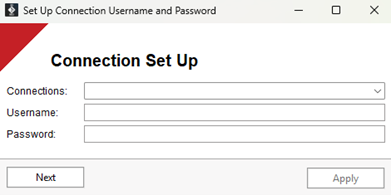
- Once you have updated the connections, click Next to continue the deployment.
- Deployment of the model to RED completes.
| Note | ||
|---|---|---|
| ||
A log file will be created and stored within the specified directory each time this workflow is executed. If there are any issues during this operation, the log file will be presented to the user for review. |
| Note | ||
|---|---|---|
| ||
Users can create/change the workflow configuration for any category, model, or model version; however, this function requires the user to select the model version, specifically within the RED export category, to operate correctly. |
| Note |
|---|
Only create a “RED export” button within a workflow for use at the Model Version level. |
Import Model
Users will click the workflow button to import a Data Model from a selected commit ID from a branch. This workflow button executes the ed3d_import_model_from_git template.
This workflow is used for the following reasons:
- Import merge conflicts from a different branch.
- Import a historical version of a data model into the existing branch.
This workflow will perform the following tasks:
- Verifies connection to GIT Repository.
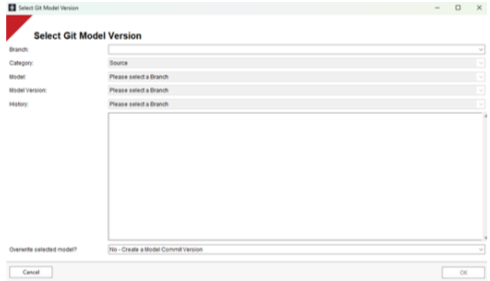
- A window opens prompting the user for the following information:
- Select a branch
- Select a commit reference you wish to import from.
Please note: These commits are filtered only to show commits that include the selected data model version. - The user can review the commit changes they have selected in the text box.
- The user can overwrite the selected model version OR create a new version, using the commit ID as a prefix to the current model version name.
- Select 'OK'
The local GIT repository is synchronized to the selected commit.
A new model version is created, and the model is imported to your local repository.
The user must refresh the Repository Browser to see the imported data model.
| Note | ||
|---|---|---|
| ||
A log file will be created and stored within the specified directory each time this workflow is executed. If there are any issues during this operation, the log file will be presented to the user for review. |
| Note |
|---|
It is recommended that an “Import Model Version” button be created within a workflow for use at the model version level. |