Page History
...
Reports for Availability
The following reports enable you to visualize the availability metrics for all your mission-critical Applications and your critical system services:
Server Uptime Report
The Server Uptime report is a key checkpoint report that provides you with a focused and succinct snapshot of your infrastructure's availability. Report components include overall availability based on a defined uptime threshold, availability by defined interval over the reporting period, as well as tallies of the number of Elements that experienced one or more outages, and the total number of outages. To assist with follow-up actions, Elements are listed by outage time and include details that help you determine whether the outage frequency or duration is contributing the most to total downtime. The Server Uptime report helps you answer the following types of questions:
- What is the overall uptime of my entire infrastructure, and am I meeting my availability target?
- What is the overall count of outages and my mean time to repair when there is a failure?
- Which Elements or groups are experiencing the most downtime?
The Server Uptime report is also a key starter report, as it is automatically created and saved for new Uptime Infrastructure Monitor installations. This daily report provides an hourly breakdown of availability, using a 95% uptime threshold. By default, a PDF version of the report is emailed to the SysAdmin user group.
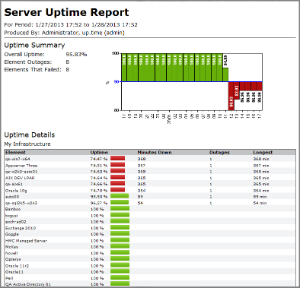
The following is an example of a Server Uptime report:
| Info |
|---|
The Server Uptime report is a default report that is automatically created and saved for daily generation on new Uptime Infrastructure Monitor installations. |
Server Uptime Report Details
The following details are displayed in the Server Uptime report:
| Uptime Summary | |
|---|---|
| Overall Uptime | The uptime of all Elements included in the report for the defined time period. This is a composite uptime value for all individual Elements that are in an OK, WARN, or MAINT state; Element or Element group averages, or maximum values for a time period do not contribute to overall uptime. |
| Element Outages | The total number of separate Element outages during the time period (because an individual Element can have more than one outage in the same time period). |
| Elements That Failed | The number of Elements that experienced an outage during the time period. Use this value to ensure the previous Element Outages count is not misleading due to the under performance of, for example, a single Element. |
| availability graph | A breakdown of the overall uptime for the time period, where the granularity is dependent on the Breakdown Type set during report configuration: by hour, day, week, or month. Availability for each time slice (i.e., whether it is marked as pass/green, or fail/red) is determined by the Target Percentage set during report configuration. |
| Uptime Details | |
| Element | The name of the Element that's in this report. Whether this Element is listed individually or within an Element group listing depends on whether you selected the Group by Element Group check box during report configuration. Elements are primarily sorted by uptime; Elements with equal uptime are sorted by name. |
| Uptime | The uptime for the specific Element during the time period, expressed as a percentage and bar. Element lists in the report are sorted by Uptime Infrastructure Monitor. The Target Percentage set during report configuration determines whether the Element is marked as pass/green, or fail/red. |
| Minutes Down | The total number of minutes the Element spent in a "down" state (CRIT or UNKNOWN) for the time period. If the Element experienced no downtime, this field is blank. |
| Outages | The number of outages the Element experienced during the time period. If the Element experienced no downtime, this field is blank. |
| Longest | The number of minutes that comprises the Element's longest outage during the time period. Use this value to ensure the previous Minutes Down tally is not misleading due to, for example, a particularly long single outage among several short ones. If the Element experienced no downtime, this field is blank. |
Creating a Server Uptime Report
To create a Server Uptime report, do the following:
- On the Reports tab, click Server Uptime, which is found in the Availability section of the reports tree panel.
- In the date and time range section, select a reporting window. For more information, see Understanding Dates and Times.
- In the Report Options section, configure the look and contents of your report:
- define the Target Percentage that determines whether Elements are displayed as critical performers in the report
- the time slice used to assess the target uptime value defined in the previous step:
- Hourly
- Daily
- Weekly
- Monthly
Info Because reports have a finite amount of space to present their information, use a level of granularity that suits the breadth of the date and time range selected for the report (e.g., hourly time slices for a daily report, or daily time slices for a weekly report).
- whether Elements included in the report are automatically displayed by Element group
- Determine which Elements are included in the Uptime report by selecting Infrastructure Groups, Element Views, or individual Elements from the following sections:
- List of Groups
- List of Views
- List of Elements
- Continue with the desired report generation process:
- generate a report immediately to an email or your screen: see Report Generation Options
- save a generated report immediately: see Saving Reports
- schedule automatic report generation: see Scheduling Reports
Application Availability Report
The Application Availability report tracks the availability of the Applications in your environment, as well as the monitors that are associated with the Applications. This report contains the following information:
- the name of the Application
- the service monitors that are associated with the Application
- the percentage of time that the Application and monitors are in OK, Unknown, Warning, and Critical states
For more information on Applications, see Working with Applications.
Creating an Application Availability Report
To create an Application Availability report, do the following:
- In the Reports Tree panel, click Application Availability.
- In the Date and Time Range area, select the dates and times on which to report. For more information, see Understanding Dates and Times.
- Click the Show Details option to generate a full listing of information about the availability of the Applications, which is broken down by individual Applications.
- If you do not select this option, then a summary of the status of all Applications appears on a single line, as shown below:
- If you want to generate reports for groups of systems, select the groups from the List of Groups area.
- To generate reports for one or more views, select the groups from the List of Views area.
See Working with Views for more information about views. - If you are generating reports for specific Applications in your environment, select them from the List of Applications.
- Select a report generation option. See Report Generation Options for details.
- To save the report or schedule it to run at a specific time or interval, complete the settings in the Save Reports section of the subpanel.
See Saving Reports and Scheduling Reports for more information.
Incident Priority Report
The Incident Priority report provides information on the frequency, duration, and recovery time of critical-level events, and the overall reliability of your monitored systems. This information is presented for services that are associated with groups of Elements (whether a pre-defined group, or an manually selected list of individual Elements). Compared to the Service Monitor Outages report, the Incident Priority report, instead of providing an auditable list of outages, uses a comparative approach to indicate how efficiently systems are running in relation to each other, and furthermore, how efficiently problems are dealt with.
In order to report this efficiency, the following building blocks are available as elements in the report:
- Incidents: The total number of outages for all service monitors associated with selected Elements. Critical-level events for multiple service monitors that are associated with a single Element each contribute to the incident count.
- Incident Top 20: The 20 systems with the highest incident counts for the given time period (incidents meaning the number of times service monitors associated with selected Elements were in a critical state).
- Total Downtime: The total amount of time that all service monitors associated with selected Elements were in a critical state. Multiple service monitors in a critical state that are associated with a single Element each contribute to the downtime total.
- Downtime Top 20: The 20 systems with the highest downtime totals for the given time period.
- Incident Priority Quadrant: A graph in which all selected Elements are placed on quadrants based on the total downtime, and number of incidents caused by their associated service monitors.
Note that, to provide clear results in the report, only service monitors that were manually assigned to, and are directly associated with, an Element are taken into account when downtime and incident counts are tallied. This means service monitors that may be automatically installed such as the Platform Performance Gatherer are not included; additionally, only an Application’s status as a whole affects downtime and incident counts, but its component service monitors--both master and regular service monitors--do not.
Using downtime and efficiency counts, the Incident Priority report includes the following key elements:
- Mean Time Between Failure: The average amount of time that an Element’s associated service monitors were all running (i.e., in non-critical states) over a given time period.
Elements whose associated service monitors experience no downtime are still included in the report, but do not include an MTBF count because they did not experience an incident during the time period.
- Mean Time to Repair: The average number of minutes any of an Element’s associated service monitors were in a critical state over a given time period.
A service is considered repaired, or under repair, when its status changes from critical to one of “MAINT,” “UNKNOWN,” “WARNING,” or “OK.”
For all report elements, a service monitor is considered to have reached a critical state--thus has caused an incident, is contributing to downtime, or is an ongoing failure--when it actually generates an alert. The period preceding the alert, during which rechecks are intermittently performed to avoid a false positive, does not count. See Understanding the Alert Flow for information on rechecks leading to a generated alert.
Creating an Incident Priority Report
To create an Incident Priority report, do the following:
- In the Reports Tree panel, click Incident Priority.
- In the Date and Time Range area, select the dates and times on which to report. For more information, see Understanding Dates and Times.
Service monitors that, based on the selected time range, are already in a critical state are included in calculations for downtime, incident counts, and other report elements. - In the Report Options area, select the charts you want included in the report. (These charts are described in the previous section.)
- For report charts that are tallies, such as the Incidents count, or Total Downtime, select a Breakdown Type, that is, the level of granularity at which the information is presented (daily, weekly, or monthly).
- If the report includes the Incident Priority Quadrant, configure the following two options:
- select whether to include Element names in the scatter plot
- in the list beneath the quadrant that shows all Elements in the quadrant, indicate whether you want it to be ordered by Incident Count, or Downtime
- If you want to generate reports for groups of systems, select the groups from the List of Groups area.
- To generate reports for one or more views, select the groups from the List of Views area. See Working with Views for more information about views.
- If you are generating reports for specific systems in your environment, select them from the List of Elements.
- Select a report generation option. See Report Generation Options for details.
- To save the report or schedule it to run at a specific time or interval, complete the settings in the Save Report section of the subpanel.
See Saving Reports and Scheduling Reports for more information.
Service Monitor Availability Report
The Service Monitor Availability report tracks the status of the services associated with the hosts in your environment. This report lists the percentage of time each service was in the following states over the time period that you specify: OK, Warning, Critical, Maintenance, or Unknown.
For more information on each status, see Understanding the Status of Services.
Creating Service Monitor Availability Reports
To create Service Monitor Availability reports, do the following:
- In the Reports Tree panel, click Service Monitor Availability.
- In the Date and Time Range area, select the dates and times on which to report. For more information, see Understanding Dates and Times.
- If you want to generate reports for groups of systems, select the groups from the List of Groups area.
- To generate reports for one or more views, select the groups from the List of Views area.
See Working with Views for more information about views. - If you are generating reports for specific systems in your environment, select them from the List of Systems and Nodes.
- Select a report generation option. See Report Generation Options for details.
- To save the report or schedule it to run at a specific time or interval, complete the settings in the Save Reports section of the subpanel.
See Saving Reports and Scheduling Reports for more information.
Service Monitor Outages Report
The Service Monitor Outages report lists all warning or critical events for services that have occurred over a specified time period. Use this report to determine the cause of a problem by analyzing the declining availability of a server or set of servers.
The Service Monitor Outages report contains the following information:
- the date and time at which metrics were gathered for each service
- the duration of the outage
- whether a notification was sent, or an action was taken
- the status of each service
- a short message about the status - for example:
UPTIME-filter - up.time Uptime agent running on filter, up.time Uptime agent 3.9 solaris 1.17
Creating a Service Monitor Outages Report
To create a Service Monitor Outages report, do the following:
- In the Reports Tree panel, click Service Monitor Outages.
- In the Date and Time Range area, select the dates and times on which to report. For more information, see Understanding Dates and Times.
- Select one of the following options from the Sort by dropdown list:
- Sample Time by Element
- Service Name by Element
- All Sample Times
- From the Sort Direction dropdown list, select Ascending or Descending.
- If you want to generate reports for groups of systems, select the groups from the List of Groups area.
- To generate reports for one or more views, select the groups from the List of Views area.
See Working with Views for more information about views. - If you are generating reports for specific systems in your environment, select them from the List of Elements.
- Select a report generation option. See Report Generation Options for details.
- To save the report or schedule it to run at a specific time or interval, complete the settings in the Save Reports section of the subpanel.
See Saving Reports and Scheduling Reports for more information.
...
Creating a Datastore Capacity Growth Report
To create a Datastore Capacity Growth report, do the following:
- In the Reports Tree panel, click Datastore Capacity Growth.
- In the Date and Time Range area, select the dates and times on which to report. For more information, see Understanding Dates and Times.
If no data is available for the date range, the report displays a message indicating that there is no data for the time period. - Optionally, in the Exclude datastores names like field, enter either the name of a datastore or a regular expression that Uptime Infrastructure Monitor uses to ignore certain datastores when generating the report.
- Optionally, enter a value in the Exclude datastores over % full field.
This value is expressed as a percentage. The report displays the information for datastores whose used disk space is less than the amount you enter in this field. For example, if you set this field to 45, the report only displays datastores whose percentage used values are less than or equal to 45%. - If you are generating reports for specific datastores in your environment, select them from the List of Elements.
- Select a report generation option. See Report Generation Options for details.
- To save the report or schedule it to run at a specific time or interval, complete the settings in the Save Reports section of the subpanel.
See Saving Reports and Scheduling Reports for more information.