Page History
...
- Select the repository types: Select the product(s) you want to utilize from the check buttons, choosing RED, 3D or both.
- Environment Type: Developer Machine or Deployment Machine to be selected from the dropdown menu menu.
- Developer Machine – Used for development activities
- Deployment Machine - Used for CICD Workflows
- Environment Tag: One letter can be entered here to provide a description for what the environment is used for, For example ‘d’ for development, or ‘t’ for testing. This will be included in the Repository name.
- On Pull Action: Drop Schema or Drop Database to be selected from the dropdown menu.
- GIT URL
- GIT Organization: The organization name used within GIT.
- GIT Repository: The GIT Repository name to connect to.
- Username: The user's Username to be used on the build.
- Personal Access Token: The user's Personal Access Token.
- One of the following will hapepen when the user initiates a pull:
- Drop Schema – Removes all schemas on target PostgreSQL Repository
- Removes entire target PostgreSQL Repository
Note title Note On all pull requests the default structure and metadata will be rebuild using the WhereScape CLI.
- GIT URL: Enter the GIT URL for this repository e.g. github.com.
- GIT Organization: Enter the organization name used for the GIT Repository.
- GIT User Email: Enter the User's email for the GIT Repository.
- GIT Repository: Enter he GIT Repository name (remote) to connect to.
- Username: Enter the user's Username to be used for this GIT Repository.
- Personal Access Token: Enter the user's Personal Access Token for this GIT Repository.
- Local GIT Repository: The location of the GIT repository created locally on the machineLocal GIT Repository: The location of the GIT repository created locally on the machine/virtual machine will be displayed (read-only). Is this an initial Build? Select if this process starts an Initial Build.
- only).
- Build Options: Select ‘Connect to Existing CICD GIT Repository’ if there is existing metadata in the GIT Repository. Selecting ‘Initial Build’ will deploy the initial CICD Enablement Pack metadata and configure WhereScape with CICD functionality. For both options, Metadata will be deployed to the WhereScape PostgreSQL repositories. Users may want to use an initial Build for the following scenarios:
- First-Time GIT Integration
- Setting up a new WhereScape repository with GIT integration
- Configuring initial repository settings and workflows
- Establishing protected branches and default configurations
- Repository Import
- Importing an existing WhereScape repository backup
- Repository Recovery
- Reinitializing a corrupted repository
- Restoring from known good configuration
- Re-establishing GIT integration after issues
- First-Time GIT Integration
- RED Repository Server and Port: Add the RED Repository PostgreSQL Server hostname and port.
- RED Repository Database Name: The repository database name will be calculated based on the information provided – this is read-only. This can have a max character length of 63 characters. If you would like to change the way this is configured, please consult section 'Changing the Repository Database Name'.
- RED Repository Username and Password: Add the RED Repository PostgreSQL Username and Password . with permissions to the specified database
- RED Generate Files: Use the check buttons to select whether you would like to generate DDL, DML and/or JSON files. JSON files when committing to GIT.
- RED Repository Backup: If Initial Build Options is set to ‘Yes’ ‘Initial Build’ the user will have the opportunity be required to select a backup file to use as a copy for their repository. be migrated to their GIT Repository. This is mandatory for any Initial Build with RED enabled.
Note title Important The backup files will need to be in SQL, or BAK or a Repository files file format.
These files must be created using pg_dump, and the The PostgreSQL version used for the backup must match the version of the target repository.For full information on creating and using a backup, please consult section ‘WhereScape 3D and RED Backup Files’.
3D Repository Server: Add the 3D PostgreSQL Server and port.
3D Repository Database Name: The repository database name will be calculated based on the information provided – this is read-only. This can have a max character length of 63 characters. If you would like to change the way this is configured, please consult section 'Changing the Repository Database Name'.
3D Repository Username and Password: Add the 3D Username and Password.
- If Initial Build is set to ‘Yes’ the user will have the opportunity to select a backup file to use as a copy for your repository.
Note title Important The backup files will need to be in SQL, BAK or a Repository files format.
These files must be created using pg_dump, and the PostgreSQL version used for the backup must match the version of the target repository.
Once the form is created click on 'OK'. If there are any issues with connecting to the GIT repository, the user will receive an error message.
The local GIT directory will now be created.
- The user credentials for WhereScape RED and 3D repositories are created:
- These are stored locally at this location: `%USERPROFILE%\WhereScape\GIT`.
- This file stores the user's credentials and configuration details which are required for the workflows to run correctly.
Note title Important Each GIT Repository will have its own profile file. If it is deleted or modified incorrectly, the workflows will stop working.
The user will be prompted to select a branch from the remote GIT repository.
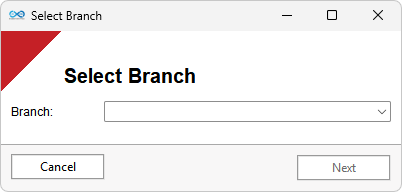
This action refreshes the local GIT repository with updates from the specified remote branch.
WhereScape 3D and/or RED is rebuilt using the files within the local GIT repository.
...