Page History
...
- Using an administrator account, go to Administration > Application Security.
- Click on the row for the user account that you want to update, and then click Edit in the toolbar. SQL DM displays the Permission Properties dialog box containing information for that user account.
>>>NEED BETTER IMAGE<<<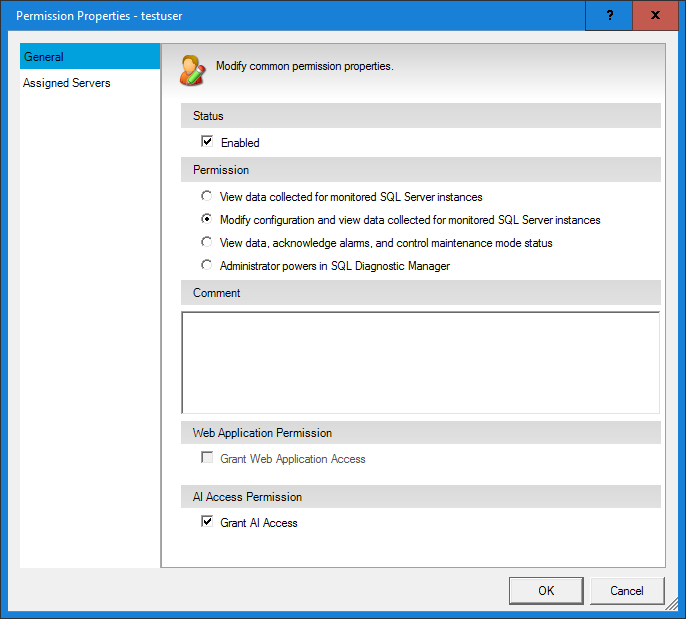
- On the General tab, check the Grant AI Access box, and then click OK.
...
- Using an administrator account, go to Administration > Application Security.
- Click on the row for the user account that you want to update, and then click Add in the toolbar. SQL DM displays the Add Permission wizard.
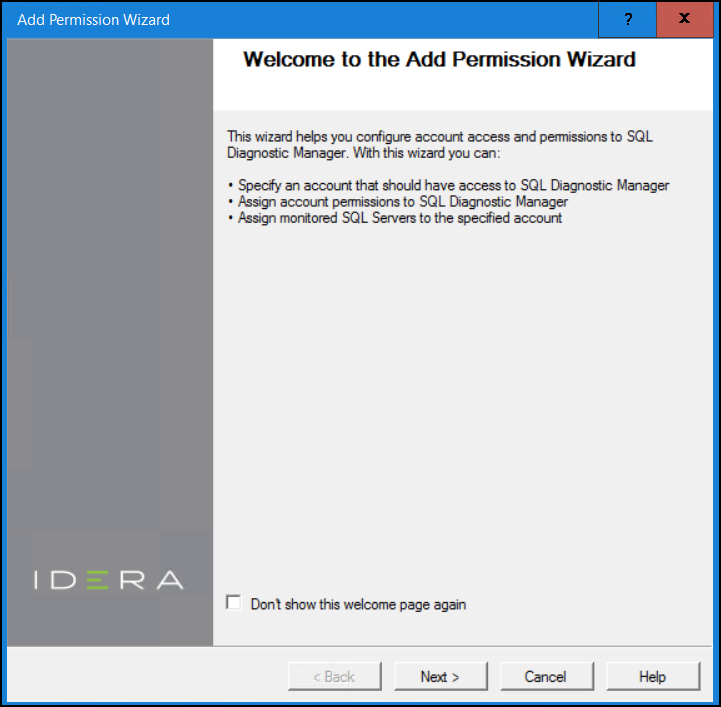
- Review the text on the first page, and then click Next. The wizard displays the Add a login page.
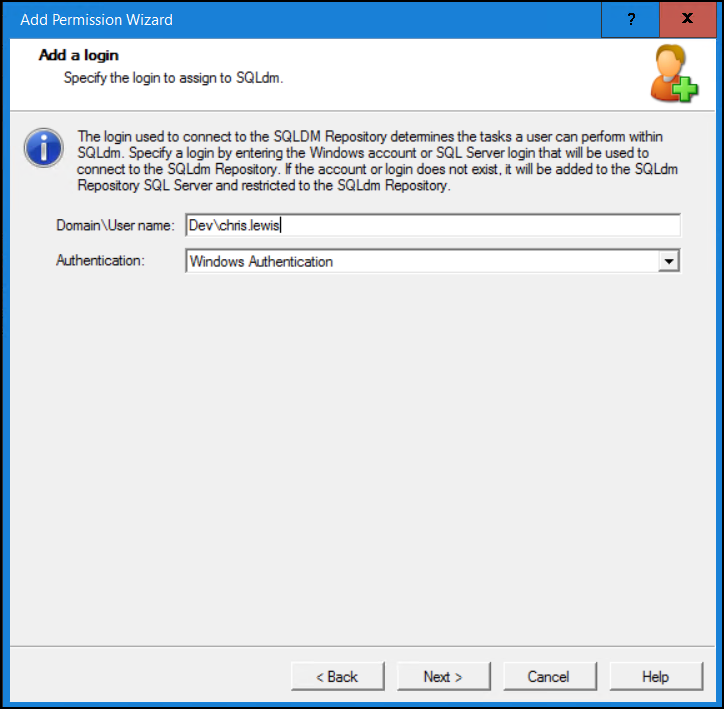
- Verify the domain and user name, and make sure you have the correct authentication method selected before clicking Next. The wizard displays the Specify Permission page.
>>>NEED BETTER IMAGE<<<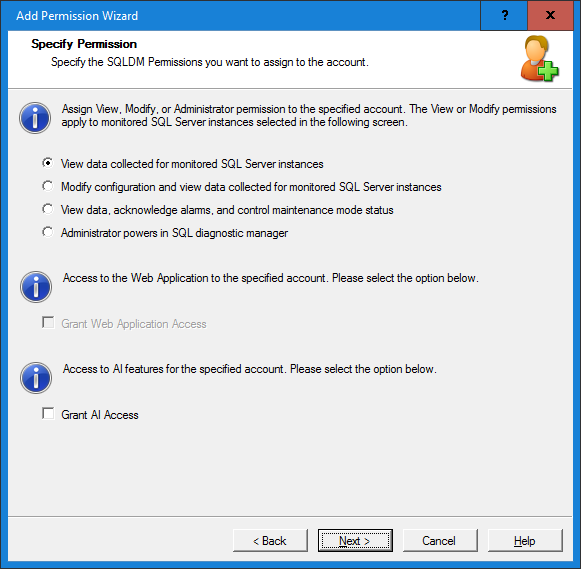
- Check the Grant AI Access box, and then click Next. This checkbox is not selected by default.
- Complete the wizard to add the user account.
...
- Click either the AI Powered Query Optimization or AI Powered Schema & Index Optimization buttons for the first time after the AI features are enabled. SQL SQL DM displays the AI Feature Terms and Conditions dialog box.
>>>NEED IMAGE OF TS&CS<<< - Read the contents of the agreement, scrolling to the bottom as you read. Note that the agreement checkbox and Accept button are disabled until you scroll to the bottom of the content.
- Once you read all of the terms and conditions, check I agree to the Terms and Conditions, and then click Accept to continue.
...