Page History
Show Contents List
You are here:
...
If you have already used the template on the Visual LANSA Welcome Screen to generate a mobile web application, then you do not need to complete this step. You can deploy the web application you generated earlier.
...
- On the Visual LANSA Home page select the Welcome Screen
...

...
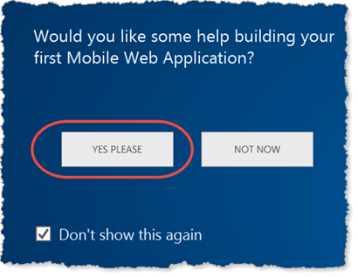
- On the Welcome Screen, click the Yes Please button
...
...
- Follow the instructions to generate a web application, using all the defaults.
...

...
- Review the About Your Application section to understand how it is structured.
...
- By default, the generated component names will begin "MY_". You can change this three letter prefix, if required.
...
- Scroll down and click Build My Application.
...
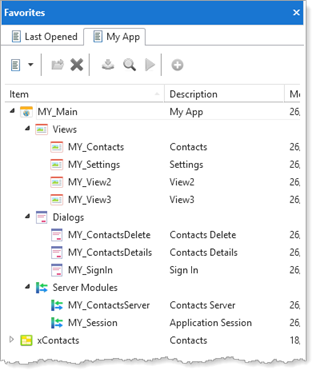
- The application components will be generated and compiled. A Repository List containing all components and with the name My App will be generated and shown on the Favorites tab.
...
...
You will see an icon on the Windows Task Bar for the compile job. Nine new components will be compiled. When the compiles are finished, click the button to Execute Your Application.
...
- The application has a View component for Contacts which accesses a shipped SQL table called xContacts (in the Visual LANSA database). Two "placeholder" Views are also included in the application.
...
The Contacts view lists all contacts. Click an entry, to display, edit or delete a contact.
...
Click the Add button at the bottom of the page to create a new contact.
...