Page History
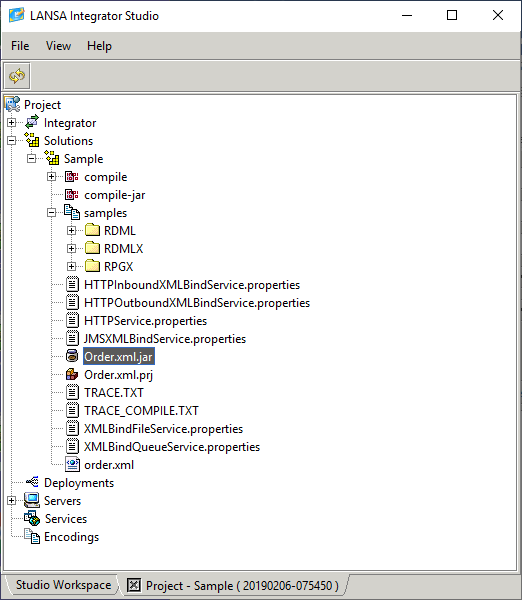
1. From the Project Solutions node select the New Solution menu item.
2. Select the XML Binding Wizard tool and enter or select the Group folder to receive the project file.
3. Enter the project File name. The extension '.xml.prj' is added automatically.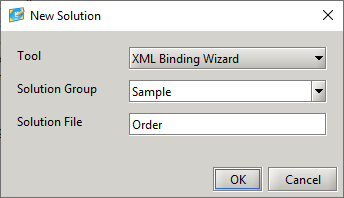
4. Press the OK button to continue.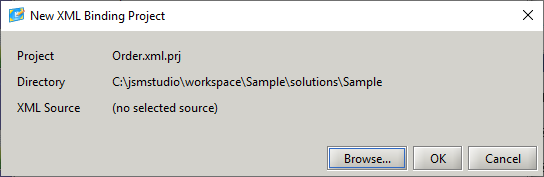
5. Press the browse button to locate the sample XML file.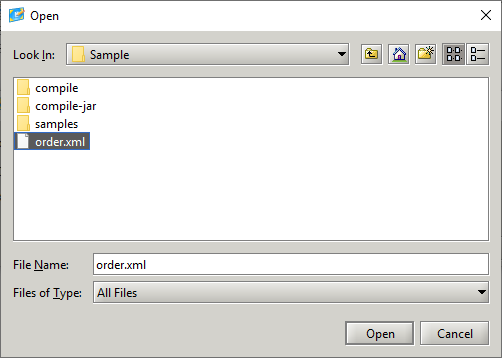
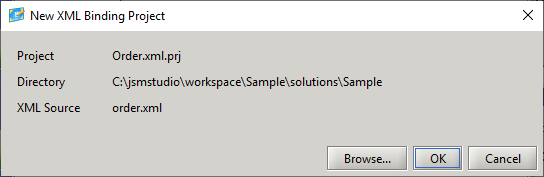
6. Press the OK button to create the project.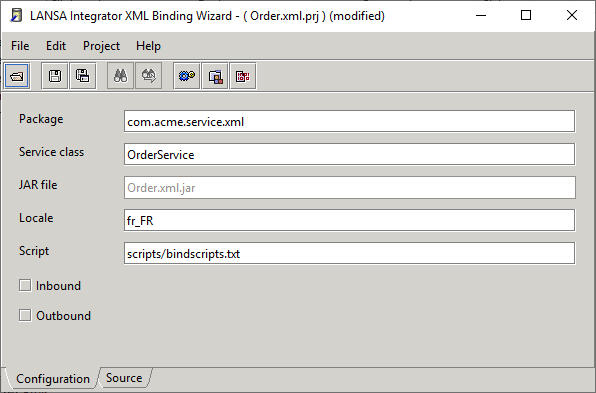
...
7. Select whether the project is for inbound mapping, outbound mapping or both.
Normally the Locale field is left blank, but if an XML element or attribute contains numbers formatted in a particular locale then enter this locale and check the Number Format option against this element or attribute.
If value formatting is going to be done using JavaScript functions, then the JavaScript file containing the functions needs to be specified in the Script field. Refer to JavaScript Function Example for notes on doing this.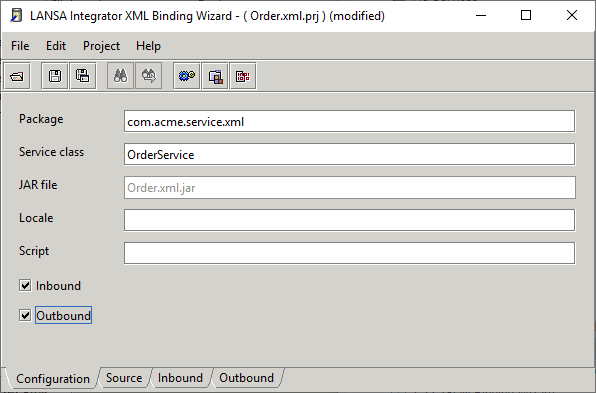
...
8. Select the Inbound tab to map element and attributes.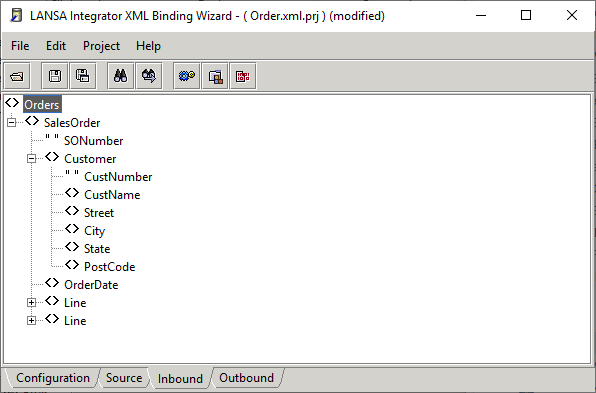
...
The element and attribute nodes can be marked to accept and handle data in different ways.
...
Different icons indicate the node types:
| Element |
| Element selected |
| Element selected and has a field name |
| Attribute |
| Attribute selected |
| Attribute selected and has a field name |
| Element marked as a List |
| Element marked as a Fragment |


...
9. Right mouse click on the selected node to display the Pop-up Menu. The menu items enabled depend on the node selected. You can also use the 7.21 LANSA Repository Viewer to drag and drop a LANSA field name onto a node.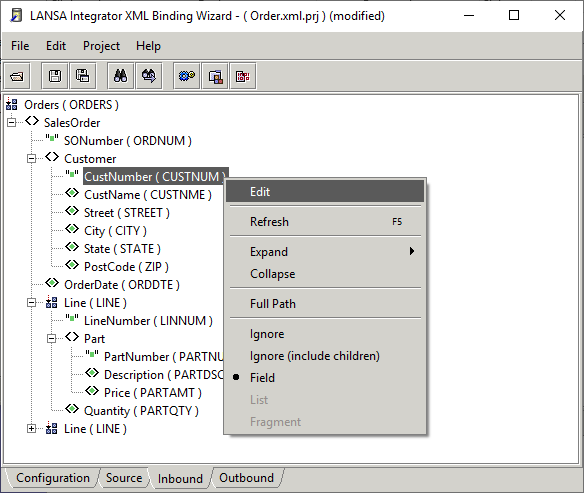
10. Press the Enter key or the Edit menu item to assign a binding field.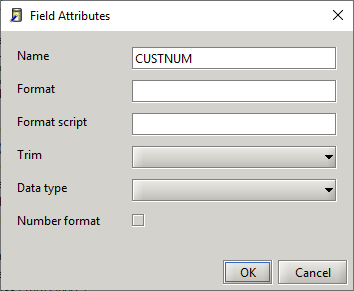
...
11. If the XML value needs to be formatted using a JavaScript function, enter the function and the value keyword. The value keyword instructs the JavaScript Engine to use the XML value. It is possible to pass a static value as a parameter.
In the following example a format pattern is being passed. Embedded blanks can exist in the function script, but any static values need to immediately follow the comma for successful parsing of the parameters.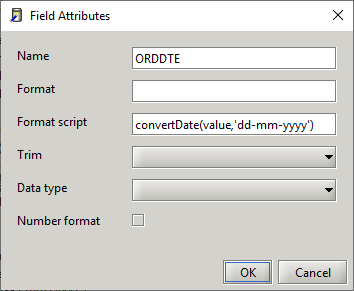
12. Press the build button to generate and compile the service, this service class will be added to the jar file.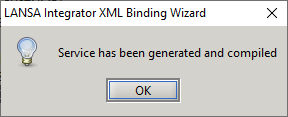
All generated code and compiled classes exist in the compile sub directory.
Files containing service properties are created in the solution directory and samples are created in the samples sub directory.