Page History
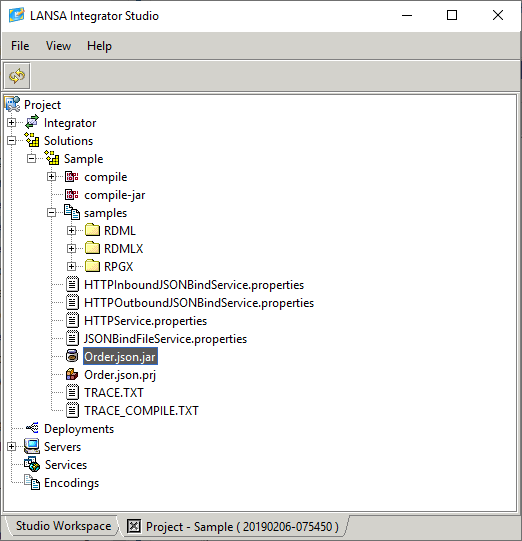
1. From the Project Solutions node select the New Solution menu item.
2. Select the JSON Binding Wizard tool and enter or select the Group folder to receive the project file.
3. Enter the project File name. The extension '.json.prj' is added automatically.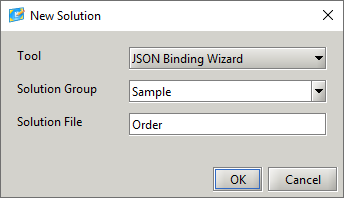
4. Press the OK button to continue.
5. Select the JSON Type that will be used for the project mapping.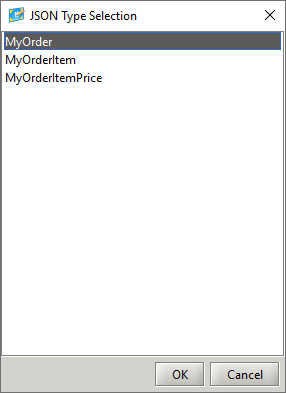
6. Press the OK button to create the project.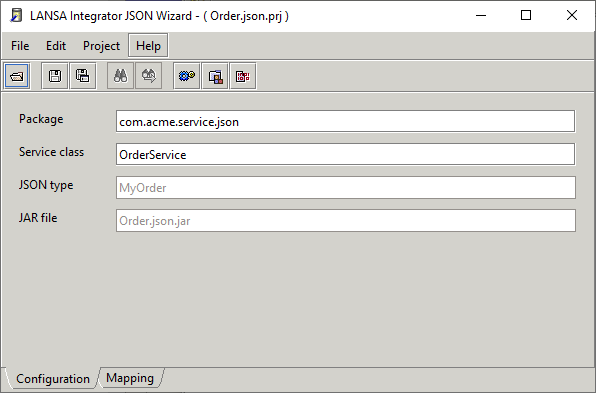
The project name is used in the creation of the JAR file name and the service class name.
7. Select the Mapping tab to maintain the mapping.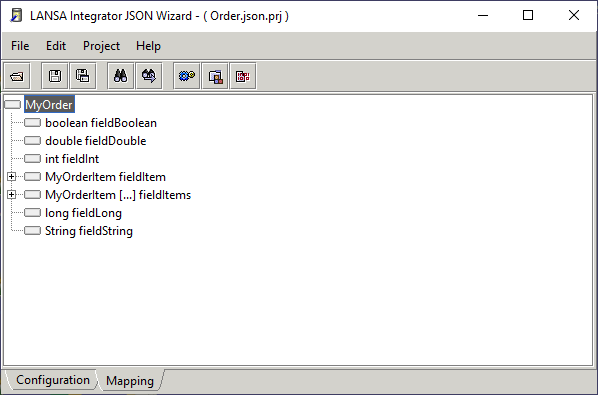
8. On the root level node select the Fragment menu item and all child nodes will be automatically marked.
The root level node is not marked as a fragment, as it is an implied fragment and when the BIND command executes the first level child nodes of the root node will bind to the function.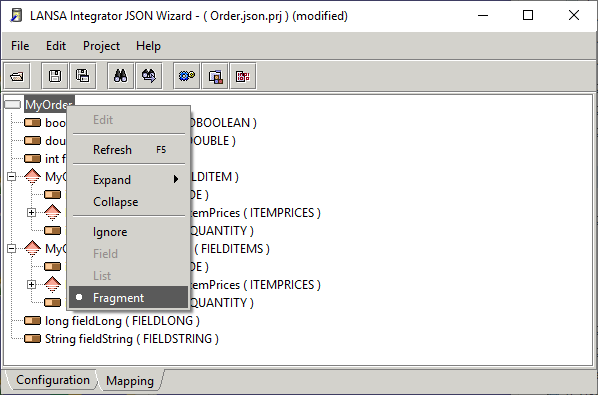
9. Assign program fields to the JSON object fields. You can also use the 7.21 LANSA Repository Viewer to drag and drop a LANSA field name onto a node.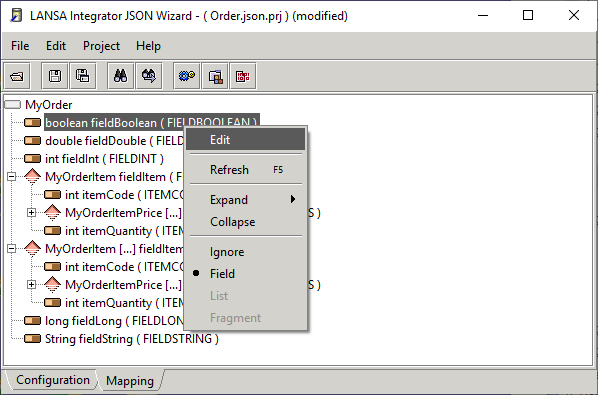
10. Press the build button to generate and compile the service. The service class will be added to the jar file.
...
All generated code and compiled classes exist in the compile sub directory.
Files containing service properties are created in the solution directory and samples are created in the samples sub directory.