Page History
[  |../../index.htm#lansa/lansa048_5545.htm]
...
When the Framework is executed using RenderType M, the launch button  is displayed in the status bar next to the navigation pane view buttons:
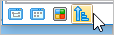
When the launch button is clicked, applications in the Framework are arranged in the status bar:

If an application has views, the view is visualized. If an application has no business objects it is not shown.
The applications or views respond to two events:
- Mouse hover
- Click
...
Mouse hover
With a mouse hover, a larger icon with the application/view caption appears:
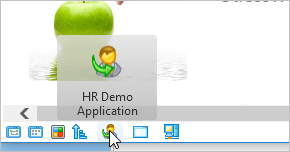
When the icon is clicked on, the business objects in the application pop up:
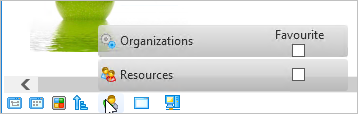
If the popup item is clicked, it triggers the default business object's behavior, as if you clicked on the business object in the navigation pane.
You can also make the business object a favorite by checking the Favorite checkbox.
| Note |
|---|
| Note: the Business Object will be added to the first application that allows favorites in the sequence they appear. If you need to add it to another application you need to use either the Tree or List Navigation View. |
...
Click
If you click on the application/view, the behavior is exactly the same as clicking on the larger image.
Removing a favorite business object
An application which that has business objects that have been made favorites will have the Favorite checkbox is ticked but disabled:
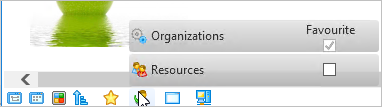
This is because one business object can be a favorite in more than one application.
To remove a business object from a favorite application, hover or click on the favorite application:
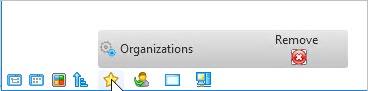
Click the Remove button to remove the business object from the application's Favorites.
| Warning | ||
|---|---|---|
|
...
Due to space constraints, this navigation option may not be suited to Frameworks with a large number of applications and/or applications with a large number of business objects. In those cases, use any of the other three navigation pane views. |
...
Enabling the Launch button
The display of the launch button is controlled in the Framework properties:
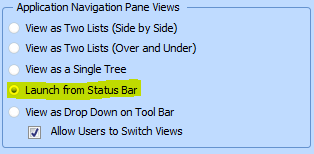
See the description of Launch from Status Bar.
[ |../../index.htm#lansa/lansa048_5545.htm]