Page History
[  |../../index.htm#lansa/vlfonetutorials_0215.htm]
...
For this exercise, you need a new business object (see Create a Business Object Manually). Select the business object and display its Common Activities.
To generate a filter automatically, use one of the Set up how < business object name > should be searched options:
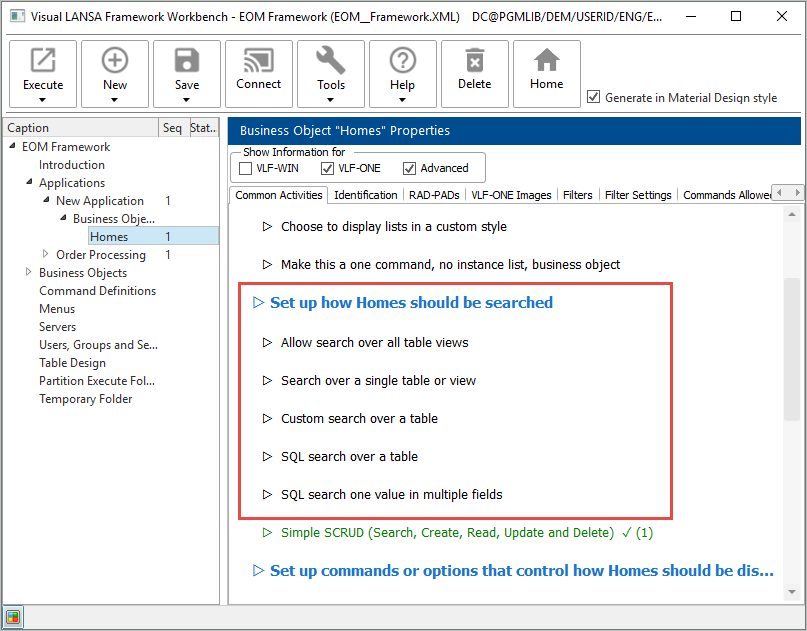
Before you can generate a filter, the instance list table, columns, and identifier have to be set up (see Define the Instance List). In this example, the table associated with the business object is xHomesForSale.
Choose the option Allow search over all table views to generate filters for the table associated with the business object as well as all its views. Choose Create Only.
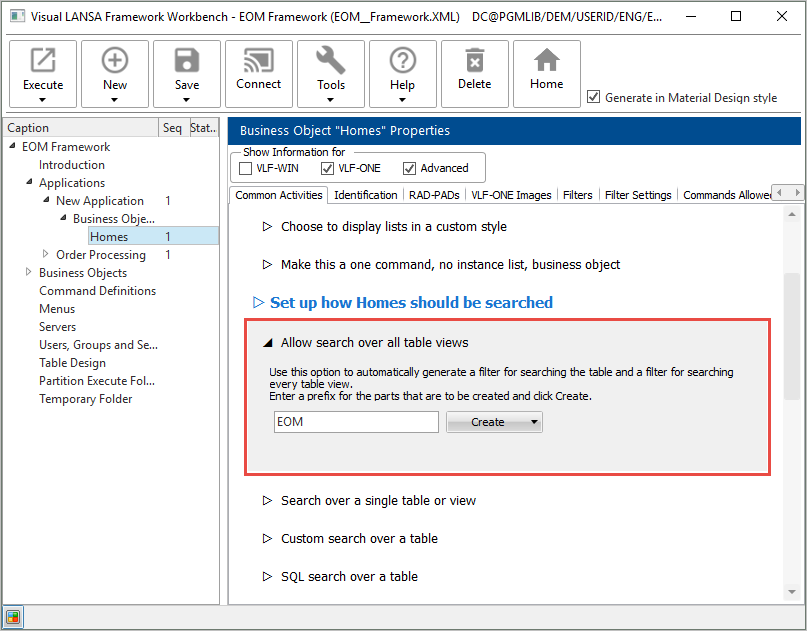
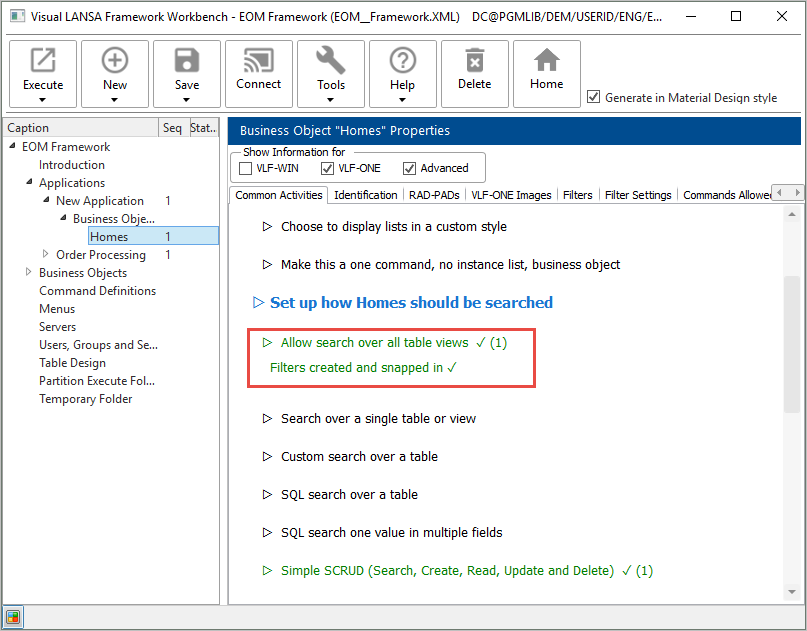
Wait until the filters have been created and snapped in.
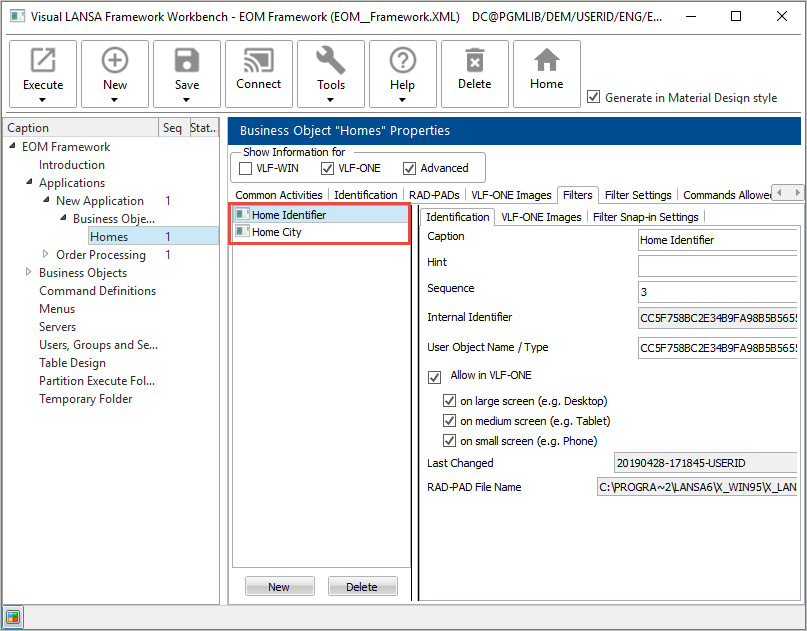
Then display the Filters tab to see your filters:
Execute the Framework to test the filters (note that you can move the filter position using the button on the toolbar):
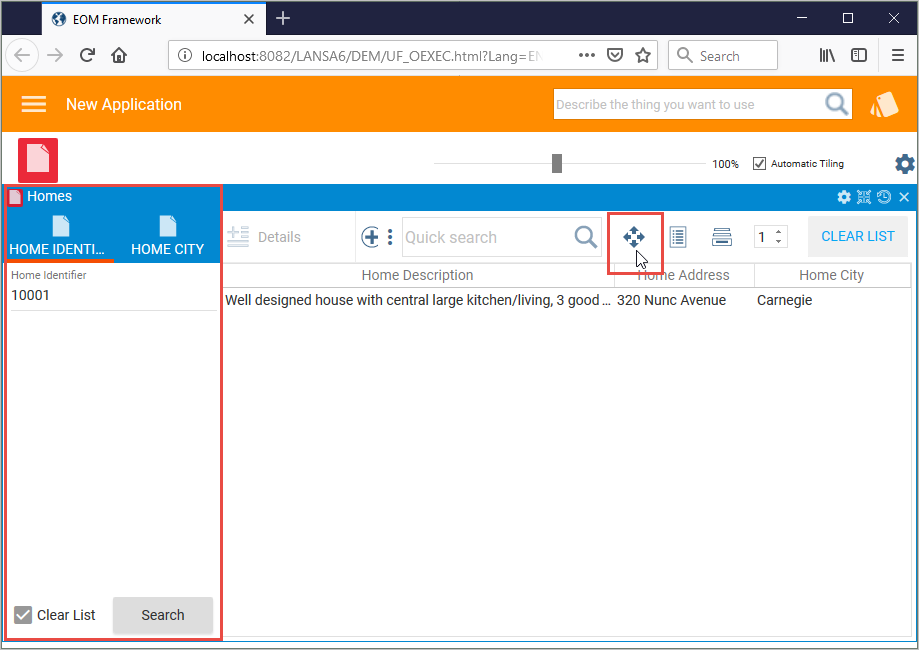
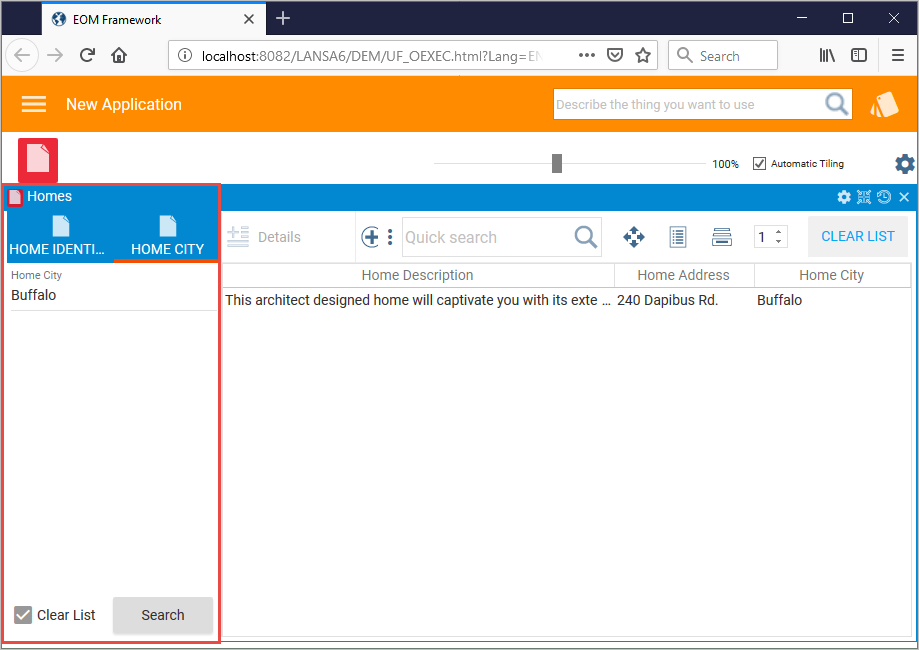
Switch to the Visual LANSA editor, and display the repository tracking list for your Framework to see the filters and their associated server modules which that have been created for the business object.
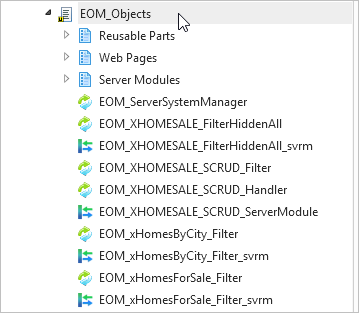
Note that the XXX_XXXXXXX_FilterHiddenAll - a hidden filter which that fills in the instance list without any user interaction – is not snapped into the Framework by default.
[ |../../index.htm#lansa/vlfonetutorials_0215.htm]