Page History
[  |../../index.htm#lansa/vlfonetutorials_0300.htm]
...
This section will help you in understanding where your Framework parts reside on an IBM i server.
Before you start uploading your Framework, ensure that:
...
Identify all the components you have created for your Framework. If you have developed using the Framework's prefix and you have generated a repository list for that prefix (see Create a Repository List to Track the Things You Create), the list will help you find the components that need to be checked in.
Check in all the objects and select the option to compile during check in. The compiled version of all these components needs to be available on the IBM i.
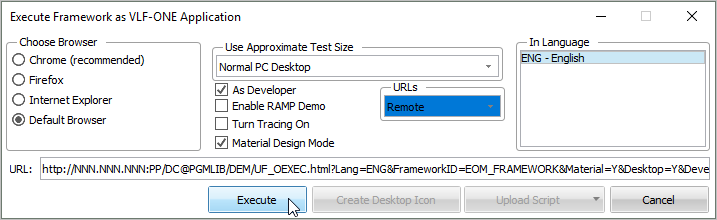
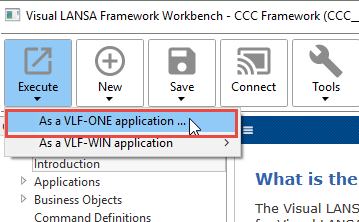
Execute the Framework:
Choose Remote for URLs:
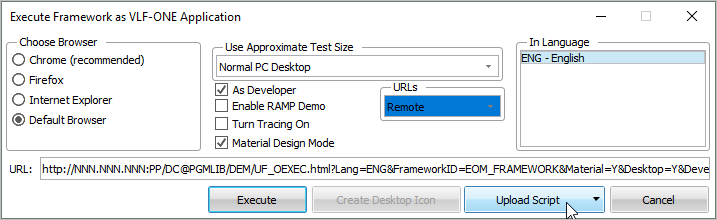
Change the URL to use the ip address and web port of your IBM i web server.
Now click Upload Script and choose the Edit Script option.
Modify these lines so that they are valid for your user profile on the IBM i, then save the script:
| Code Block |
|---|
SET ibmiserver=NAME or IP ADDRESS |
...
SET userprofile=USER PROFILE |
...
SET password=PASSWORD |
...
Now click Upload Script again and select the Execute Script option.
This will:
- Upload your Framework's .Dat file to the partiton partition execute directory on the IBM i
- And if applicable upload your RAMP Nodes .js file to the partition's /web/vl directory on the IBM i.
Do a basic check that everything has been uploaded to the IBM i IFS.
Use Windows Explorer to view the IFS of the IBM i, looking at the directory associated with your LANSA installation and partition.
This will be something like:
| Code Block |
|---|
<<IFS>\LANSA_DC@pgmlib\x_lansa\x_DEM\execute |
The structure is very similar to what is on your development PC.
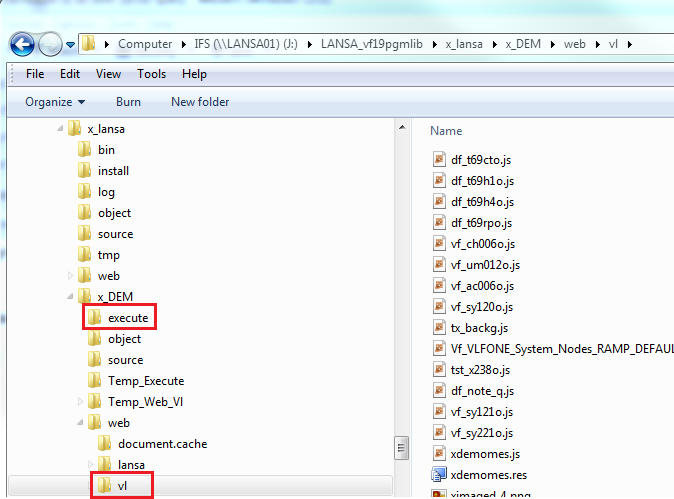
In the partition's execute directory, you should be able to see your Framework's .Dat file
In your partition's /web/vl directory, you should be able to see the js files for:
- Your snap in components
- The VLF (vf_*.js)
- The RAMP nodes file, if applicable
Now click Execute on the Execute Framework as a VLF-ONE Application dialog to start your Framework.
[ |../../index.htm#lansa/vlfonetutorials_0300.htm]