Page History
...
In this step you will organize the fields on the screen by putting them into group boxes.
1. Click on Edit Screen in the aXes Designer window.
2. Click Customize Field and set the removeCUADots property to True for all elements on the screen that have dots. 
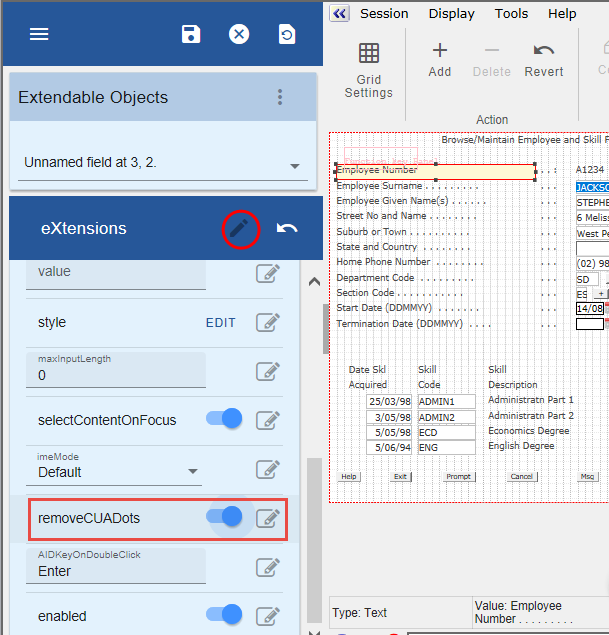
3. Save this change.
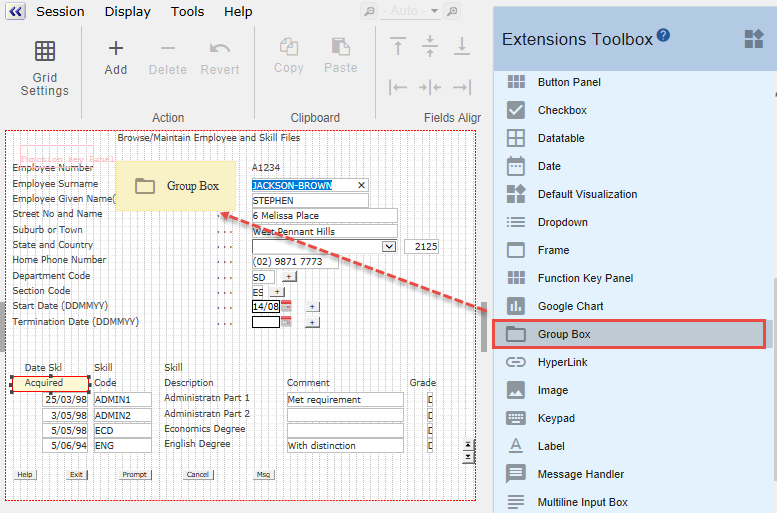
4. Drag a Group Box from the Extensions Toolbox to the screen:
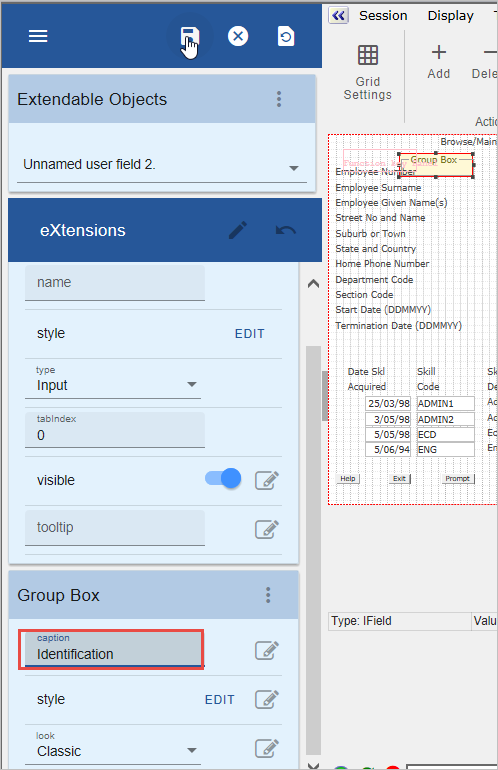
5. Make the Caption of the group box Identification.
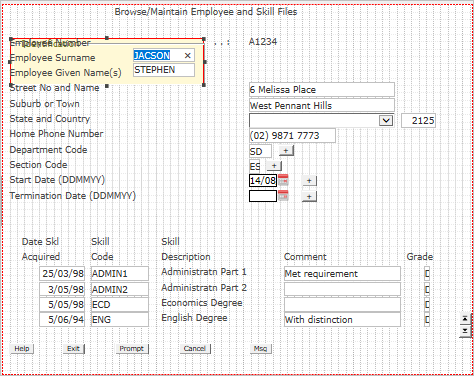
6. Initially size it like this (the Employee Number will not be visible once you exit edit mode, see RAMP-WINAD04 Step 3. Hide Repetitive Information):
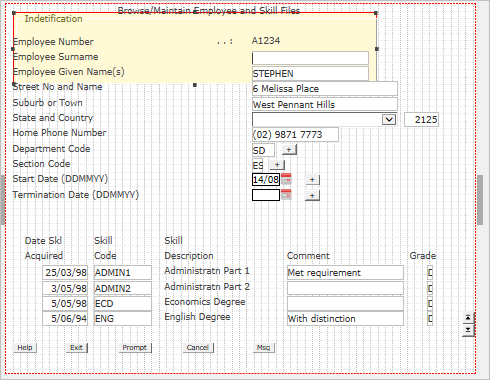
You can also move the Employee Number fields elsewhere on the screen because they will not be displayed.
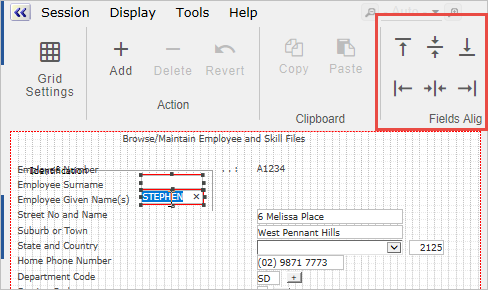
7. Then resize the fields and move them inside the group box like this:
When aligning the fields you can use the field aligning options on the ribbon:
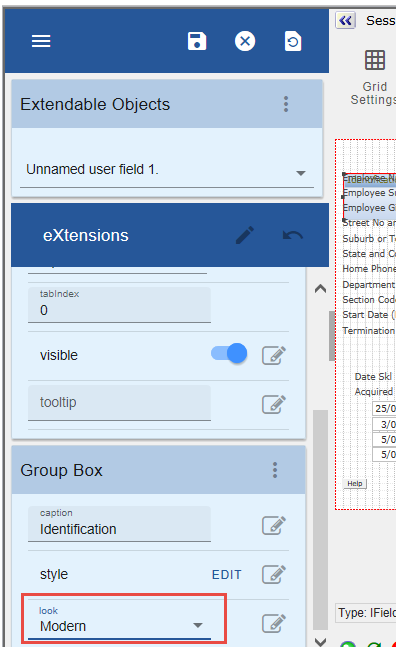
8. Set the look property of the group box to Modern:
9. Save this change.
10. Add another group box with the Caption Dates and look Modern.
11. Place it next to the Identification group box.
12. Put the Start Date and Termination dates in the group box like this:
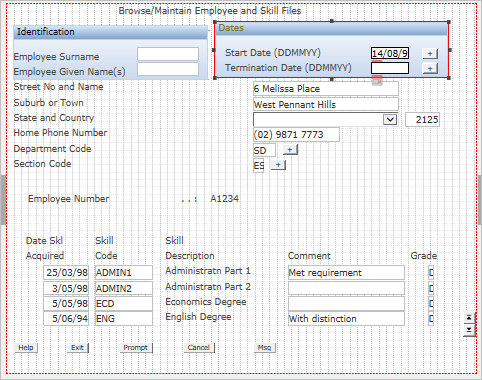
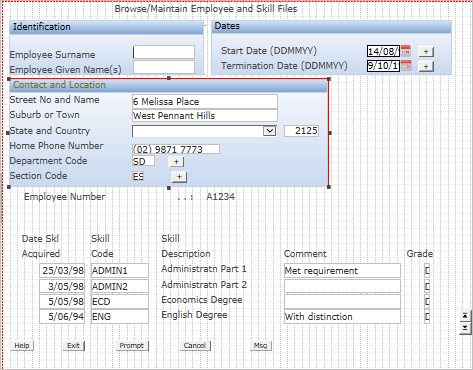
15. Add another group box with the caption Contact and Location and look Modern (again leave some space around the group box so that it will be surrounded by the screen's background color).
16. Place it under the Identification group box and put the remaining fields except for the skills details in it:
17. Finally, add a group box for the skills information with the caption Skills, again leave some room around the group box:
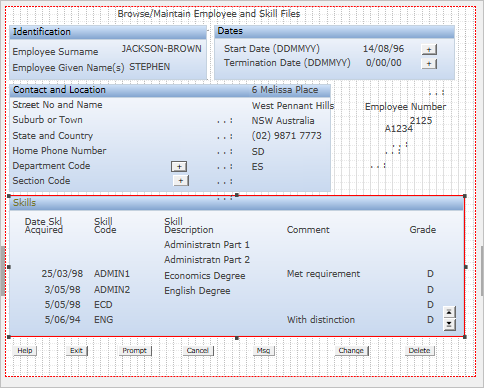
18. Save the screen customization.
Show Contents List