Page History
[  |../../index.htm#lansa/usrtut01_0065.htm]
You are here:
...
From most areas within the LANSA interface, context-sensitive help is provided by pressing the F1 button. In this step, we show an example.
If you are not logged on to the Visual LANSA Development Environment, log on now as described in Step 1 of this exercise.
1. Select the Repository tab. If you can't see the Repository tab, on the Home ribbon, select the Tabs menu, then select Repository.
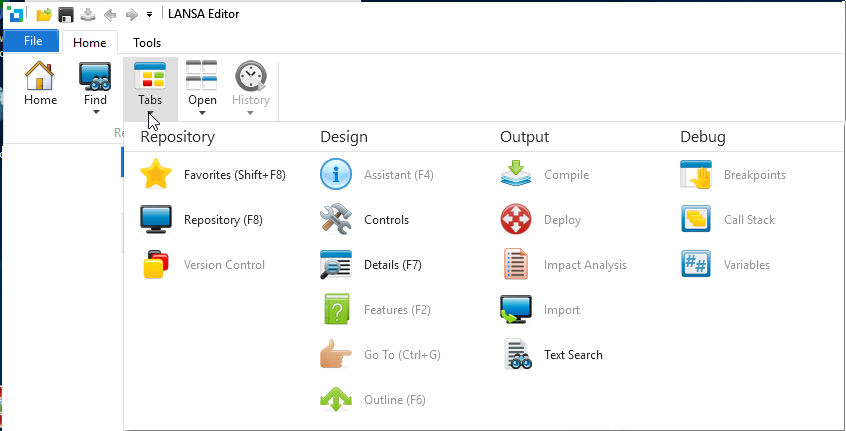
Note that the Repository tab can also be displayed using the F8 key.
2. With your cursor somewhere within the Repository tab, press F1.
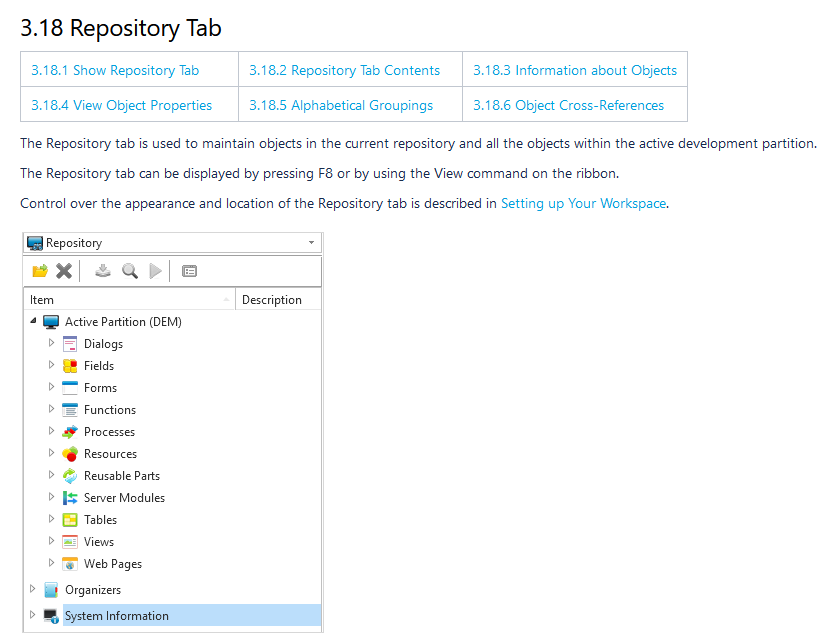
The context help for the Repository tab is displayed in the browser.
3. Click on the hamburger icon in the toolbar to show the Contents List. You can now access all other sections in Choose from the left tree menu the page you want to access from the Visual LANSA User Guide.
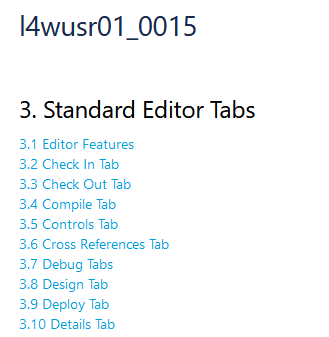
. You can also do this using the breadcrumbs at the top of the page.
4. In the breadcrumb list, click on 3 Standard Editor Tabs.
From here, you can access help for any of the editor's tabs. 6
4. Click on Home  button in the toolbar to open the LANSA documenation documentation home page where you can access any other online guide.
75. In the Editor, from the File menu, select the New option, and select Field. Note that in this exercise you will NOT complete the New Field process.
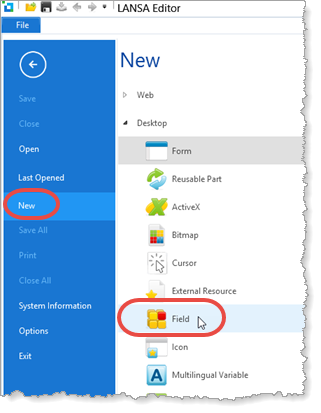
86. The New Field dialog will be displayed.
97. Notice that the cursor is positioned on the Name. Press the F1 key to display the online help for Field Name.
Help for Field Name will be displayed in the browser.
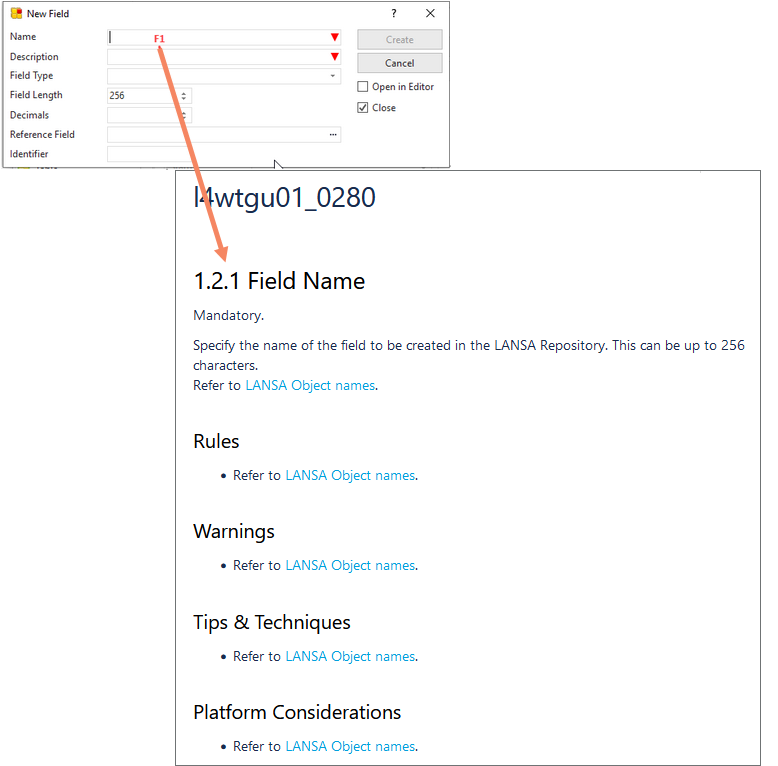
108. Click to  to close the New field dialog.
[ |../../index.htm#lansa/usrtut01_0065.htm]