Page History
[  |../../index.htm#lansa/reptut01_0240.htm]
You are here:
...
In this step, you will create iiiDepartments - Department Table.
1. Select the New button in the File menu and select Table.
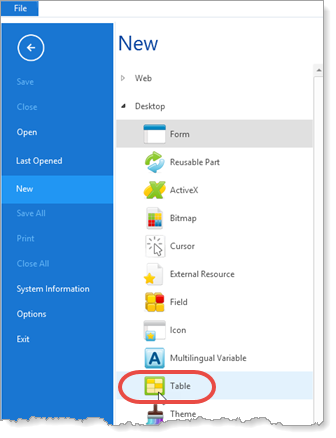
a. Enter the following characteristics for the table:
Name | iiiDepartments (where iii=your initials) |
Description | Department Table |
Enabled for RDMLX | Yes |
|
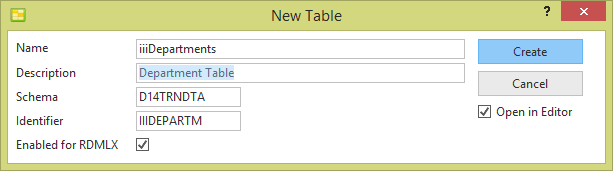
b. Select the option to Open in editor.
c. Click the Create button.
2. You will now start adding fields to the table.
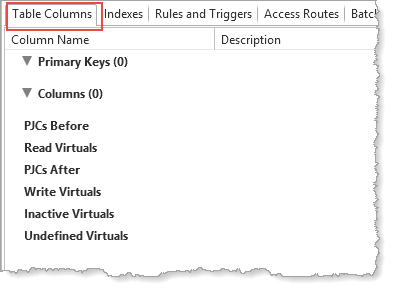
a. Make sure the Table Columns tab is displayed.
b. Display the iiiLIST tab which you created in exercise REP001- Step 6. Create a Dynamic List for Your Fields .
c. Drag the iiiDeptCode field to the table under Columns.
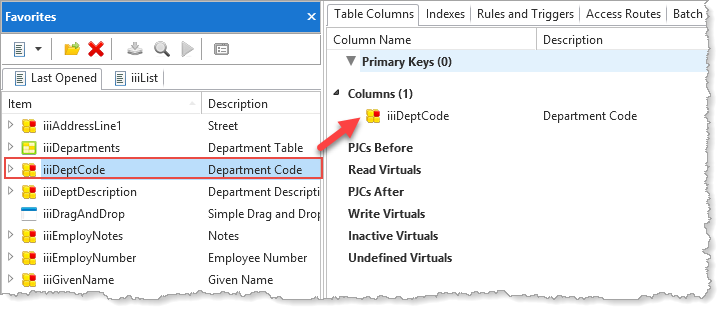
d. With the iiiDeptCode field selected in the table, click on the Key Field button on the Home ribbon, to make it the key field of the table.
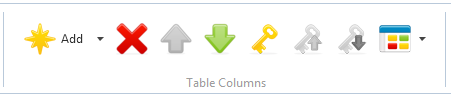
(You can also drag the field directly under Primary keys to make it a key field.)
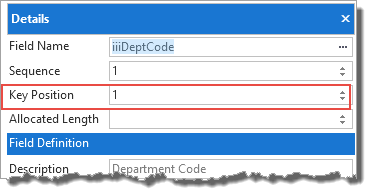
e. Double-click iiiDeptCode to display the Details tab.
f. Notice the Key position is 1 to indicate that iiiDeptCode is the first key field in the table.
g. Add the iiiDeptDescription field to the table using drag-and-drop from the Favorites / iiiList. Your
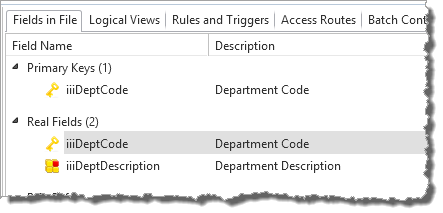
Your table will appear as follows:
[ |../../index.htm#lansa/reptut01_0240.htm]